
Troubleshooting
This section lists the issues encountered with AppViewX.
Whenever the AppViewX installation fails, you will get an error stating that some script execution failed.
- Pre requisites not met
Please check for all the items below.
- port not opened
- insufficient disk/CPU
- time not in sync
- packages not found
- hostname incorrect in configuration
- etc
- Error while initializing the kube master/worker
In certain cases, when uninstallation does not clean up the data properly, we may observer errors while initializing kube master and worker. In such cases, perform an uninstall, reboot all the nodes and then go ahead with the install. Additionally, there are cases where the installation fails due to port connectivity issues. If a failure occurs in this stage, check if ports 6443, 10250, 2379 and 2380 are opened properly.
- Error while initializing the mongodb chart
This specific error occurs after a timeout of 5 minutes to initialize the mongodb charts. This error occurs when the pods are not able to communicate between themselves. Use the following commands to verify that:
For any connectivity issues, the output of this command will display the specific error stating connection timed out.kubectl describe statefulset -n avx mongodb - IP in IP tunnelling is not enabled
If the IP in IP traffic is disabled, which means that the IPv4 protocol is not permitted, we will encounter the same problem. The prerequisite check script does not identify this, so we need to verify it separately to confirm.
- Error while installing the AppViewX plugins
If an error occurs during the installation of AppViewX plugins, it is likely due to an error in the configuration file. You may observe and error such as
Upload failed: scp, in such cases re-trigger plugins_install.sh to install the plugins. Likewise, ensure to review the configuration file carefully and proceed with the execution of plugins_install.sh to install only the plugins. - Issue with uninstall script hanging on Ubuntu 22.04 due to
needrestart commandRoot cause: It is observed that in some Ubuntu setups, the uninstall process gets stuck due to a prompt that waits indefinitely, causing the script to hang. This issue is new in Ubuntu 22.04 and is related to the needrestart command, which is now part of the apt-get upgrade process. By default, needrestart is set to "interactive" mode, leading to interruptions in scripts.
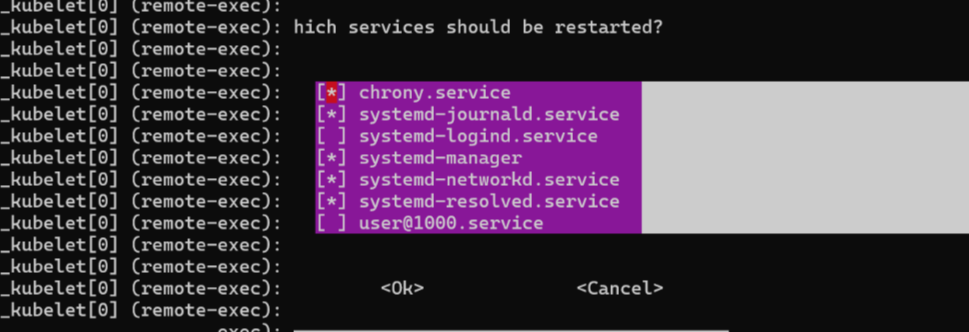 Remediation: To change this behavior, edit the /etc/needrestart/needrestart.conf file by modifying the line from
to,#$nrconf{restart} = 'i';
After making this change, subsequent runs should not encounter this issue.$nrconf{restart} = 'a'; - Error initializing storage of type raft: failed to create fsm: failed to open
bolt file: timeoutDue to an existing bug in Vault/OpenBao, data replication can sometimes exceed the default timeout for opening the Raft database. Currently, there is no configurable option to adjust this timeout. As a workaround, the vault.db file can be manually copied to the nodes where Vault crashes due to this issue. Please follow the steps below for this process:Note: Before performing these steps, please take the backup of vault.db in the nodes where the vault has crashed. Location: $INSTALLATION_PATH/vault-data/.
- Login to the node where the Openbao pod is running.
- Navigate to $INSTALLATION_PATH/vault-data dir.
- Use scp to copy the vault.db to the node where vault is crashing.
scp $INSTALLATION_PATH/vault-data/vault.db <username>@<node_ip>:$INSTALLATION_PATH/vault-data/Source location: $INSTALLATION_PATH/vault-data/vault.db
Destination location: $INSTALLATION_PATH/vault-data/
-
Restart the crashing Openbao pods.
