
Build
- To create a customized report, on the Reports :: My Reports page, click Create New Report.
-
On the Reports :: My reports > Create :: basicinfo page, under
the BUILD section, enter or select the required field information.
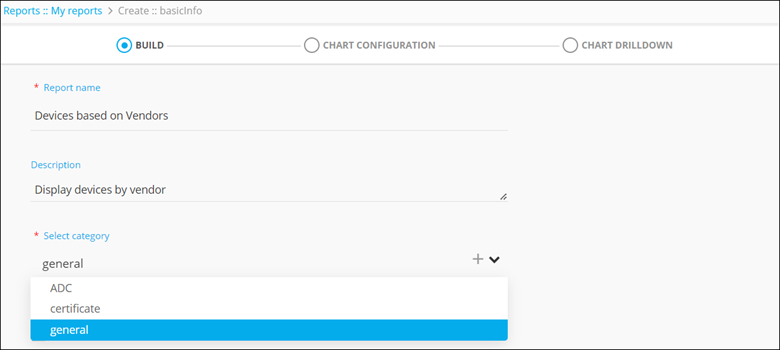 The following table describes the field information in this section:
Field Description *Report name Enter a valid report name. For example: Devices based on vendors.
Description Enter a valid description of the report. For example: Display devices by vendor.
*Select category Select category from the options available in the drop down menu or click + to add a new category. - Certificate - Select category as certificate for creating certificate related reports specifically.
- ADC - Select category as ADC for building ADC related reports specifically.
- General - Select category as general for all reports.
* : Mandatory fields -
To query certificates based on role permissions, select the ACL
Restricted check box.
Note: Check this box specifically for creating certificate related reports.
-
To query report data, either select a preexisting hook or click Create new
Hook.
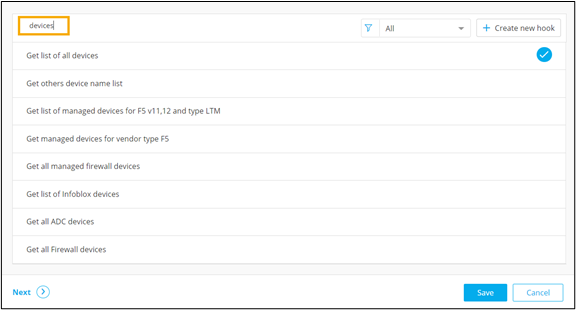 Note: For more information on creating hooks, click here.
 - To save this basic information on the report, click Save.
-
To go to the next stage of report building, click Next.
The CHART CONFIGURATION section is displayed.
