
Auto-trigger Scripts 
You can choose to enable the auto trigger option against every form field. The scope of auto trigger is limited to the following:
- Auto trigger works for the first form field on loading.
- The input from the form must be from a radio button or dropdown form field.
- Based on the input, auto trigger gets executed ONLY for the next immediate field.
-
Design a form using the following fields and
associate scripts:
Field Name Form Input/Response Autotrigger script to execute Get Datacenter Get Datacenter - Button getdataCenterlist Datacenter Response: Display list of datacenters in dropdown getDeviceGrouplist AppViewX Device Group Response: Display List of Device Groups in dropdown getDevicelist Select Device/CI ResponseL Display list of devices in dropdown getVIPNames Select VIP Response: Display List of VIP Names for the device in dropdown -
To preview the form, from the menu on the top, click
 (View) icon.
-
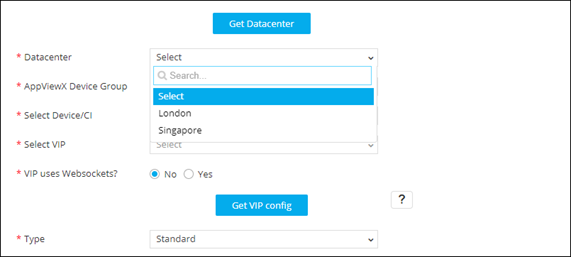
In the form preview, click Get Datacenter.
The script is auto triggered to populate the dropdown in the next (Datacenter) field.
-
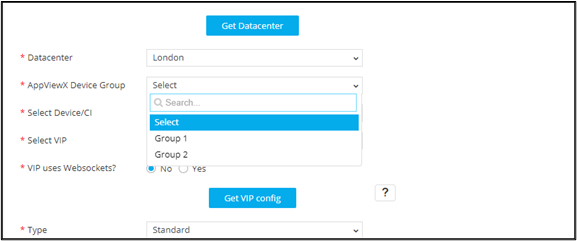
From the options displayed in the Datacenter dropdown list,select London
from the dropdown list.
The script is auto triggered to populate the next (device group) field.
-
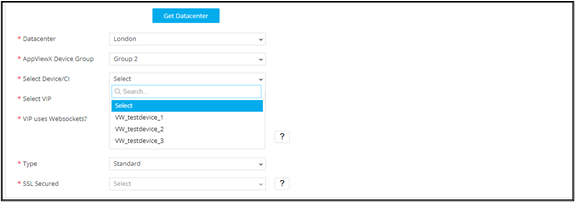
Select Device group as Group 2.
The script is auto triggered to populate the next (select device) field.
-
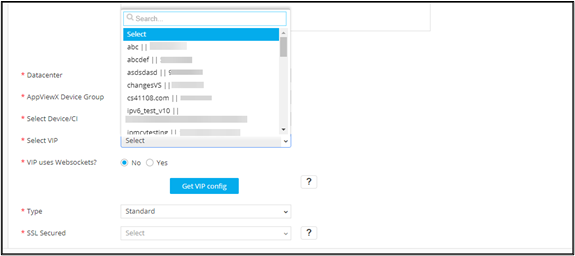
Select the Device to auto trigger the script and populate the next
(select VIP) field.
Note: Hooks can be executed by an auto-trigger even if the fields
are in different form groups.
