
Holistic View
To add Holistic View task to your workflow:
- Design a workflow.
- From the User Interface section, drag and drop the Holistic view task.
-
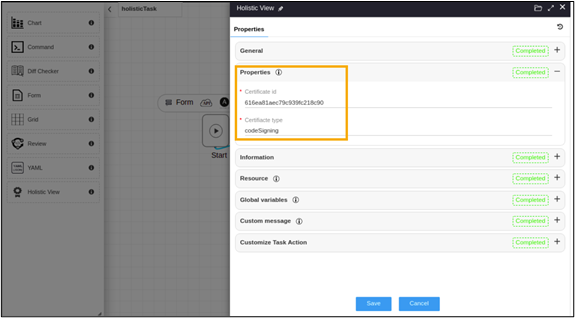
In the Holistic view task window, under Properties, define the
Certificate id and Certificate type either as static values or
a global variable.
-
In the Holistic view task window, under Resource,
define the permissions in the chart as follows:
- V (View) - Users can only view the interface. There is no Submit or Cancel buttons provided.
- R (Review) - Users can only view/read, Submit and Cancel without editing the task.
- RW (Read Write) - Users can read/write, Edit, Submit, and Cancel the task.
-
Connect the workflow tasks
and from the menu on the top, click Preview.
Holistic view is executed. Hover your mouse over
 (Certificate status icon to view the certificate status.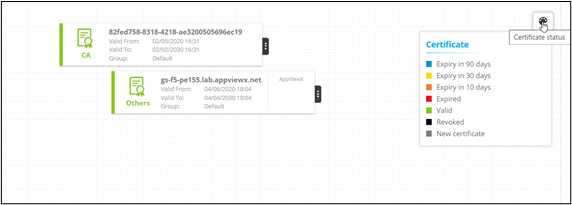
-
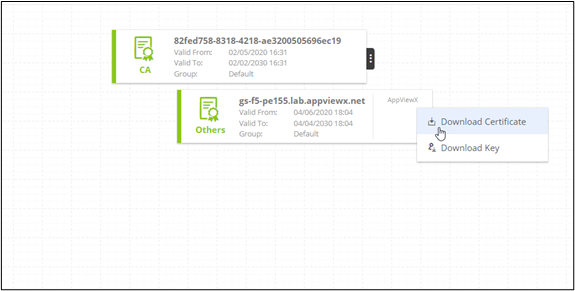
To download the certificate and certificate key, click
 .
. 
-
Click Submit.
Note: You can add multiple Holistic view tasks to the workflow.Note: For more information on Holistic View, refer to the Cert+ User Guide.
