
Designing a Custom Form 
- Build a custom form.
- Associate custom script(s) within the form builder.
- Assign form access to specific user role(s).
- Declare one or more form field values as ‘global variables’.
To design a custom form:
- Design a workflow.
- From the User Interface section, drag and drop the Form task.
-
To design a new form, in the Gallery window, click
 (Create) icon.
-
Under Information, enter the necessary field values.
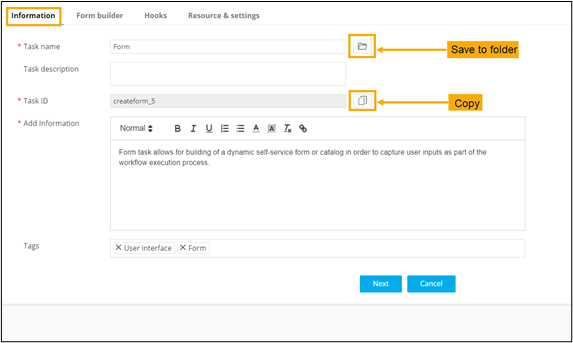
Table 1. Field descriptions for Information Field Description *Task name Provide a unique task name. 
Provision to bookmark the task within a custom folder in the workflow studio. Task description Enter a valid task description. *Task ID Enter a unique task ID of the form task. 
Provision to copy the task ID and use it across the workflow. *Add Information Provide information about the form task. * : Mandatory fields -
Under Form builder, add the form fields.
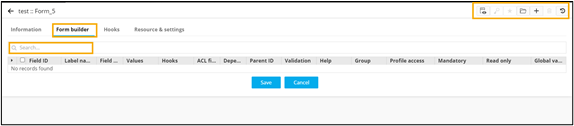
Table 2. Field descriptions for Form builder Option Description Search Allows you to search for a specific form field. 
Allows you to preview the form. 
Allows you to select one or more form fields and assign to a user profile. 
Allows you to select one or more form fields and mark them as mandatory or otherwise. 
Allows you to select multiple form fields and group them logically. 
Allows you to add multiple form fields. 
Allows you to select one or more form fields and delete them. 
Allows you to view form history. Note: For more information on adding form fields, click here. -
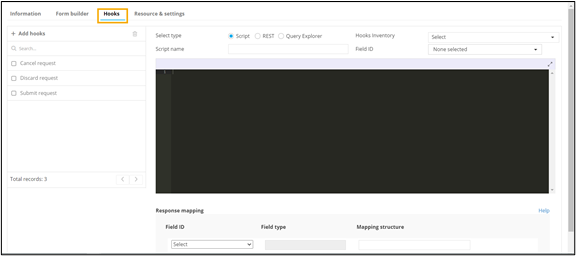
To query different data sources such as database, device, or external systems
and aid in mapping the response values to a form field, click
Hooks.
-
To assign access to specific roles(s), click Resource &
Settings.
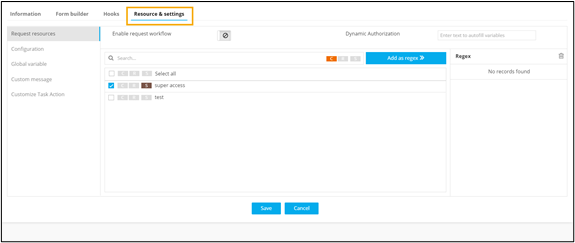 When trying to add the regex "*", a validation error will be triggered, resulting in the disabling of the "Add as regex" option.
