
Activation of Free Plan by Admin Users
- Login to your SaaS Account as tenant admin.
-
From the upper left corner of the screen, click
 (Menu).
-
On the displayed menu click All Products.
The AppViewX ONE Platform landing page is displayed.
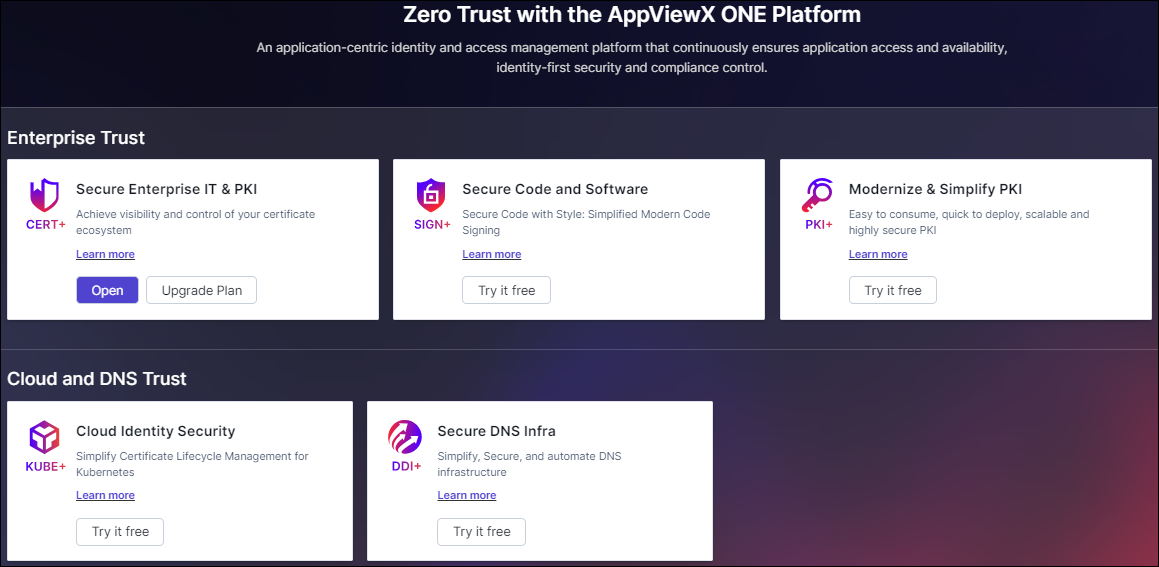 Note: The production license product will display options to Open and Upgrade Plan. All other products showing Try it Free are freemium products.
 -
To try a product, click Try it free to start your free plan of the
product.
You will be redirected to the Welcome page of the selected product with features enabled in the Free plan.
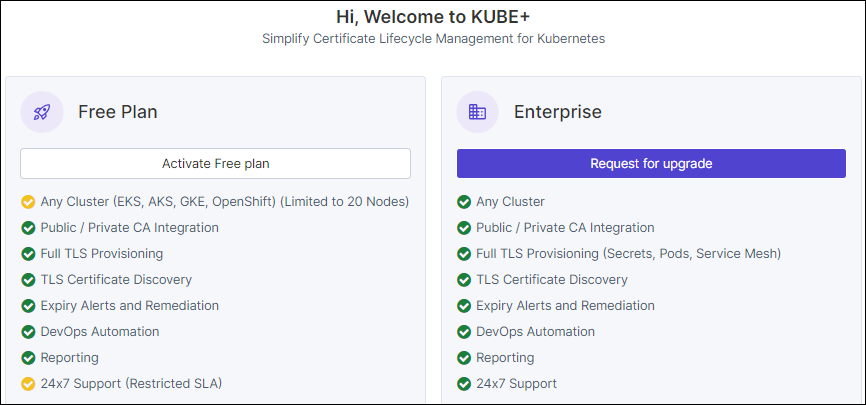 Note: The free plan starts on the day you receive the activation email and AppViewX notification. The free plan period is valid until your production license expires. For more details on the free plan usage limit, please reach out to AppViewX Support.Note: Only users with administrative privileges can activate the Free Plan and will be notified upon activation.
 - Click
Activation of Free plan
-
Click Activate Free plan for activation of free plan.
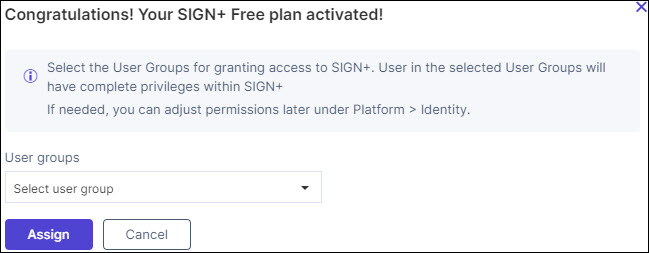
Congratulations! Your (Product) Free plan activated! Popup is displayed.The Free Plan will be activated for the selected product, and you will receive an email with AppViewX notification.
-
(Optional) Select the User Groups for the dropdown to grant access
to free products.
Users in the selected User Groups will have complete privileges within the product.Note: If needed, you can modify permissions later under Platform > Identity.
-
Click Assign.
Confirmation popup stating Access granted for the selected user groups is displayed and users in the selected group will receive an email as well as an in-product notification.
-
Click Explore (Product Name).
You will be redirected to the GET STARTED/Default landing page of the selected product and the Free Plan flag appears next to the product name.The following products are included in the Free Plan and the respective product guide links are mentioned below:
OR
- Click Go to All Products to view other products on the AppViewX ONE Platform landing page.
Request for upgrade
To Request for upgrade, follow the steps below:
- Click Request for upgrade to buy a production license.
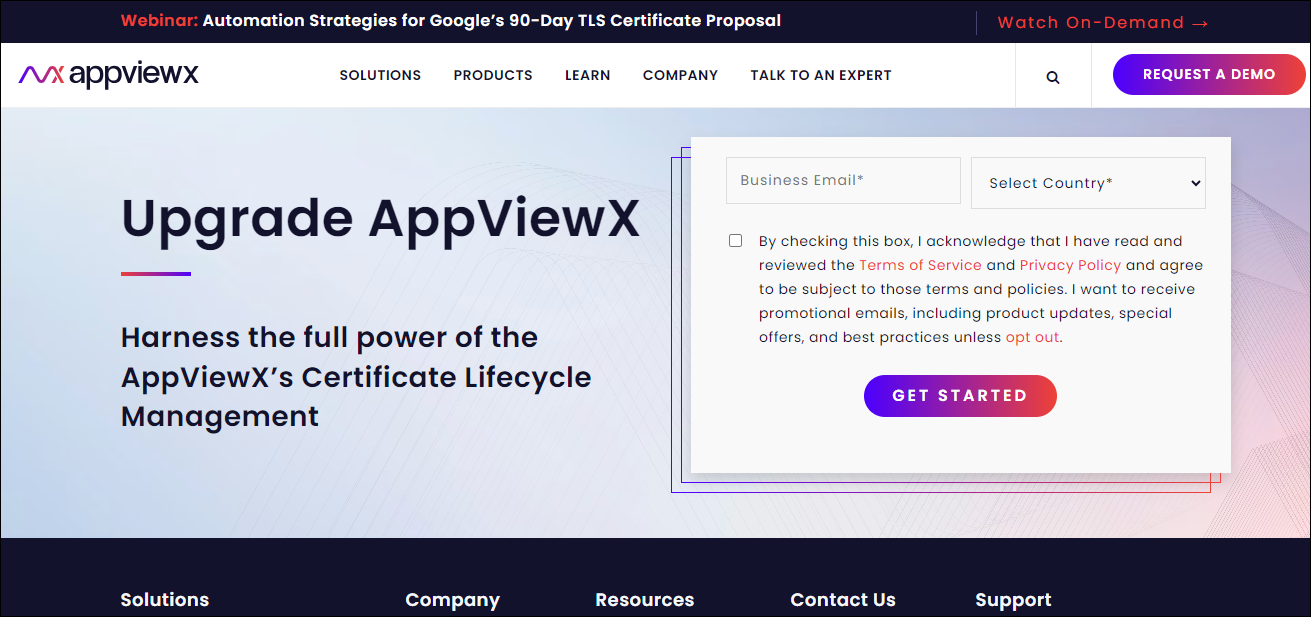 For more details on upgrade
steps, click
For more details on upgrade
steps, click Deactivate Free Plan
To deactivate the free plan:
-
On the Settings :: License page, Click on the Product Name of
the activated free plan product.
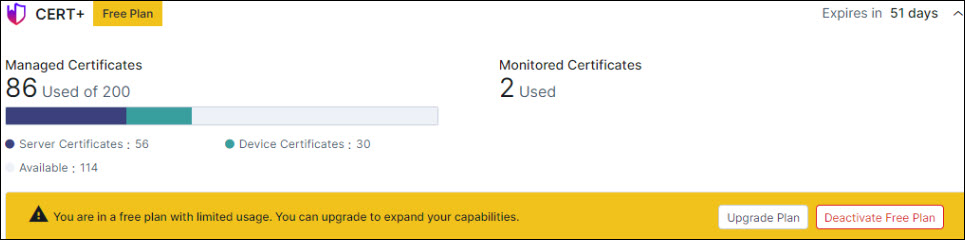
The Product Free Plan details are displayed.
-
Click Deactivate Free Plan.
Deactivate Free Plan popup is displayed.
-
Click Deactivate.
Product will be Deactivated Successfully and will be removed from the License page, the Menu dropdown and revoked all free plan/permissions associated with the product.Note: The data will be retained, and users can any time again activate the free plan from all products page.
