
Orphan Certificates Report
To trigger this workflow:
-
From the Certificate Lifecycle
Automation catalog, under the Report category, hover your mouse over
the Orphan Certificates Report workflow and click
 .
The workflow is executed with the workflow inputs requested at the first stage.
.
The workflow is executed with the workflow inputs requested at the first stage. -
Under the Device Information section, enter or select the requested field
information as described in the table below.
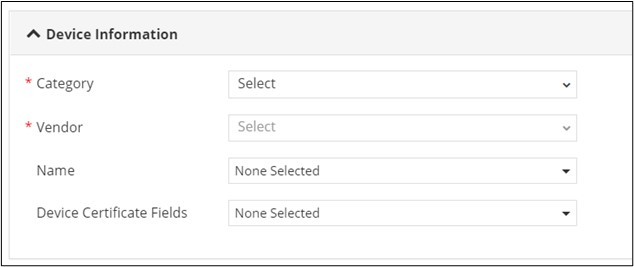
Table 1. Field Description for Device Information section. Field Description *Category Select the device category for the report from the options available in the dropdown. *Vendor Select the device vendor for the report from the options available in the dropdown. Name Select the specific device for the report. Device Certificate Fields Select the report fields to be displayed in the report from the dropdown list. All Asterisk (*) marked fields are mandatory. -
Under the Notifications section, enter or select the requested field information
as described in the table below.
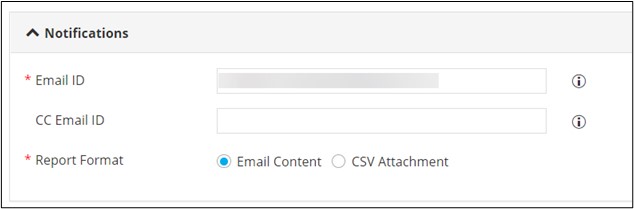
Table 2. Field Description for Notifications section. Field Description *Email ID Enter the email address of the recipient in the ‘To’ field. Comma separated values can be entered for multiple email addresses. Note: The email id of the logged in user is populated automatically.CC Email ID Enter the email address of the recipient in the ‘CC’ field. Comma separated values can be entered for multiple email addresses. *Report Format Select the required checkbox to send the report as: - Email Content:The report will be sent as Email content.
- CSV Attachment: The report will be sent as a separate attachment in CSV format.
Note: Email Content is the default selection.All Asterisk (*) marked fields are mandatory. -
Click Submit.
The Orphan Certificates List is generated and an email notification is sent to the recipients specified in the input form.
