
Certificate Expiry Notification - Days
To trigger this workflow:
-
From the Certificate Lifecycle
Automation catalog, under the Alert and Notification category, hover
your mouse over the Certificate Expiry Notification - Days workflow and click
 .
The workflow is executed with the workflow inputs requested at the first stage.
.
The workflow is executed with the workflow inputs requested at the first stage. -
Under the Certificate Expiry section, enter or select the requested field
information as described in the table below.
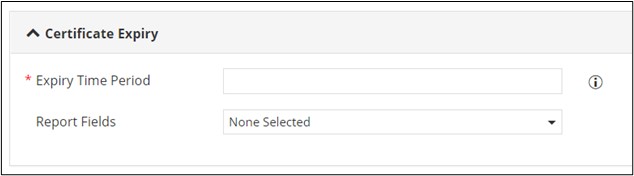
Table 1. Field Description for Certificate Expiry section. Field Description *Expiry Time Period Enter the expiry time period for which notification has to be sent. Multiple values can be entered, separated by commas. You can either define it as an exact number or a range or a combination of both. For example, 30,60,90 or 0-30,30-60,0-60 or 30,30-60,90. - Input type: Range - The expiry report will be generated for the range specified. For example, 0 - 30 days, 0 - 60 days, 0 - 90 days.
- Input type: Exact - The expiry report will be generated for certificates expiring on the exact specified date. For example, certificates expiring on the 30th, 60th, 90th day.
Report Fields Select the fields to be displayed in the report from the dropdown list. All Asterisk (*) marked fields are mandatory. -
Under the Notifications section, enter or select the requested field information
as described in the table below.
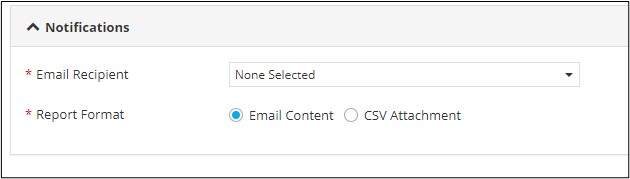
Table 2. Field Description for Notifications section. Field Description *Email Recipient Select the required recipient of the notification. You can select: - Select all
- Certificate Email: The notification will be sent to the email addresses associated with the certificate.
- Certificate Group Email: The notification will be sent to the entire certificate group to which the certificate belongs.
*Report Format Select the required checkbox to send the report as: - Email Content: The report will be sent as Email content.
- CSV Attachment: The report will be sent as a separate attachment in CSV format.
Note: Email Content is the default selection.All Asterisk (*) marked fields are mandatory. -
Click Submit.
The workflow is executed successfully and an email notification with a report listing certificates expiring in time period as specified in the input form is sent to the recipient email address(es).
