
Microsoft Enterprise CA
Prerequisites
- AppViewX Windows Gateway installer installed on a Windows machine, running and reachable from the AppViewX vendor plugin through the communication modes described here.
- Windows Gateway URL: It is the registered gateway URL of the server where the windows gateway is hosted/installed. The URL format is https://hostname:portnumber/appviewx. For example: https://10.10.10.10:8999/appviewx
- Client Authentication Certificate: It is the certificate (.p12 or
.pfx format) that is shipped with the windows gateway agent installer.
The Windows Gateway URL and the client authentication certificate will be made available only after installation of the AppViewX Windows Gateway is incomplete. Refer the AppViewX Windows Gateway Setup documentation.
- Internet access or a proxy configuration for the AppViewX server. Refer the Managing Proxy Settings documentation in the Platform guides.
Configuring Microsoft Enterprise CA
-
Go to
 (Menu) > CERT+ >
ADMINISTRATION > Certificate
Authority.
(Menu) > CERT+ >
ADMINISTRATION > Certificate
Authority.
-
From the displayed CAs, select Microsoft.
The Microsoft home page is displayed.
- Select the Enterprise tab.
- Click the Configure Now button or +Add icon from the middle or top-right of the page respectively.
-
Enter/Select the CA General Information.
Table 1. General Information - Field Description Table Fields Description *CA Account name A unique name to identify the CA setting. Note: No special characters other than ‘.’, ‘-’,’_’ are allowed. Names should not start with special characters.
*Purpose/Usage Certificate Type for which CLM actions will be enabled. Example. Server, Client, Code Signing Proxy Required Enable this field if the CA communication needs to happen via Proxy. The proxy details configured in general settings will be used for communication. Data Center (AppViewX's CA agent) Select the data center through which the CA communication needs to happen. *: Mandatory fields -
Enter/Select the CA Configuration details.
Table 2. CA Configuration - Field Description Table Fields Description Windows Gateway Mode For communicating with Windows-based devices, from the following options, select the gateway agent mode to be used: - External
This mode will use the AppViewX Windows Gateway Agent that is set up on a Windows device.
- Integrated
This mode will use the prepackaged gateway that is integrated in the AppViewX Cloud Connector (enabled only in the SaaS and Managed Kubernetes installations).
*Windows Gateway URL For Windows Gateway Mode = External, enter the URL of the endpoint where the AppViewX Windows Gateway Agent is installed and running. Command Execution Type Select the command type that will be used for communication with the External AppViewX Windows Gateway Agent. Note: The integrated gateway uses only the PowerShell command execution type and therefore, this field is not displayed when Windows Gateway Mode = Integrated.Command execution host (IP/FQDN) Note: This field is displayed when Windows Gateway Mode = Integrated.A command execution host is a Windows device needed to execute specific commands to fetch the CAs and templates available. The command execution host is expected to be a domain controller machine (primary) and will be used only once to fetch the list of available CAs.Enter the IP address/FQDN of the remote Windows device that the integrated gateway will use for CA communication.
Note: If the Microsoft server is configured for the Integrated Windows Gateway mode, ensure that the hostname used is resolvable in the cloud connector. The usage of FQDN is preferred.*Credential Type You will be required to enter credentials to access the command execution host/Windows device on which the gateway agent is running. From this dropdown list, select the mode through which the credentials will be entered (manually or fetched from a credential list).
CA Deployment Mode From the following options, select one that indicates how the Certificate Authority (CA) is deployed in your environment: - Standalone: Indicates a single-instance CA setup
- High Availability: Indicates a clustered deployment to ensure redundancy and failure support
*Username Enter the username for accessing the Windows device. *Password Enter the password for accessing the Windows device. Client Authentication Certificate Note: This field is displayed only when Windows Gateway Mode = External and Select gateway = New.Upload the client certificate used while installing Windows Gateway. You can use the default client certificate (ClientCertificateGateway.pfx) or a custom certificate.*: Mandatory fields - External
-
Click Fetch CA Names to retrieve CAs accessible from
Windows Gateway installed machine.
Upon successful completion of Fetch CA Names, all reachable CAs listed in Select CA.
-
Click on one specific CA and proceed.
Table 3. CA Details - Field Description Table Fields Description Select CA All the reachable CAs are listed here. *CA Machine Hostname Host name of the CA Machine will be auto-filled. Note:- If the Microsoft server is configured for the Integrated Windows Gateway mode, ensure that the hostname used is resolvable in the cloud connector. The usage of FQDN is preferred.
- The credentials used for Fetch CA will also be utilized for CA machine communication through the Integrated Gateway.
*Secondary Hostname(s) For a high availability CA deployment, enter the hostname/IP address of the secondary node in the HA pair. This node will take over if the primary node fails.
*CA Name Name of the CA chosen which will be auto-filled. CA Manager Approval Approves the pending enroll / Renew request submitted from AppViewX Certificate. *Time Zone To perform scheduled and Optimized CA discovery, please provide time zone value. *: Mandatory fields -
Enter the Template Details to define the Microsoft certificate
templates to be used for certificate issuance by the CA.
There are two ways you can define the template details: manually enter individual details or upload a file with bulk template configuration.
To manually enter template details:
For a bulk template configuration:-
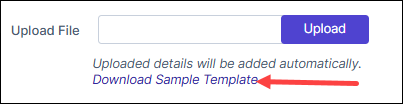
For reference and if required, download the sample CSV template
file.
-
On the Certificate Authority page, click
Upload.
 The uploaded details are automatically added.
-
For reference and if required, download the sample CSV template
file.
-
Configure the Advanced Settings for certificate issuance.
Fields Description Poll after CSR submission To automatically fetch the certificate after CSR submission for enrollment, renewal, or reissue requests, select Poll after CSR submission. *Retry Count Specify the number of times AppViewX will attempt to retrieve the certificate if it is not immediately available after the initial request. Minimum number of rety attempts: 1
Maximum number of retry attempts: 10
*Retry Frequency Sepcify the time interval, in seconds, between consecutive retry attempts. Minimum time interval between retry attempts: 1 second
Maximum time interval between retry attempts: 30 seconds
*: Mandatory fields -
Click Save.
In the CA instance inventory, the connection status is initially set to In Progress. Twice after this, this status is automatically checked and refreshed every 5 seconds. Once the CA instance is successfully configured, the status is updated to Success. Status checks after the first two times have to be done via a manual refresh.Note: In case the connection fails, you can manually verify the connection status by clicking the Check button in the Connection Status field.
Manually Validating the Microsoft Enterprise CA Connection Status
-
Go to
(Menu) > CERT+ >
ADMINISTRATION > Certificate
Authority.
-
From the displayed CA, select Microsoft.
The Microsoft home page is displayed.
- Select the Enterprise tab.
-
In the Status column of the grid with the listed accounts, click
Check to validate the CA setting that has been
created.
The CA communication will be validated and the Connection Status will be shown as either Success or Failure.
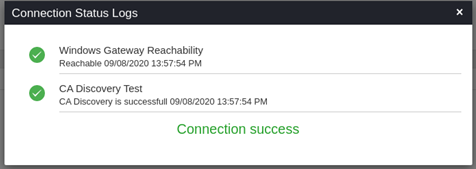 Success Scenario for Native API
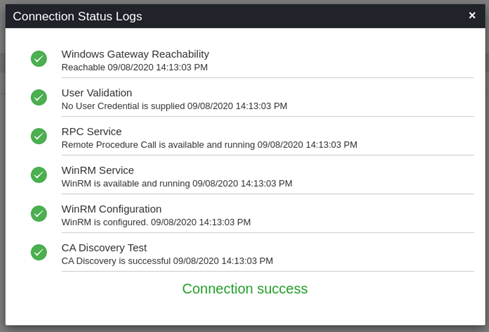 Success Scenario for Powershell
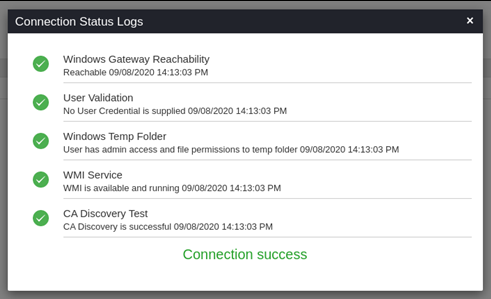 Failure scenario for WMI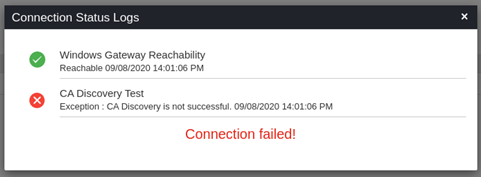
Communication Modes
| Communication mode | Category | Windows gateway machine | Microsoft CA |
|---|---|---|---|
| NATIVE API | User account type | Service account | Service account. |
| User permission | NA | Read, Request certificates, Issue and Manage
certificates permission at CA level for the service account or
the service account group or authenticated users Enroll permission at Certificate template level for the service account or the service account group or authenticated users |
|
| Services | RPC service | RPC service certutil.exe command availability |
|
| Ports | 49152-65535 | 49152-65535 | |
| POWERSHELL | User account type | Service account | Admin account |
| User permission | NA | Full control permission to
C:\Windows\Temp Read, Request certificates, Issue and Manage certificates permission at CA level for the service account or the service account group or authenticated users |
|
| Services | RPC Service, WinRM Service, WinRM Configuration, Powershell remoting,certutil.exe command availability | RPC Service, WinRM Service, WinRM Configuration, Powershell remoting,certutil.exe command availability. | |
| Ports | NA | 5985 | |
| WMI | User account type | Service account | Admin account |
| User permission | NA | Full control permission to
C:\Windows\Temp Read, Request certificates, Issue and Manage certificates permission at CA level for the service account or the service account group or authenticated users |
|
| Services | WMI service certutil.exe command availability |
WMI service certutil.exe command availability |
|
| Ports | 49152-65535. | 49152-65535 |
