DigiCert CA
As a temporary provision till May 01st, 2026, DigiCert CA will allow dual authentication in the EKU. Customers who need to continue enrolling server certificates with dual authentication enabled can contact the AppViewX’s Site Reliability Engineering (SRE) team at [email protected].
However, it is strongly recommended to transition away from the use of server certificates for dual authentication to align with industry best practices.
Prerequisites
- A DigiCert CertCentral Account with one of the following roles:
- Administrator (Full admin access including access to create divisions and users and to manage user access)
- Standard User (Access to place and manage orders with changes being approved by a manager or administrator)
- Manager (Access to mange finances, create and approve requests, manage orders and domains, and to view and edit users)
- Finance Manager (Access to manage finances and to place and manage orders)
- API keyImportant: The API key is displayed only one time when it is generated. Ensure that it is copied and saved in a secure location.
- Account ID
For links to detailed instructions to get the above information from DigiCert, see the References section.
- Internet access or a proxy configuration for the AppViewX server. Refer to the Managing Proxy Settings documentation in the Platform guides.
Configuring DigiCert
-
Go to
 (Menu) > CERT+ >
ADMINISTRATION > Certificate
Authority.
(Menu) > CERT+ >
ADMINISTRATION > Certificate
Authority.
-
From the list of CAs displayed on the left, select
DigiCert.
The DigiCert CA account inventory is displayed. By default, the DigiCert CA tab is open.
-
If it is your first DigiCert CA integration in AppViewX, click
Configure Now.
The Configure Now button is displayed only if this is the first integration instance.
For the subsequent integrations, from the top-right corner of the page, click Add.
The DigiCert configuration page is displayed. -
Enter/Select the General Information details for the
DigiCert CA configuration.
Table 1. General Information - Field Description Table Fields Description *CA Account name Enter a unique name for the Certificate Account (CA) account, which will be displayed during certificate enrollment and policy creation. Constraints:- Valid special characters: ., -, and _
- CA account name should not begin with a special character and/or a space.
*Purpose/Usage From the dropdown list, select the certificate type(s) for which CLM actions will be enabled. Possible values: Server, Client, Code Signing
Proxy Required For CA communication to happen via a proxy, select this checkbox. Proxy settings configured in the Platform module will be used for communication. To read more on how proxy settings are configured and managed, click here.
Data Center (AppViewX's CA agent) From the dropdown list, select the data center through which the CA communication must happen. *: Mandatory fields -
To invoke the DigiCert CA APIs for certificate management, enter/select the
CA Configuration details.
Table 2. CA Configuration - Field Description Table Fields Description *Base URL Enter the base URL for constructing API requests. Default value: https://www.digicert.com/services/v2
*Credential Type From the following options in the dropdown list, select the method for providing authentication credentials for integrating DigiCert CA with AppViewX: - Manual Entry: The required credentials will be entered manually.
- Credential List - CyberArk: The required credentials will be retrieved from CyberArk, a Privileged Access Management (PAM) solution.
Account ID Enter the account number provided for your DigiCert account. *API Key The API key is a unique identifier that is used for authentication. In this field, enter the API key that has been generated for your DigiCert account.
*Credential List This field is displayed only when Credential Type = Credential List - CyberArk. The dropdown list is populated with credential entries stored in CyberArk. From the dropdown list, select the credential entry that will be used for authenticating the CA integration.
Fetch Divisions and Certificate Types To fetch the divisions and certificate types available in your DigiCert account, click Fetch Divisions and Certificate Types. AppViewX connects to DigiCert using the credentials provided to fetch the divisions (organizational units in DigiCert to manage certificates) and certificate types (available certificate types based on the Purpose/Usage selected).
Auto Approve Note: This field has role-based access. It is disabled for the Standard User and Financial Manager roles.If all CLM requests from AppViewX do not need to be approved from the Digicert CA account, select the Auto Approve checkbox .Auto approval is optional and works only for one-step certificate requests configured in the Digicert Cert Central Account.
Discover additional fields To fetch the custom attributes/additional certificate metadata configured for the DigiCert CA certificates, select this checkbox. These additional details are configured as vendor-specific details and custom certificate attributes at the time of certificate enrollment.
Important: Enabling this field will have significant performance impact since an additional set of APIs must be executed to fetch the details.*: Mandatory fields -
To fetch the custom attributes/additional certificate metadata details for
this DigiCert CA integration, click Fetch Custom
Attributes.
Note: This field is displayed only when the Discover additional fields checkbox is selected.
-
Click Save.
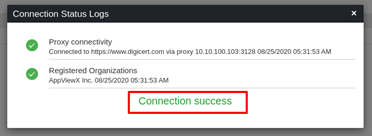
In the CA instance inventory, the connection status is initially set to In Progress. Twice after this, this status is automatically checked and refreshed every 5 seconds. Once the CA instance is successfully configured, the status is updated to Success. Status checks after the first two times have to be done via a manual refresh.Note: In case the connection fails, you can manually verify the connection status by clicking the Check button in the Connection Status field.
Manually Validating the DigiCert CA Connection Status
-
Go to
(Menu) > CERT+ >
ADMINISTRATION > Certificate
Authority.
-
From the displayed CA, select Digicert.
The Certificate Authority page is updated to display an inventory of all DigiCert CA settings onboarded in AppViewX.
-
In the Connection Status column of the inventory grid, click
Check to validate the CA setting.
The CA communication will be validated and the Connection Status will be updated toSuccess/Failure.