
GlobalSign Atlas CA
Prerequisites
- Base URL
- API key and secret key
- Client certificate
For links to detailed instructions to get the above information from GlobalSign Atlas, see the References section.
- Internet access or a proxy configuration for the AppViewX server. Refer the Managing Proxy Settings documentation in the Platform guides.
Configuring GlobalSign Atlas
-
Go to
 (Menu) > CERT+ >
ADMINISTRATION > Certificate
Authority.
(Menu) > CERT+ >
ADMINISTRATION > Certificate
Authority.
-
From the displayed CA, Select GlobalSign.
The GlobalSign home page is displayed.
- Choose the GlobalSign Atlas tab.
-
Click the Configure Now button or
+Add icon from the middle or top-right of the
page respectively.
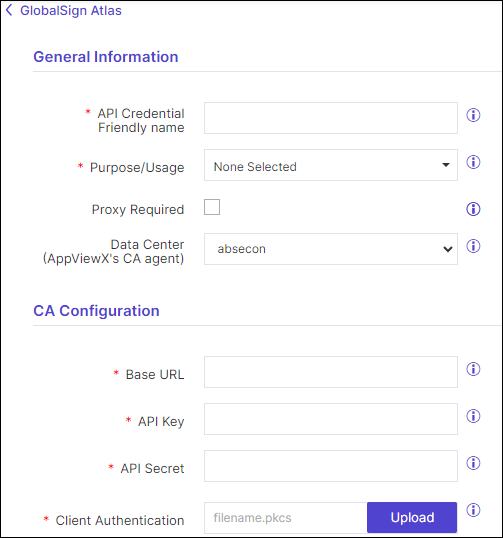
The GlobalSign Atlas configuration page is displayed.
-
Update the following details in the General
Information section as described in the table.
Table 1. General Information - Field Description Table Fields Description *API Credential Friendly name Enter the API Credentials Friendly name (which is the CA Account name that will be used for the CA Policy and Enrollment). *Purpose/Usage Select the purpose of the certificate that can be requested using this account. Note: Users can select Server, Client or both.Proxy Required Select the checkbox if communication to the Certificate Authority (CA) has to use the proxy details provided in the general settings Data Center (AppViewX's CA agent) Select the data center that will be used to establish the communication with the CA. *: Mandatory fields -
Update the following details in the CA Configuration
section as described in the table.
Table 2. CA Configuration - Field Description Table Fields Description *Base URL Enter the base URL required for constructing the API request. *API Key Enter the API key which is the unique identifier used to authenticate a user. Note: The API Key will be displayed as asterisks (*)*API Secret Enter the API secret to communicate with the CA. Note: The API Key will be displayed as asterisks (*)*Client Authentication Upload the certificate for client authentication in the .p12 or .pfx format only. *: Mandatory fields -
Click the Fetch Validation Policy and Save
button.
In the CA instance inventory, the connection status is initially set to In Progress. Twice after this, this status is automatically checked and refreshed every 5 seconds. Once the CA instance is successfully configured, the status is updated to Success. Status checks after the first two times have to be done via a manual refresh.Note: In case the connection fails, you can manually verify the connection status by clicking the Check button in the Connection Status field.
Manually Validating the GlobalSign Atlas Connection Status
-
Go to
(Menu) > CERT+ >
ADMINISTRATION > Certificate
Authority.
-
From the displayed CA, Select GlobalSign.
The GlobalSign home page is displayed.
-
Click GlobalSign Atlas from the left pane of the
page.
The GlobalSign Atlas home page is displayed.
-
In the Status column of the grid with the listed accounts, click
Check to validate the CA setting that is
created.
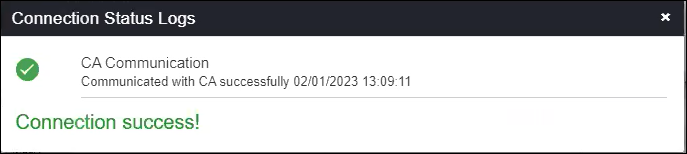
CA communication will be validated and the Connection Status will be shown as either Success or Failure.
References
- GlobalSign Atlas Certificate Management
API Guide
Download the PDF and refer the Overview section.
- Generate API credentials.
- Order a new client certificate.
