DigiCert One
Prerequisites
- DigiCert One account base URL
- API Key or Client Authentication certificate (depending on the authentication mode)
Configuring a DigiCert One CA Account
-
Go to
 (Menu) > CERT+ >
ADMINISTRATION > Certificate
Authority.
The Certificate Authority page is displayed.
(Menu) > CERT+ >
ADMINISTRATION > Certificate
Authority.
The Certificate Authority page is displayed. -
On the Certificate Authority page, from the CA list displayed in the
left, select DigiCert.
The Certificate Authority page for DigiCert is displayed.
- Click the DigiCert One tab.
-
To onboard your first DigiCert One CA account setting in AppViewX, click
Configure Now.
OR
Click +Add.
The Certificate Authority page is updated to display the form fields for onboarding a DigiCert One CA account. -
Enter/Select the General Information for the CA account.
Table 1. General Information - Field Description Table Fields Description *CA Account name A unique name to identify the CA setting. No special characters other than ‘.’, ‘-’,’_’ are allowed. Names should not start with special characters. *Purpose/Usage From the dropdown list, select the certificate type for which the CLM actions have to be enabled. Proxy Required Enable this field if the CA communication needs to happen via a proxy. The proxy details configured in general settings will be used for communication. Data Center (AppViewX's CA agent) Select the data center through which the CA communication needs to happen. *: Mandatory fields -
Enter/Select the CA Configuration details.
Table 2. General Information - Field Description Table Fields Description *Base URL Hostname of DigiCert One instance. For example http://one.digicert.com *Authentication method From the following options, select an authentication method for authenticating the API requests: - API Token: To authenticate the API requests with an API token, select this option.
- Client Certificate: To
authenticate the API requests using a client
certificate file, select this option.Important: Currently, only the API Token authentication method is supported.
*API Key Enter the API key that will be used for authentication. Note: You will be assigned an API key when you login to your DigiCert One instance and create a user.Allow Seat ID during enrollment Seat ID is a unique user-defined value assigned to identify an entity in the DigiCert One account. The seat ID for a certificate is used for certificate enrollment, renewal, and regeneration. For the certificates enrolled for this CA account, you can either assign a unique seat ID for each certificate or a common one for all the certificates.
To assign a unique Seat ID for the certificates enrolled for this CA account, select this checkbox.
If you select this option, a field to specify the seat ID is hidden from the CA settings form and is included in the certificate enrollment form.
*Seat ID Seat ID is a unique user-defined value assigned to identify an entity in the DigiCert One account. The seat ID for a certificate is used for certificate enrollment, renewal, and regeneration. To have a common Seat ID for all certificates enrolled for this CA account.
Use DigiCert One to switch certificates from DigiCert MPKI To automatically switch your DigiCert MPKI certificates to DigiCert One at the time of auto regeneration, select this checkbox. Important: For multiple CA accounts with automatic CA switch enabled, CA switch will use CA settings configured for the first CA account for which the automatic CA switch is enabled.Note: To manually switch CAs, refer to the instructions here.*: Mandatory fields -
To fetch profiles that are assigned to the configured user which will be
used during certificate enrollment, policy creation, through out the
product, click Fetch Certificate Profiles.
All certificate profile configured with “enrollment_method”: rest_api and “authentication_method”: third_party_app are displayed.
-
Click Save.
In the CA instance inventory, the connection status is initially set to In Progress. Twice after this, this status is automatically checked and refreshed every 5 seconds. Once the CA instance is successfully configured, the status is updated to Success. Status checks after the first two times have to be done via a manual refresh.Note: In case the connection fails, you can manually verify the connection status by clicking the Check button in the Connection Status field.
Manually Validating the DigiCert One CA Connection Status
-
Go to
(Menu) > CERT+ >
ADMINISTRATION > Certificate
Authority.
The Certificate Authority page is displayed.
-
On the Certificate Authority page, from the CA list displayed in the
left, select DigiCert.
The Certificate Authority page for DigiCert is displayed.
-
Click the DigiCert One tab.
All existing DigiCert CA accounts are listed in the inventory on this page.
-
From the Connection Status column, click
Check.
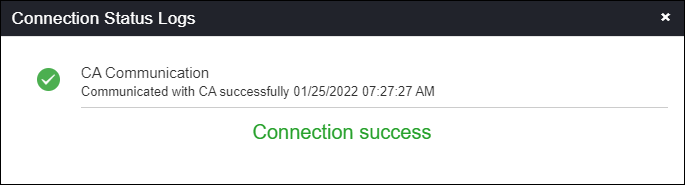
The CA communication is validated and a success/failure message is displayed.