
Users & Roles
The Users & Roles tab lists all Agent Identity Security user
accounts and provides controls for creating and managing users. System administrators
can create, edit, reset passwords for, and deactivate users. Read-only users can view
the list but cannot make changes.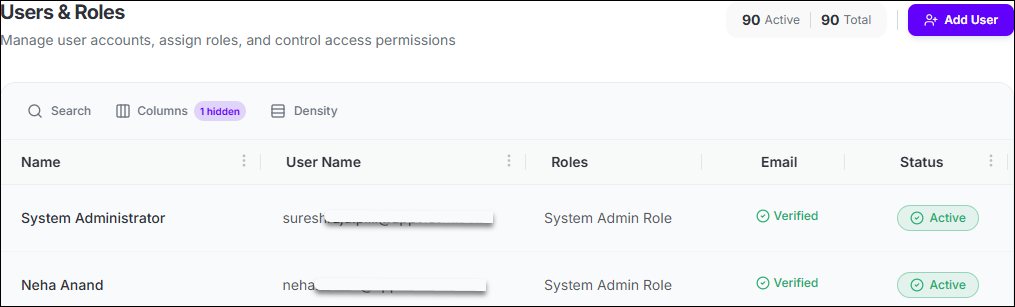
User Inventory Grid
Displays all registered Agent Identity Security users with support for search,
sorting, and pagination.
| Column | Description |
|---|---|
| Name | The user's full name, constructed from first and last name. Supports sorting. Long names are truncated with a tooltip showing the full value on hover. |
| User Name | The email address used to sign in to Agent Identity Security. Supports sorting. |
| Roles | The role or roles assigned to the user. Possible values:
|
| Indicates whether the user's email address has been verified. Displays a green check icon when verified or a red X icon when unverified. | |
| Status | The operational state of the user account. Supports sorting.
Possible values:
|
| Actions | A three-dot overflow menu containing context-sensitive actions for the selected user. See Users & Roles. |
User Actions
The following actions are available from the Actions column overflow menu and
the Add User button:
| Action | Description |
|---|---|
| Add User | Opens the Create User dialog. Required fields are email address, first name, last name, password, confirm password, and role. The password must meet the platform's configured password requirements, which are displayed inline in the dialog. |
| Edit | Opens the Edit User dialog, which allows changing the user's first name, last name, and role assignment. The email address cannot be changed after account creation. |
| Reset Password | Opens the Reset Password dialog, which allows a system administrator to set a new password for the selected user. The new password must meet the platform's configured password requirements. |
| Verify Email | Manually marks the user's email address as verified. Available only for users whose email has not yet been verified. |
| Deactivate | Deactivates the selected user account. A confirmation dialog is displayed before the action is applied. Deactivated users cannot sign in until reactivated. |
Note: The default system administrator
account cannot be deleted or deactivated.
