
Managed Agents
Select any agent from to open its detail page, which brings together the agent's risk posture, connected resources, credentials, associated users, access relationships, activity history, and AI usage in a single view.
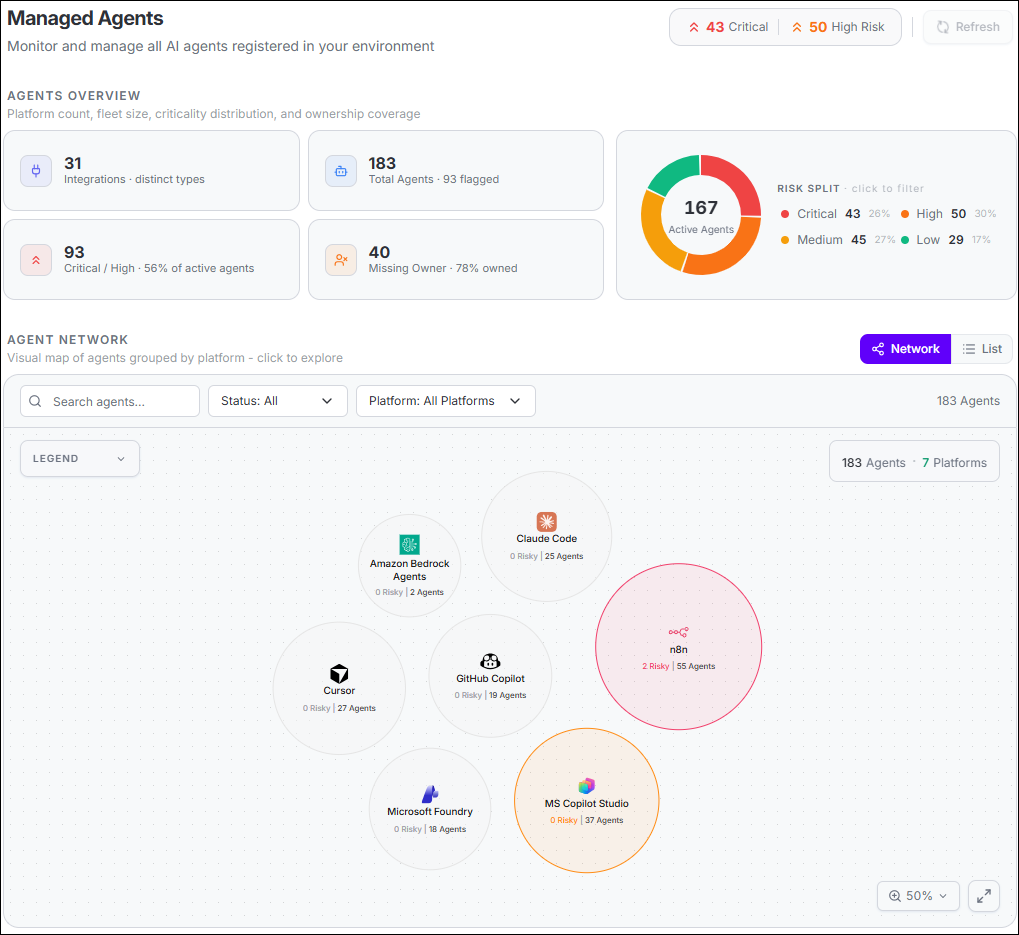
Agents Overview
KPI Stat Cards
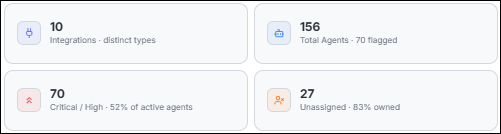
| Card Label | Description |
|---|---|
| Integrations · distinct types | Number of distinct AI platform integrations from which agents have been discovered (for example, n8n, MS Copilot Studio, Claude Code, and so on). |
| Total Agents · N flagged | Total number of agents in the registry and the count of agents that carry an active security flag. |
| Critical / High · % of active agents | Combined count and percentage of agents rated Critical or High risk among all active agents. This metric surfaces the scope of immediate security exposure. |
| Unassigned · % owned | Number of agents with no assigned owner and the percentage of agents that have a designated owner. Unowned agents represent a governance gap that should be remediated. |
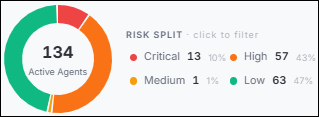
Risk Split Chart
Agent Network View
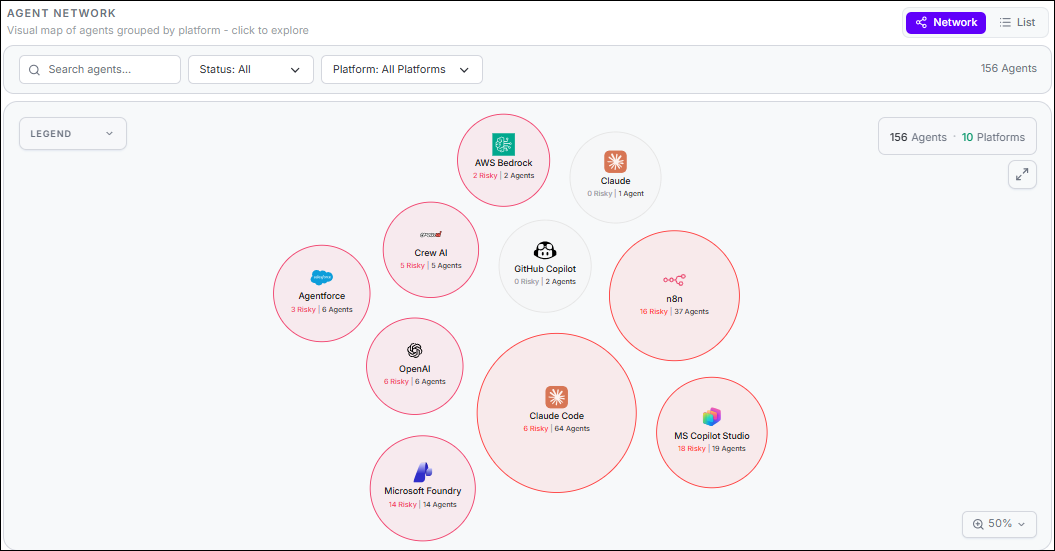
- Network View: Displays an interactive node graph where each platform integration appears as a cluster node showing its agent count and risk summary (e.g., "N Risky | M Agents"). Hover or click a platform node to expand and view individual agent nodes connected to it.
- Canvas Controls: Use the toolbar to search agents by name, filter by status (Active/Inactive) or platform, view the live agent count, toggle the colour-coded legend, and adjust zoom level.
Agent Registry (List View)
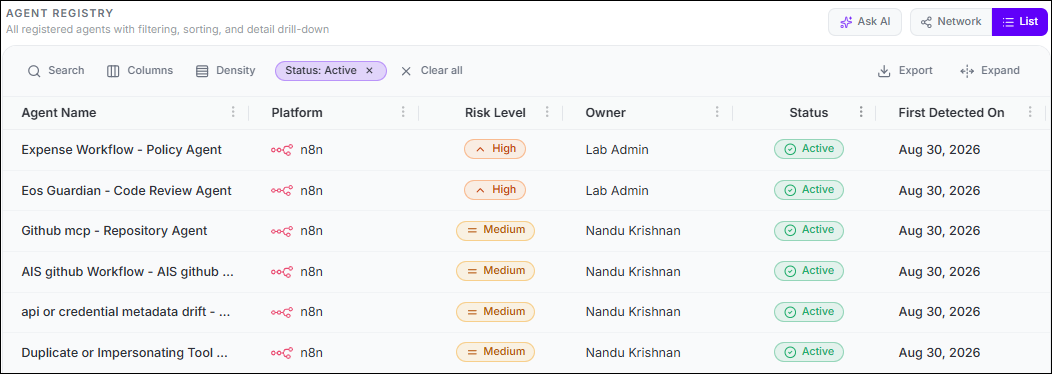
Note: The Agent Registry grid default sort order is by Risk
Level.
| Column | Description |
|---|---|
| Agent Name | Display name of the agent. When the agent belongs to a workflow, the name
is rendered as "Workflow Name - Agent Name". Long names are
truncated with a tooltip showing the full value on hover. Clicking the row opens
the agent detail page. |
| Platform | The integration type from which the agent was discovered (for example, n8n, MS Copilot Studio, Claude Code). Each platform is shown with its logo icon followed by the platform display name. |
| Risk Level | Computed risk rating for the agent based on active posture issues and access configurations. Rendered as a coloured severity badge. Hovering the badge opens a Risk Breakdown popover showing the contributing factors. |
| Owner | The user or service account assigned as the agent owner. Displayed as a truncated string with a full tooltip on hover. Shows a dash (—) when no owner has been assigned. |
| Status | Operational state of the agent. Active (green pill with check icon) indicates the agent is reachable and running. Inactive (grey pill with minus icon) indicates the agent is not responding or has been deregistered. |
| First Detected On | Date when the agent was first registered in Agent Identity Security, rendered as MMM D,
YYYY (for example, "Jun 3, 2026"). Hovering the cell shows the full
date and time in a tooltip. |
