
MCP Servers
The MCP Servers page shows every MCP server your agents connect to helping you identify unapproved servers, detect security problems, and control what tools agents are allowed to use.
What are MCP Servers
MCP stands for Model Context Protocol. An MCP server is a tool provider, a service that gives AI agents the ability to take specific actions, such as searching the web, reading a file, creating a Jira issue, or querying a database. When an agent needs to do something beyond generating text, it calls an MCP server.
Because MCP servers extend what agents can do, they are an important security surface. An unapproved or compromised MCP server can cause an agent to take actions your organization never intended.
- See which MCP servers are in use across your agent fleet.
- Identify servers that have not been approved by your organization.
- Detect posture problems such as dormant servers or missing authentication.
- Control which servers agents are allowed to use.
MCP Summary

| Number | What it means |
|---|---|
| Servers | The total number of MCP servers Agent Identity Security has discovered that your agents connect to. |
| Unsanctioned | Servers that have not been officially approved by your organization. These carry supply-chain risk because they may have been added by individual agents or developers without security review. |
| Posture Issues | The total count of open security problems detected across all MCP servers. |
Analysis panel
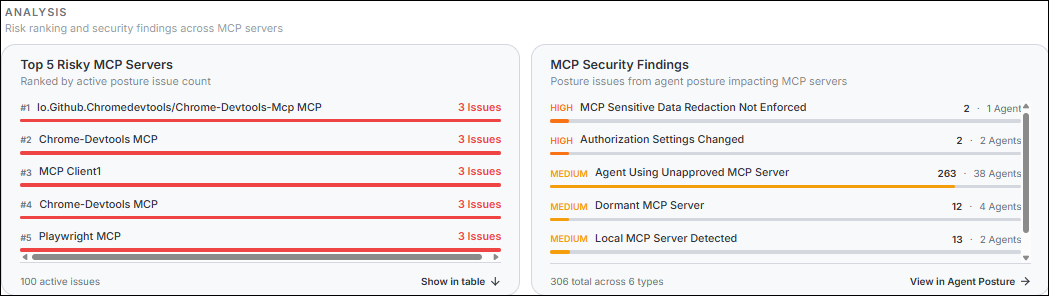
Top 5 Risky MCP Servers
The five MCP servers with the most active posture issues, ranked in order. Each entry shows the server name, the number of issues, and a proportional red bar. Select a server name to go directly to its detail page. Select Show in table to filter the full list to servers with active issues.
MCP Security Findings
A list of security problem types found across your MCP servers, with a count of how many times each appears and how many agents are affected. Common finding types include:
| Finding type | What it means |
|---|---|
| Agent Using Unapproved MCP Server | An agent is connecting to a server that is not on the approved list. |
| Local MCP Server Detected | An MCP server is running locally on a device rather than a managed endpoint. |
| Dormant MCP Server | A server has not been used within the configured inactivity threshold. |
| MCP Tool Parameter Mutation | A server's tool definitions have changed since they were last approved. |
| MCP Authentication Missing | A server has no authentication configured, meaning any agent can call it. |
Select View in Agent Posture to see the full list of issues in context.
All Servers Inventory
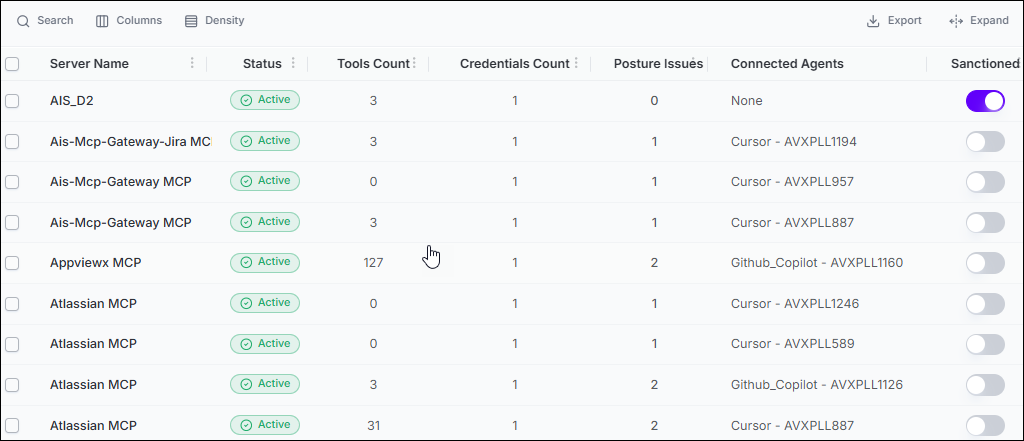
| Column | What it shows |
|---|---|
| Server Name | The server's name. A secondary line shows the agent that provided it. |
| Status | Active means the server is reachable and in use. Inactive means it is not responding or has been disconnected. |
| Tools Count | The number of actions (tools) this server exposes to agents. |
| Credentials Count | The number of authentication credentials configured for this server. |
| Posture Issues | The count of open security problems for this server. |
| Connected Agents | The agents using this server. Hover the +N badge to see all agent names. |
| Sanctioned | A toggle switch. Turn it on to mark the server as organization-approved. Turn it off to mark it as unsanctioned. Using an unsanctioned MCP server raises a posture issue for the agent. Once the MCP server is sanctioned, the posture issue is automatically resolved. |
MCP Server Detail Page
Select a server row in the All Servers inventory to open the MCP Server Detail page for that server.

| Field | Description |
|---|---|
| Server Name | The display name of the MCP server (for example, "atlassian"). |
| Server Type Label | The text "MCP Server" beside the name, confirming the resource type. |
| URL | The endpoint URL of the MCP server (for example,
https://mcp.atlassian.com/v1/mcp/authv2). A
copy icon beside the URL copies it to the clipboard. |
| Tools Badge | Shows the number of tools exposed by this server (for example, "17 Tools"). |
| Status Badge | Colour-coded pill showing "Active" or "Inactive". |
| Sanctioned Badge | Shows "Sanctioned" or "Unsanctioned" to indicate approval status. |
MCP Server Details
Click any row in the All Servers grid navigates to the MCP Server Detail page.
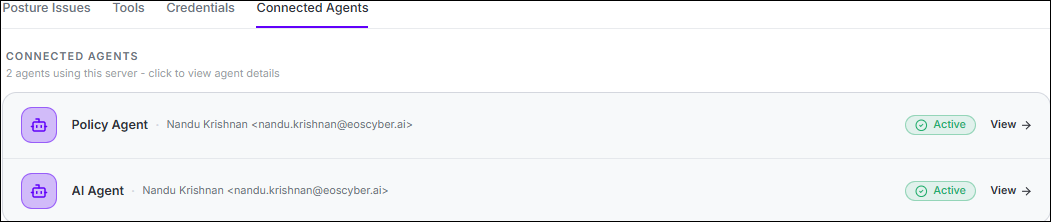
The server detail page provides four tabs Posture Issues (displayed by default), Tools, Credentials, and Connected Agents.
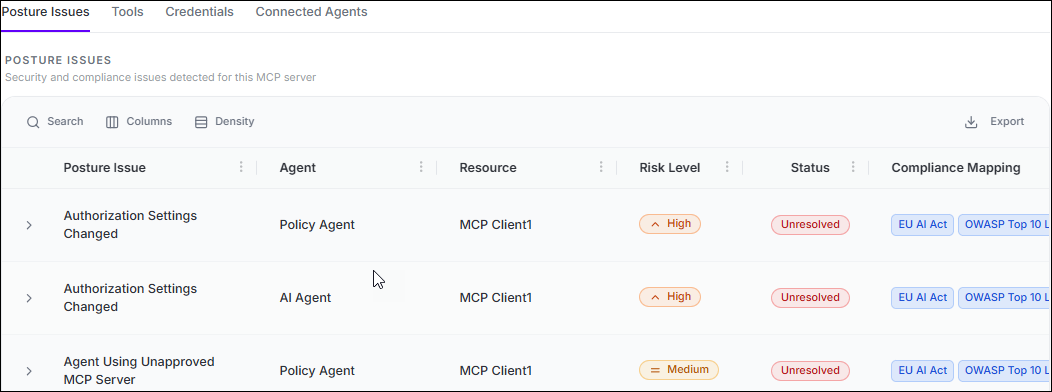
| Column | Description |
|---|---|
| Posture Issue | Name of the detected security or compliance violation (for example, "New MCP Server Attached" or "Agent Using Unapproved MCP Server"). Expandable rows reveal additional details. |
| Agent | Name of the AI agent associated with this posture issue. |
| Resource | The MCP server or resource affected by the issue. |
| Risk Level | Severity rating: Critical, High, Medium, or Low. Displayed as a coloured badge with a matching severity icon. |
| Status | Resolution state of the issue: Unresolved, In Progress, or Resolved. |
| Compliance Mapping | Frameworks to which this issue maps, such as SOC 2,
ISO/IEC 27001:2022, NIST SP 800-53 Rev. 5, and others.
Additional frameworks beyond two are collapsed behind a
+N chip that reveals the full list on
hover. |
| Detected | Date on which the issue was first detected (for example, "Jun 6, 2026"). |
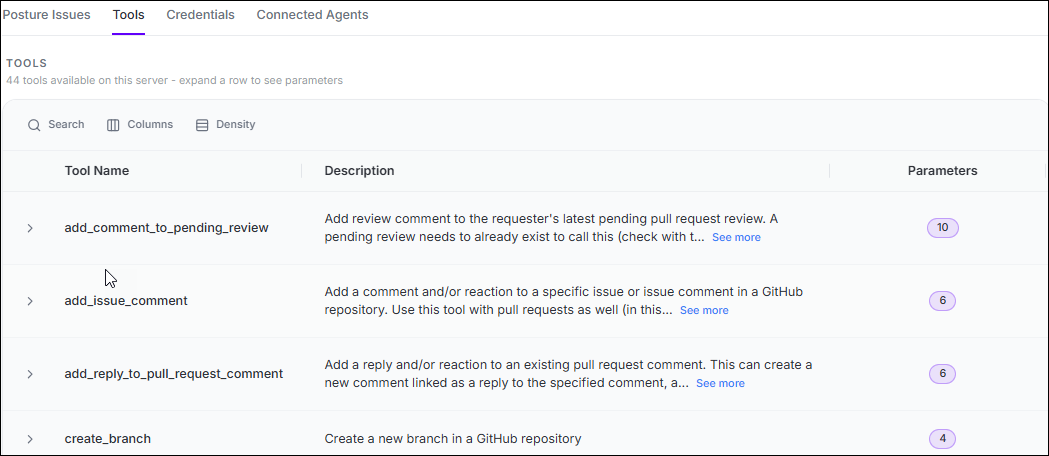
| Column | Description |
|---|---|
| Tool Name | The programmatic name of the tool as declared by the MCP
server (for example, getJiraIssue,
createJiraIssue). |
| Description | A plain-language summary of what the tool does. Long descriptions are truncated with a See more button that expands the full text inline. |
| Parameters | The number of input parameters the tool accepts, displayed as a purple badge. Clicking the row expander (Expand row) reveals the parameter list with each parameter's name, data type, required flag, and description. |

Things to watch for
- Any server showing Unsanctioned status needs a review before agents continue using it.
- Dormant servers with no recent activity should be reviewed and potentially decommissioned.
- Servers with zero credentials configured (MCP Authentication Missing) are open to any caller.
- If a server's tool definitions have changed (MCP Tool Parameter Mutation), verify the change was intentional before allowing agents to continue calling it. Unexpected changes can indicate a supply-chain attack.
