
Thales GPN
Prerequisites
- Ensure the HSM service/pod is up and running before integrating HSM with
AppViewX.
- If on-prem, use avx_platform_hsm as plugin
- If SaaS, use avx_platform_hsm & all Cloud Connector instances for HSM DC.
- The Alien and RPM packages should be installed in the environment.
- Communication to the HSM and AppViewX nodes in the case of
 and the cloud connector in the case of
  should be available to integrate with AppViewX.
The port details are as follows:
should be available to integrate with AppViewX.
The port details are as follows:- Port 443: HTTPS access for secure web-based management interfaces.
- Port 1792: Used for key management and cryptographic operations via the Key Management Utility (KMU).
- Port 9001: Additional port used for HSM management and operations.
- Users should have either root access or sudo access.
- HSM slot and PIN should be available to establish a connection between AppViewX and HSM.
- From the AppViewX perspective, AppViewX has prepared a sample agent installation guide for Thales. Please refer to it for guidance.
Sample Agent Installation
To establish communication between the HSM and AppViewX, the installation of the Thales Luna agent is required. The following steps outline the process followed in our lab setup using LunaClient_10.4.0-417_Linux.zip.
- Copy the LunaClient.zip file to the appviewx server and unzip it.
- Go to LunaClient location
cd <untarred Luna-client-path>/64/ - Execute the chmod command as shown
below:
sudo chmod 755 install.shsudo chmod 755 common - Run the install.sh file using the command given
below:
sudo ./install.sh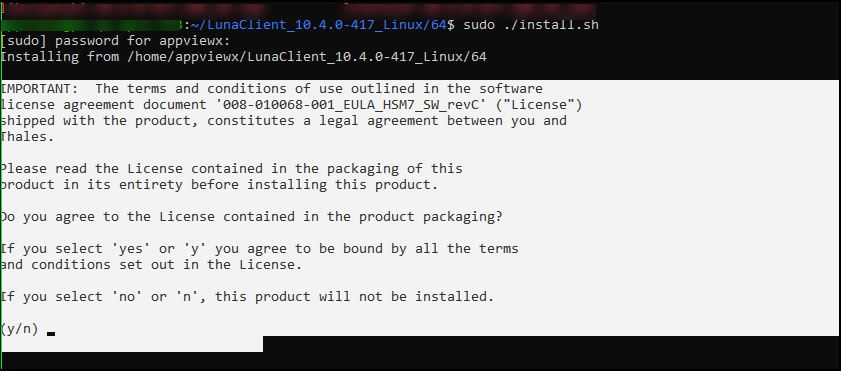
You will be prompted with the question "Do you agree to the License contained in the product packaging?", enter Y or Yes to proceed further.
(Optional step) In some Luna packages you may also be prompted with "Enter the install directory as - "/usr"", enter usr to proceed further.
- When prompted to "Choose the Luna products to be installed", select
Luna Network HSM, i.e. Enter the number 1, then enter
n (next).
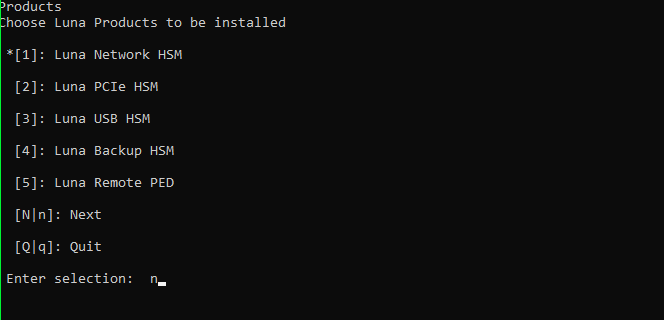
- When prompted to choose the Luna components to be installed, choose the
following packages:
- Luna Software Development Kit (SDK)
- Luna JSP (Java)
- Luna JCProv (Java)
- Crypto Command Center Provisioning Client (Not applicable for Luna client v7.2)
To select a Luna component, Enter the number marked against it and press Enter. To select multiple Luna components, repeat the above step. Once the required components are selected, enter (I/i) and press enter to initiate the installation process.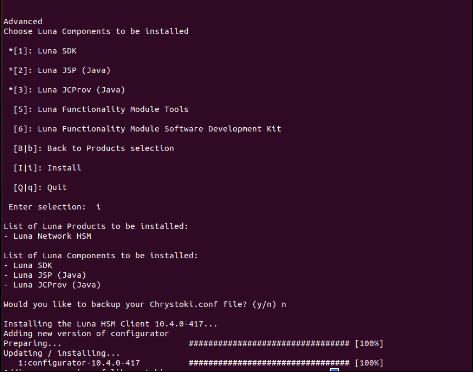 Once the Luna client is installed successfully, you will get the following message in the terminal: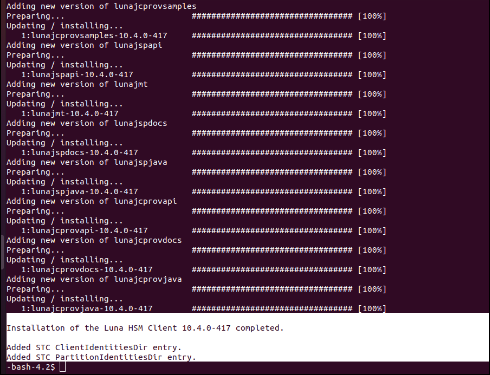
- Navigate to usr/safenet/lunaclient/bin.
- Import the server certificate of the HSM device to the Luna client using the
following command:
sudo scp <username>@<HSM device IP>:server.pem .Note: In the command above replace <username> with client credentials of HSM device, <HSM device IP> with the Host IPAfter successfully adding the server, you will get the message as follows: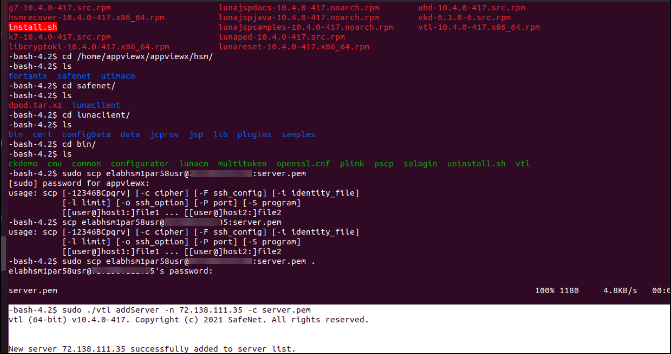
- Register the HSM server certificate with the client using the following
command:
sudo ./vtl addServer -n <HSM Device IP> -c server.pem - Create a client certificate in the node from which we are trying to
communicate with the HSM from AppViewX:
sudo ./vtl createCert -n <Client_Certificate_Name>After the certificates are created, you will get the output as follows: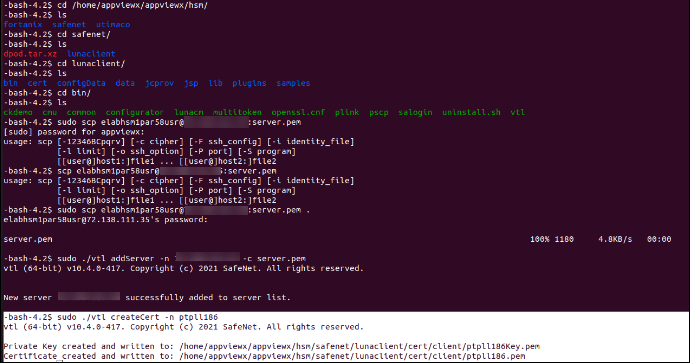
- Export the Client certificate to the node where the HSM is to be
configured:
sudo scp /usr/safenet/lunaclient/cert/client/<Client_Certificate_Name>.pem <username>@<HSM device IP>:- Use the certificate created and written to the path obtained from the previous step.
- To register the client certificate to HSM machine, login to HSM
machine in CLI using the SSH command as shown below.
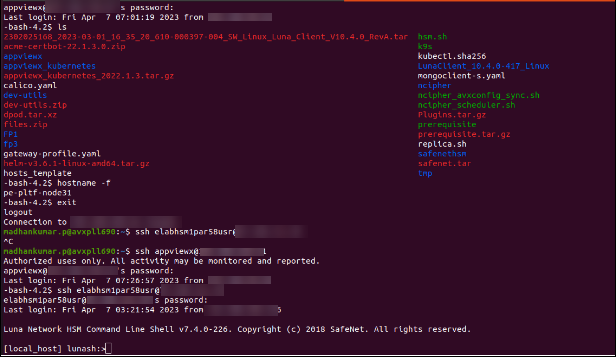
- Register the client certificate on the HSM Machine.
(This command to be run in HSM device using SSH login.)
client register -client <Client_Certificate_Name> -hostname <Client_Certificate_Name>After registering the client certificate, you will get the following output at the command prompt: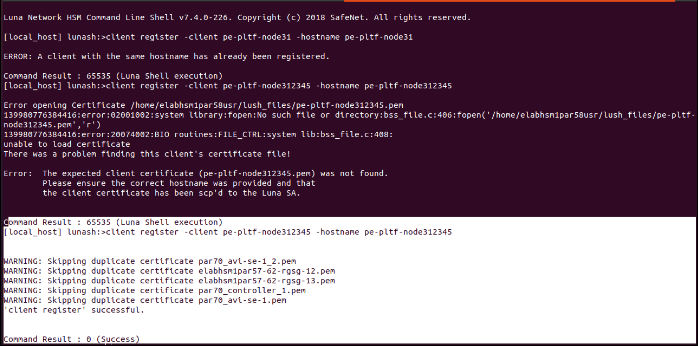
- Assign the client to a partition using the following command:
(This command to be run in HSM device using SSH login.)
client assignPartition -client <Client_Certificate_Name> -partition <Partition name of the hsm device>After assigning the client partition, the output will be as follows: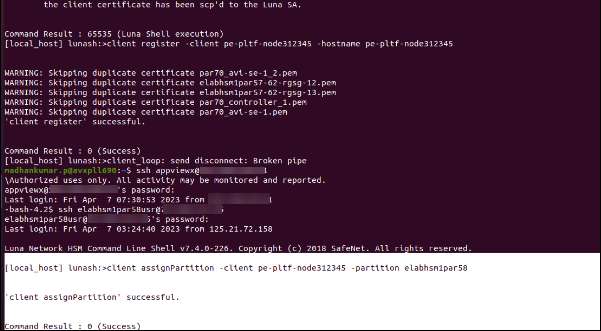
HSM Configuration in AppViewX - Manual
To establish communication between the HSM and AppViewX, it is necessary to follow the installation steps provided below.
Installation for Onprem
-
After successful installation, copy the Chrystoki.conf to the below
directory from /etc folder
cp /etc/Chrystoki.conf {APPVIEWX_INSTALLATION_PATH}/hsm/ -
Update the permissions for the Chrystoki.conf file using the command
given below:
chown appviewx:appviewx Chrystoki.confchmod 755 Chrystoki.conf -
Edit Chrystoki.conf file and replace all custom to mount path.
Note: You have to change it in all the places wherever we see local path to mount path.
Change local path to mount path:
LibUNIX = /usr/safenet/lunaclient/lib/libCryptoki2.so;to
LibUNIX = /appviewx/dependencies/hsm/safenet/lunaclient/lib/libCryptoki2.so;Now, Save the Chrystoki.conf file.
-
Copy the safenet folder from /usr to the below directory as
follows:
sudo cp safenet -R {APPVIEWX_INSTALLATION_PATH}/hsm -
Navigate to {APPVIEWX_INSTALLATION_PATH}/hsm/ and execute the command
below.
chown -R appviewx:appviewx safenet -
Navigate to
<APPVIEWX_INSTALLATION_PATH>/appviewx/hsm/safenet/lunaclient/bin and
execute the command below.
sudo ./vtl verifyThe vtl verify should be successfully executed.
Installation for SaaS
-
After successful installation, copy the Chrystoki.conf to the below
directory from /etc folder
cp /etc/Chrystoki.conf {CC Installed Path}/deps/external_libs/hsm -
Update the permissions for the Chrystoki.conf file using the command
given below:
chown appviewx:appviewx Chrystoki.confchmod 755 Chrystoki.conf -
Edit Chrystoki.conf file and replace all custom to mount path.
Note: You have to change it in all the places wherever we see local path to mount path.
Change local path to mount path:
LibUNIX =/home/appviewx/cc/deps/external_libs/hsm/safenet/lunaclient/lib/libCryptoki2.so;to
LibUNIX = /appviewx/dependencies/external_libs/hsm/safenet/lunaclient/lib/libCryptoki2.so;Now, Save the Chrystoki.conf file.
-
Copy the safenet folder from /usr to the below directory as
follows:
sudo cp safenet -R {CC Installed Path}/deps/external_libs/hsm -
Navigate to {APPVIEWX_INSTALLATION_PATH}/hsm/ and execute the command
below.
chown -R appviewx:appviewx safenet -
Navigate to
<APPVIEWX_INSTALLATION_PATH>/appviewx/hsm/safenet/lunaclient/bin and
execute the command below.
sudo ./vtl verifyThe vtl verify should be successfully executed.
HSM Configuration in AppViewX - Automation
Automation script for onprem
- Go to the path /home/appviewx/appviewx_kubernetes/yaml/appviewx_plugins/avx_platform_hsm/hsm.
-
Ensure the availability of the following files:
- avx_hsm_integration.sh
- thales_gpn_hsm_configuration.sh
-
Run the command
chmod 777 *or applychmodspecifically for avx_hsm-integration.sh and the required HSM agent. -
Execute the command:
sudo ./avx_hsm_integration.sh - Choose the required HSM to configure and select the Configure option.
- Proceed with the subsequent steps using the script.
Automation script for SaaS
- Go to the path <cloud connector installed path>/deps/utils/avx-platform-hsm.
-
Ensure the availability of the following files:
- hsm-integration.sh
- gpn_config.sh
-
Run the command
chmod 777 *or applychmodspecifically for hsm-integration.sh and the required HSM agent. -
Execute the command:
sudo ./hsm-integration.sh - Choose the required HSM to configure and select the Configure option.
- Proceed with the subsequent steps using the script.
