
CyberArk
Prerequisites for Integrating CyberArk with AppViewX
For links to the CyberArk documentation for installing and upgrading the PAM components, see the References section.
Configuring CyberArk Integration Settings
-
Go to Platform > VAULT & SECURITY > PAM.
The PAM page is displayed.
- Click the + (Add credential) button.
- On the Add credential page, select CyberArk from the left menu.
-
From the top right corner of the page, click CyberArk API
Settings.
The CyberArk API Settings pop-up window is displayed.
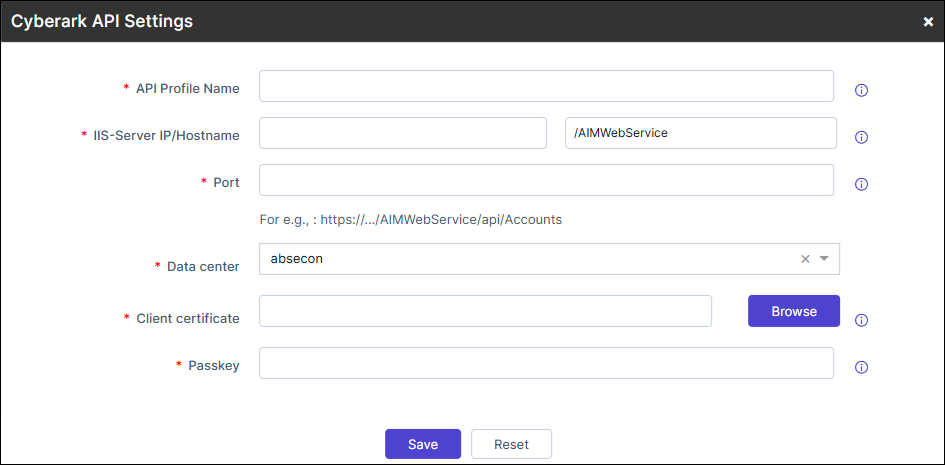
Table 1. Field descriptions for CyberArk API Settings Field Description *API Profile Name Enter a unique name to identify the API profile. Multiple profiles can be created to retrieve credentials securely from environment-specific CyberArk vaults *IIS-Server IP/Hostname Enter the API URL of the cloud machine hosting CyberArk in the format given below. https://<Hostname>:<Port><PathURI>/api/Accounts
The default value for <pathURI>, /AIMWebService, is displayed in the text field next to the hostname field. Edit this value as needed. If the <pathURI> parameter is not provided, the default value /AIMWebService will be used automatically. Aditionally, for each API Profile the hostname can vary.
*Port Port number on which CyberArk API's are exposed and servicable. *Data center Select the appropriate data center where the CyberArk components are located or managed. It is used to perform the communication. *Client certificate Upload the Client Certificate needed to authenticate/allow the CyberArk API service to communicate with AppViewX, this certificate needs to be configured in IIS server of the CCP application and the SN needs to be configured in Cyberark portal as well in the application config., supports only pfx format. *Passkey Enter the passkey for Client Certificates uploaded in the .pfx format. *: Mandatory fields -
Once the details are entered, click Update.
The CyberArk Credential Details page is displayed.Note: Multiple vaults can not be added by configuring multiple profiles.
Adding CyberArk Credential Details
-
On the Credential Details page for CyberArk, enter the
required field information.
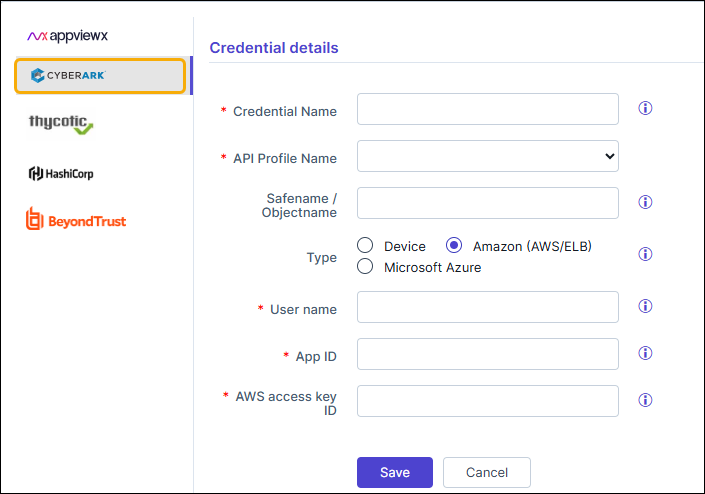
Table 2. Field descriptions for Credential details Field Description *Credential name Enter a unique name to identify the credential in AppViewX *API Profile name Select the specific API profile name. Safename / Objectname Name of the safe/object in CyberArk Vault where credentials are stored. This field is not mandatory. If not entered, it will search credentials from all the Safes. Type Choose the Account type linked with the Credential, select one of the following options: - Device (default) - Use this for device credentials.
- Amazon (AWS/ELB) - Use this for AWS/ELB credentials.
- Microsoft Azure - Use this for Microsoft Azure credentials.
*User name Enter the User name that has been stored in CyberArk. *App ID Enter the App ID which is a unique identifier that has been created and authorized to to retrieve credentials from CyberArk. User type This field is displayed when Type = Device. From the drop-down menu, select one of the following:
- Internal (Local user account from CyberArk for device management).
- External (External User account managed by LDAP/AD in CyberArk).
Note: *Server IP Address field is displayed when the User type is selected External.*Server IP Address Enter the LDAP/AD server's IP address/FQDN for external user accounts. The server IP Address has to be entered if the user has been created in an external active directory. It is utilized for integrating service accounts, particularly when external integration is required. By selecting "external," the input of the server's (LDAP/AD) IP address is taken, which manages the service account.
Note: This field is displayed when the User type is selected as External.*AWS access key ID Enter the AWS access key ID generated from the AWS Management Console. Note: This field is displayed when the Amazon (AWS/ELB) type is selected.*: Mandatory fields - Click Save.
