
BeyondTrust
Prerequisites for Integrating BeyondTrust with AppViewX
For links to the corresponding BeyondTrust vault documentation, see to the References section.
Configuring BeyondTrust Integration Settings
-
Go to Platform > VAULT & SECURITY > PAM.
The PAM page is displayed.
- Click the + (Add credential) button.
- On the Add credential page, select BeyondTrust from the left menu.
-
From the top right corner of the page, click BeyondTrust API
Settings.
The BeyondTrust API Settings pop-up window is displayed.
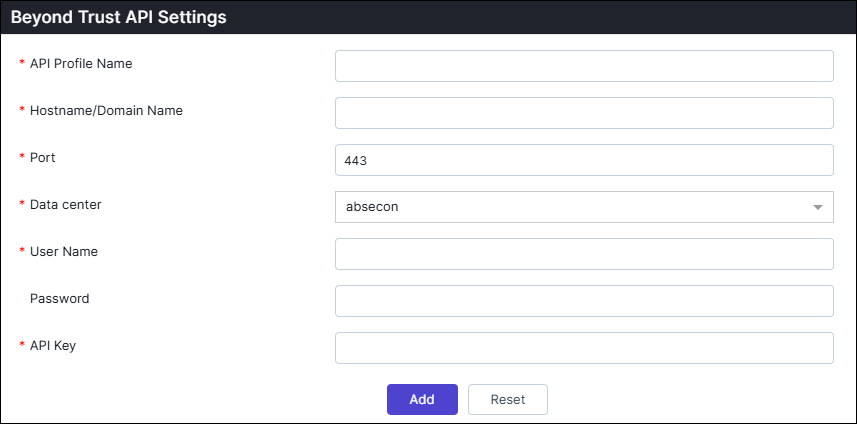
Table 1. Field descriptions for BeyondTrust API Settings Field Description *API Profile Name Enter a unique name to identify the API profile. *Hostname/Domain Name Enter the Hostname of the BeyondTrust Secret Server if it is hosted in an on-prem environment or the Domain name of the BeyondTrust Secret Server if it is the cloud version. *Port Enter the port number used to connect to the API. *Data center Select the appropriate data center where the BeyondTrust components are located or managed. It will be used to perform the communication. *Username Enter the username required to access the API. Password Enter the password that pairs with the user name for api authentication. *API Key Enter the API key obtained from the BeyondTrust API registration process. It is the security key provided for authentication. *: Mandatory fields Note: You can add multiple BeyondTrust Secret Servers as different Profiles. Each BeyondTrust Secret Server will be added to the BeyondTrust API settings page. - Once the details are entered, click Add.
- To modify the details of any profile, click on the name of the profile, modify the details and click Modify.
-
To delete any profile, click
 (Delete) icon in the Action column of the profiles.
-
Close the BeyondTrust API Settings pop-up
window.
The BeyondTrust Credential Details page is displayed.
Adding BeyondTrust Credential Details
-
On the Credential Details page for
BeyondTrust, enter the required field
information.
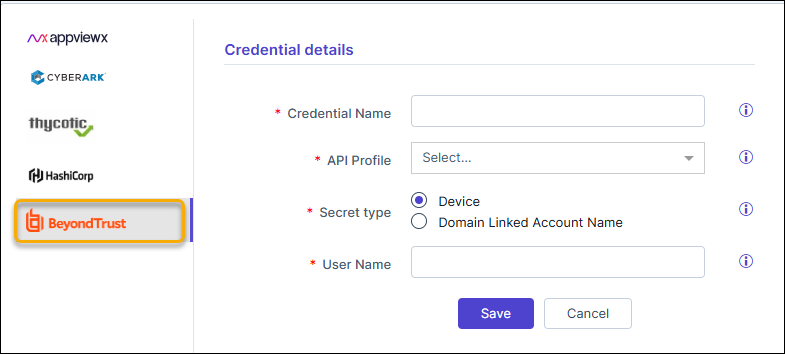
Table 2. Field descriptions for Credential details Field Description *Credential name Enter a unique name to identify the credential in AppViewX. *API Profile Select the appropriate BeyondTrust API profile. Multiple profiles can be configured in the API settings for managing credentials across environments (e.g., production, staging), regions, or specific use cases. *Secret Type Select the Secret Type linked with the Credential: - Device: Use this for Device Credentials. The Managed System name in the BeyondTrust secret must match the device IP/FQDN in AppViewX.
- Domain Linked Account Name: Use this for domain-linked accounts.
*Username Enter the user name (Managed Accounts name) stored in BeyondTrust . When this secret is used in any device, respective device name will be automatically send as one of the argument when AppViewX fetches credential from Vault. *: Mandatory fields - Click Save.
