
AppViewX
To configure credential details for the AppViewX vault:
- Go to Platform > VAULT & SECURITY > PAM.
- The PAM page is displayed with a list of devices/objects/applications with Privileged Access Management.
- On the + Add credential page, select AppViewX from the left menu.
-
In the Credential details section, enter the required field
information.
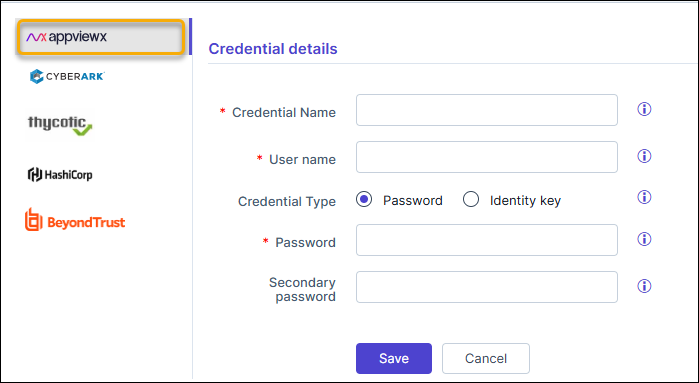
Table 1. Field descriptions for Credential details Field Description *Credential name Enter a unique name to identify the credential in AppViewX. *User name User name used for device onboarding. Credential type Select the type of authentication from one of the following: - Password - will authenticate using the account password.
- Identity key - will authenticate using a private key and a passphrase.
*Password Password configured at the time of device onboarding, to communicate with the endpoint.
This field is displayed only when the Credential type is selected as Password
Secondary password Additional password enabled by vendors for specific operations. This field is displayed only when the Credential type is selected as Password
*Identity key Upload private key in the .pem or .txt or .rsa or .ppk format for enabling device communication via SSH. This field is displayed only when the Credential type is selected as Identity key
Passphrase Key to protect the private key files. This field is displayed only when the Credential type is selected as Identity key
*: Mandatory fields - Click Save.
