
Configuring the SMTP Settings for Google
The SMTP oAuth uses an access token instead of a password to send email. The access token works as a temporary password with fixed validity and has permissions delegated by the user.
To get the access token you must provide details such as username, client-id, secret, Authorization endpoint, token Endpoint and scope. Once these details are submitted, you will be redirected to the oAuth server login page. Once the user authorization is done here, the oAuth server returns the Auth code.
The Auth code is exchanged with the access token and refresh token in the backend and saved in DB.
To configure the SMTP server:
-
On the Settings :: SMTP page, in the SMTP configuration section,
enter the required field information.
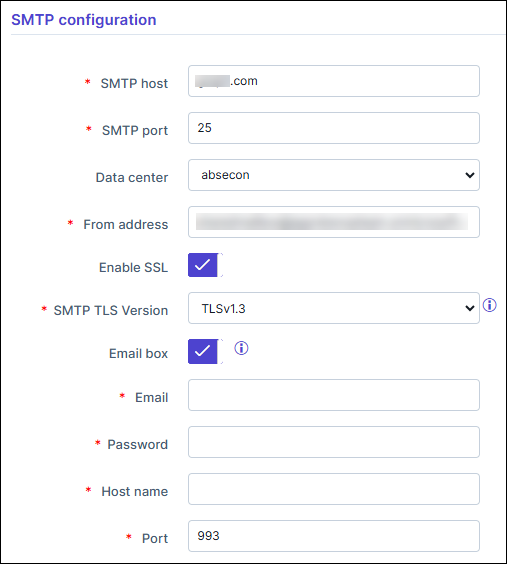
Table 1. Field descriptions for SMTP configuration Field Description *SMTP host Host name of the SMTP server. *SMTP port Port number of the SMTP server. Data center From the options available in the dropdown, select the data center. *From address Enter the email address that will be used to email the logs and alerts. Enable SSL To allow SSL encryption, enable this toggle key. *SMTP TLS Version From the options available in the dropdown, select the TLS version of the SMTP server. Note: Versions 1.2 and higher are recommended.Email box To use the mailbox feature to read emails in Visual Workflow, enable this toggle key. *Email This field is displayed only if the Email box key is enabled. Email address of the IMAP server used for the mailbox feature.
*Password This field is displayed only if the Email box key is enabled. Password of the IMAP server used for the mailbox feature.
*Host name This field is displayed only if the Email box key is enabled. Host name of the IMAP server used for the mailbox feature.
*Port This field is displayed only if the Email box key is enabled. Enter the Port number.
*: Mandatory fields -
In the Authentication section, enter the required field information.
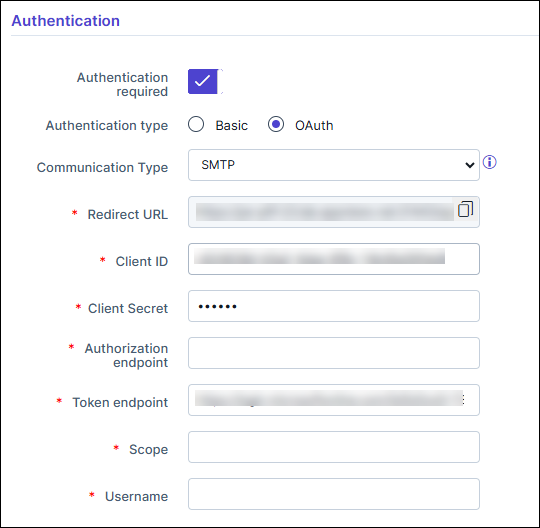
Table 2. Field descriptions for Authentication (oAuth) Field Description Authentication required To enable authenticated mail server communication, enable this toggle. Authentication type Select the Authentication type as Basic or oAuth. Note: Selecting Basic displays the Username and Password fields.Selecting oAuth displays the fields that are described below.
Communication type Select the Communication type as follows: - SMTP: email communication via SMTP.
- API: email communication via Graph API (Outlook).
Note: Communication type API will not work for Google configurations.*Redirect URL This field is auto-populated from the address bar of the browser. *Client ID Enter the Client ID that is generated in the oAuth server when the oAuth client is created. Note: The steps to create an oAuth client are different for Google and Microsoft.For more information on steps for Google, click here.
For more information on steps for Microsoft click here.
*Client Secret Enter the Client Secret that is generated in the oAuth server when the oAuth client is created. *Authorization endpoint Enter the authorization endpoint where the user authorizes and gives permission to the oAuth client to send email on behalf of the user. *Token endpoint Enter the token endpoint to get Access Token and Refresh Token. You can get the endpoint by providing Client ID, Secret, and other relevant values based on oAuth 2.0 specifications. *Scope The permission required to send email.
Note: For Google, enter https://mail.google.com/.*Username This field is enabled only if the Authentication required key is enabled. Username for the authenticated mail server
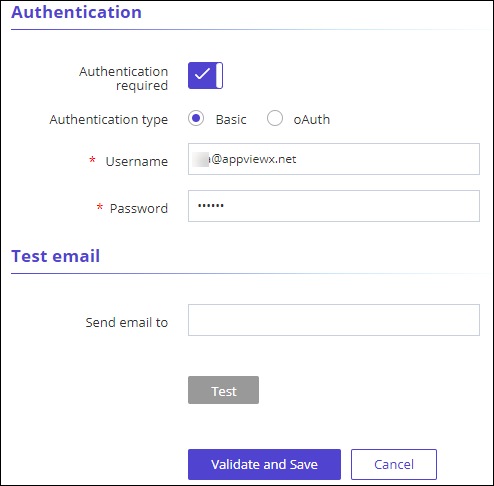
*Password This field is enabled if you select Basic as your Authentication type. Enter the valid password associated with the username.
*: Mandatory fields - If the Authentication type is selected as Basic, displays the username and password attributes.
-
In the Test email section, enter the email address to which a test email
should be sent and click Test.
-
To save the SMTP configuration settings, click Validate and Save.
Upon clicking "Validate and Save," an email will be sent to the user's email address for validation.Note:
- If the user does not have an email ID configured, an error will be displayed, prompting them to set up an email address.
- In case of validation failure, the SMTP settings will not be saved.
-
If the Authentication type is selected as oAuth,
To save the SMTP configuration settings, click Save &
Authorize.
Displays confirmation of SMTP Settings Authorized.
- A new tab will open, prompting for sign-in.
- Once authorization is done the user receives an access token and a refresh token from the token endpoint. The access token is used for sending email and the refresh token is used for renewing the access token upon its expiry.
Authentication for Google SMTP Settings
Create authorization credentials
Any application that uses OAuth 2.0 to access Google APIs must have authorization credentials that identify the application to Google's OAuth 2.0 server. The following steps explain how to create credentials for your project. Your applications can then use the credentials to access APIs that you have enabled for that project.
-
Sign in to Google using valid credentials for App Registration using
the following URL: https://console.cloud.google.com/.
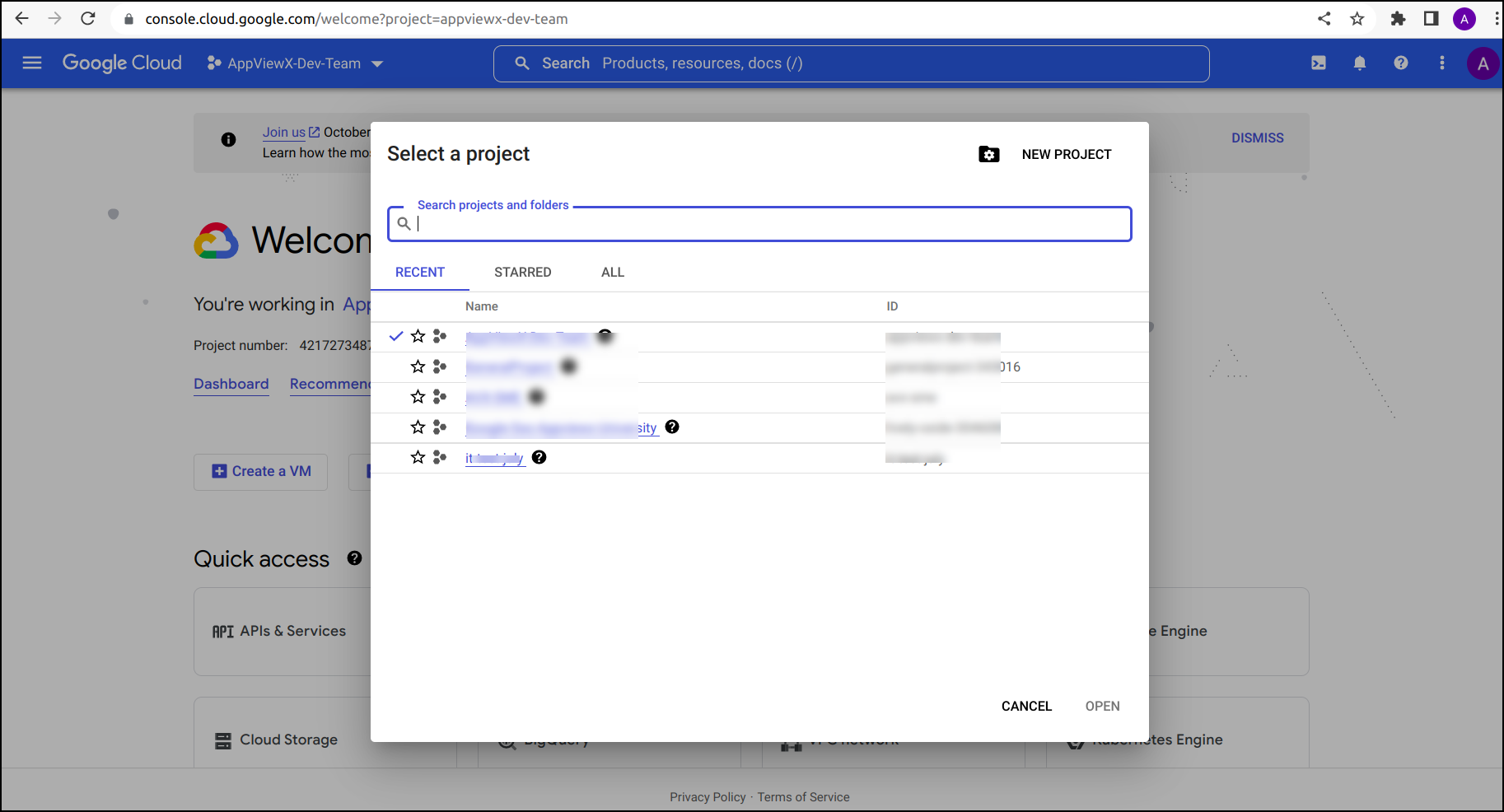
- From the project drop-down, select an existing project, or create a new one by clicking on NEW PROJECT.
-
In the sidebar hover the mouse pointer over the "APIs & Services",
click OAuth consent screen.
The OAuth consent screen:: App information page is displayed.
.png)
-
In the App information section, enter the required field
information. App name*, User support email*, Authorized
domains, and
Developer contact information, then click Save &
Continue.
The Save & Continue :: Scopes page is displayed.
.png)
- Under Scopes section, ADD SCOPES required information.
-
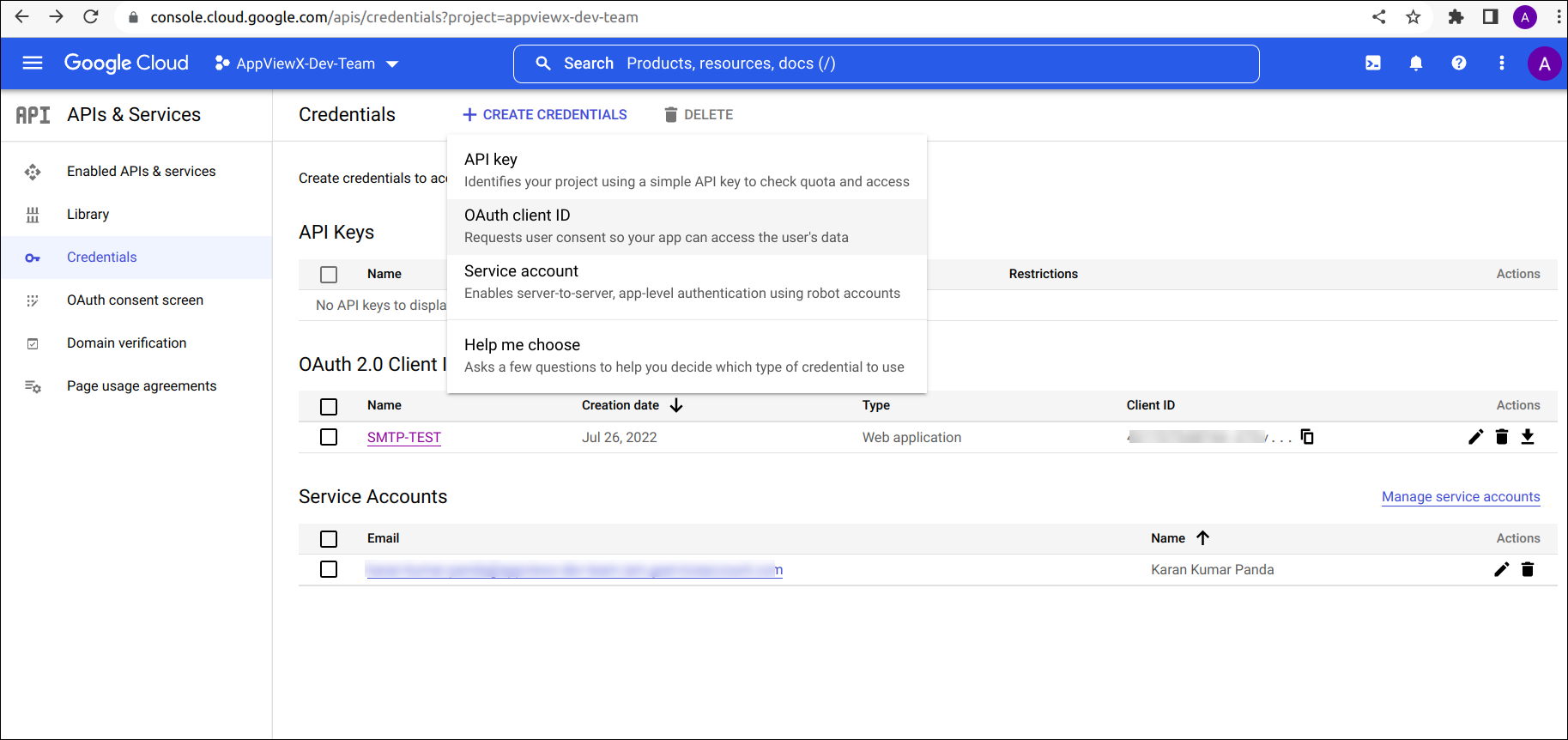
In the sidebar hover the mouse pointer over the "APIs & Services",
click Credentials.
The APIs & Services :: Credentials page is displayed.
-
In the Credentials tab, click the +CREATE CREDENTIALS, from
the drop-down list, choose OAuth client ID.
The CREATE CREDENTIALS :: Create OAuth client ID page is displayed.
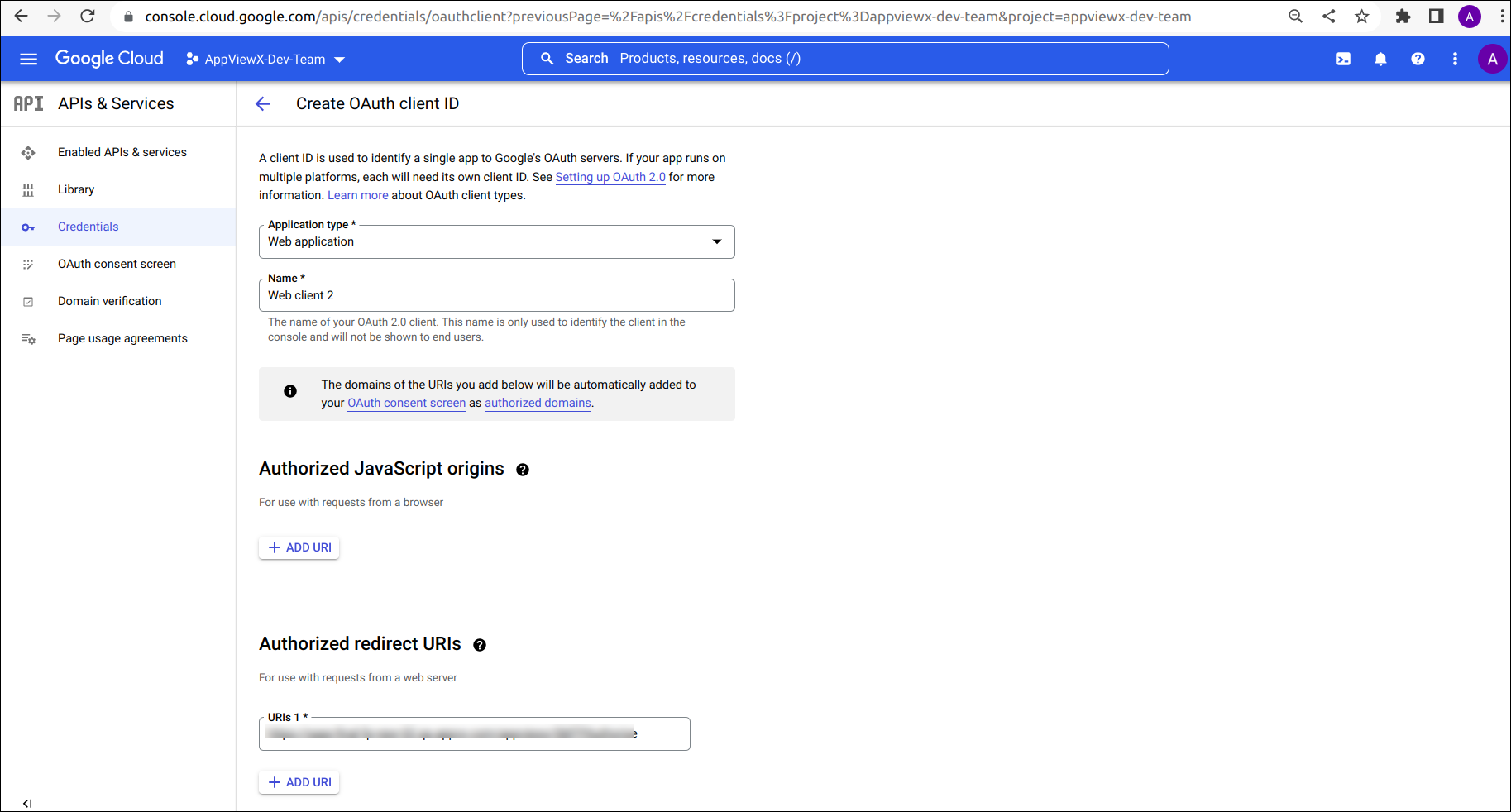
- Enter the required field information, for Application type* select Web application and specify Name* then click Save.
-
Displays confirmation of OAuth client Created, with Your Client ID
and Your Client Secret.
.png)
-
Copy the Client ID and Client Secret for authentication of
SMTP server settings.
- Authorization endpoint URL: https://accounts.google.com/o/oauth2/v2/auth.
- Token endpoint URL: https://oauth2.googleapis.com/token.
