
Configuring RBAC Delegation
Enabling Delegation
-
On the User Group page, click
 .
The RBAC Delegation page is displayed with the Enable Delegation toggle button (the button is in default disabled state).
.
The RBAC Delegation page is displayed with the Enable Delegation toggle button (the button is in default disabled state). -
Enable the toggle button.
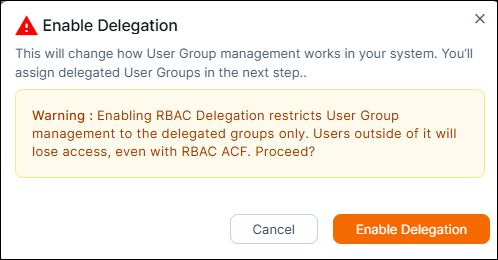
The enable Delegation pop-up is displayed with instructions as shown below.
-
On the pop-up, click Enable Delegation
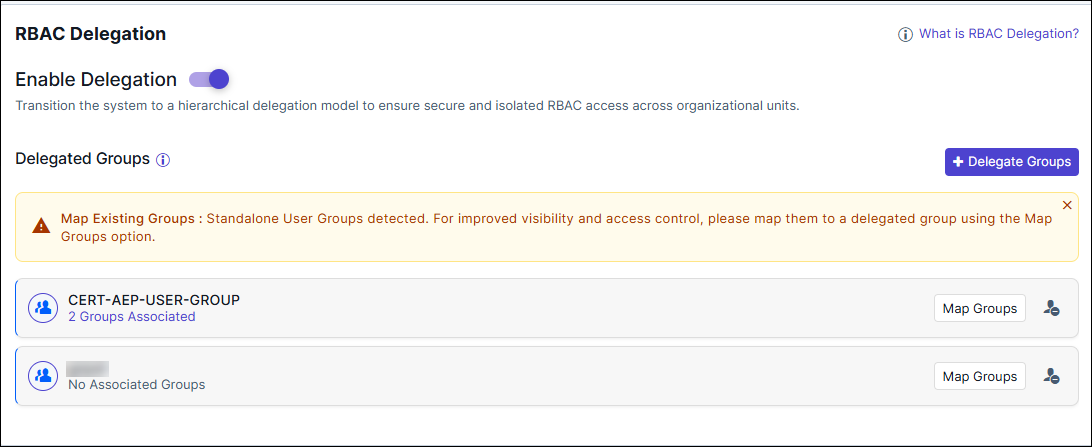
The Delegated Group section is displayed.
Delegating Groups
-
In the Delegated Group section, click
 .
The Add Delegate Groups pop-up is displayed only with user groups with RBAC ACF permission for User Grop management (Create/Edit/Delete).
.
The Add Delegate Groups pop-up is displayed only with user groups with RBAC ACF permission for User Grop management (Create/Edit/Delete).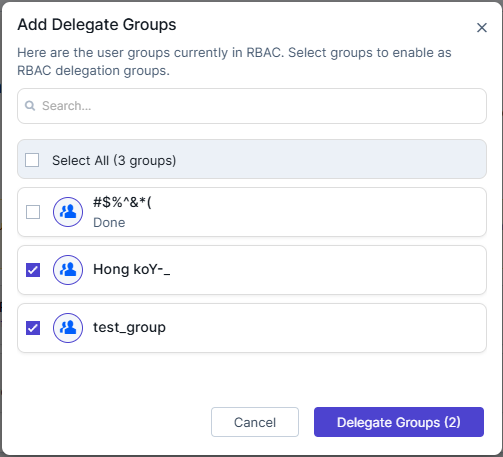
-
Select one or multiple groups to enable as RBAC delegation groups.
The Delegate Groups (X) button is enabled, where X is the number of groups selected.
-
Click Delegate Groups (X) on the pop-up.
The user group is assigned delegation privileges and appears in the Delegated Groups list view:
- User group name
- Map Group button
- Remove RBAC Delegation Access icon
- Link below the usergroup name denoting the number of mapped groups.
Mapping Existing (Standalone) User Groups
-
In the Delegated Group section, for the respective delegated
group in the list click
 .
The Map User Groups window is displayed. All the non delegated standalone user groups with or without RBAC ACF are displayed in the window.
.
The Map User Groups window is displayed. All the non delegated standalone user groups with or without RBAC ACF are displayed in the window.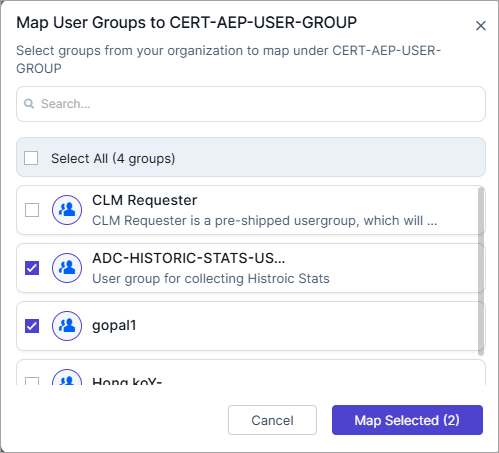
-
Select one or multiple groups to enable as RBAC delegation
groups.
The Map Selected (X) button is enabled, where X is the number of groups selected.
-
Click Map Selected (X) on the pop-up.
The link below the delegated group has a link enabled with the number of associated groups (e.g.: X Groups Associated, where X is the number of groups)Note: User groups that are mapped to a specific delegated group cannot be mapped to another delegated group.
-
Click on the X Groups Associated links to view the associated
groups.
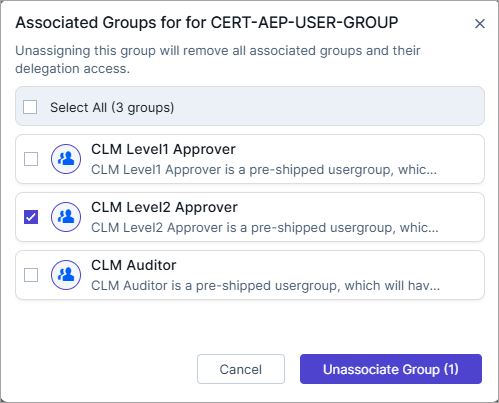
The Associated Groups for the delegated user group is displayed in the pop-up.Note: Once mapped, the group and its users/roles/resources are moved into the respective hierarchy of delegation.
Unassociating User Groups
-
In the Delegated Group section, for the respective delegated
group in the list click the link below it, for example, 2 groups
associated.
The Associated Groups for the delegated user group is displayed in the pop-up.
-
Select one or multiple groups to unassociate.
The Unassociate Group (X) button is enabled, where X is the number of groups selected.
-
Click Unassociate Group (X) on the pop-up.
The link below the delegated user group will be updated with the number of associated groups. If all the groups have been unassociated, then No Associated Groups is displayed below the delegated group. It is not a link now.
Removing RBAC Delegation Access
-
In the Delegated Group section, click
 .
The Remove RBAC Delegation Access pop-up is displayed.
.
The Remove RBAC Delegation Access pop-up is displayed.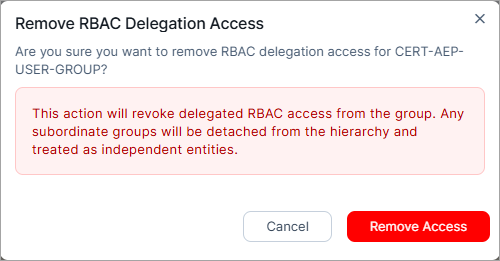
- Click Remove Access.
