
Adding a New CA - Domain Separation Enabled
-
On the CLM Settings New Record page, under the Certificate
Authority tab, enter the required field information.
The following table describes the fields in this section:
Table 1. CLM Settings New Record - Enroll Settings Field Description Company Type in the company and select it from the provided list. Alternatively, you can use the search function by clicking on the search icon to identify the company name. *Certificate Authority Select the Certificate Authority to be added to the app from the options available in the dropdown. Note: The values in the dropdown are populated based on the CAs already configured in AppViewX.The following CAs are supported:
- DigiCert
- Microsoft Enterprise
- AppViewX
- EJBCA
- Entrust
- Amazon CA
- SwissSign
- Hydrant ID
- AppViewX Native PKI+ CA (PQC - Ready AVX CA)
- Globalsign MSSL
- Globalsign
- AppViewX PKIaas
- Trustwave
- Sectigo
- GoDaddy
*CA Account Select the CA Account from the options available in the dropdown. Note: The values in the dropdown are populated based on the Certificate Authority selected.*Certificate Category Select the certificate categories for this CA under which users can perform CLM actions. The options available are: - Server
- Client
- Code Signing
To view these options, click
 .
.To select/lock a certificate category, select the category and click
 . To remove a
certificate category, select the category and click
. To remove a
certificate category, select the category and click
 .
.*CA Tag Enter a CA Tag or a custom label name for your reference. For example: Internal, Dev etc. *CA Policy Select the CA Policy from the options available in the dropdown. Note: The values in the dropdown are populated based on the CA Account selected.*Applicable For Operations to perform Enroll, Revoke, or Renew. *: Mandatory fields
-
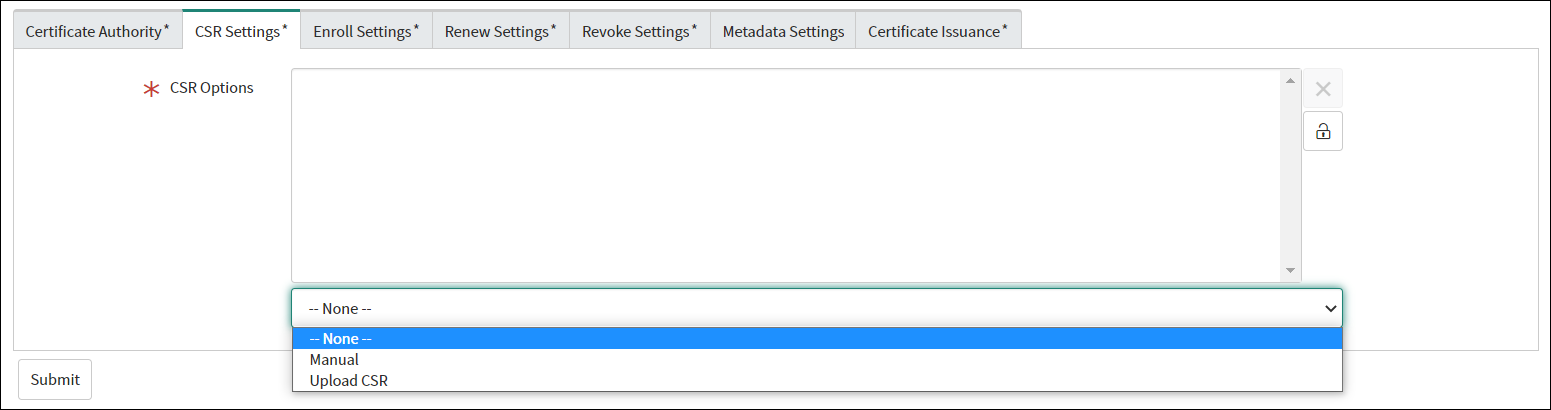
Under CSR Settings you can select the CSR input method options that will
be displayed in the input form. To view options for adding CSR details, click
. The options available are:
- Manual: This option requires you to manually enter CSR details such as validity unit and value, hash function, key type, bit length and so on in the input form.
- Upload CSR: This option enables you to skip entering the CSR values manually and instead either upload the CSR or paste it in a text box provided in the input form.
-
To select/lock a CSR input method, select the option and click .
To remove a CSR input method, select the option and click .
-
Under the Enroll Settings tab, enter the required field
information.
The following table describes the fields in this section:
Table 2. Enroll Settings - Field and Description Table Field Description Is Approval required in AppViewX? Select this checkbox if you wish to enable approvals in AppViewx. Number of Levels in AppViewX Select the levels of approvals required in AppViewX. Note: This field is displayed only when the Is Approval required in AppViewX? checkbox is selected.*Visual Workflow Name (AppViewX) Enter the name of the corresponding Visual Workflow for certificate enrollment in AppViewX. *Certificate Group Selection Select if the certificate group will be selected: - Based on policy: If you select this option, the certificate will be added to the certificate group associated with the policy in AppViewX. If there are more than one certificate groups associated with the policy, the certificate will be added to the Default certificate group.
- Based on user: If you select this
option, the certificate will be added to the
certificate group associated with the user. If the
user is mapped to more than one certificate group,
the certificate will be added to the Default
certificate group.Note: This method works only if the logged in user in ServiceNow is configured in AppViewX. If the ServiceNow user is not present in AppViewX, certificate group selection will be based on policy.
*CSR Options Select the CSR options to be displayed in the form. Is Approval required in ServiceNow? Select this checkbox if you wish to enable approvals in ServiceNow. *Number of Levels in ServiceNow Select the levels of approvals required in ServiceNow. Note: This field is displayed only when the Is Approval required in ServiceNow? checkbox is selected.*Approver Select the Approver from the options available in the dropdown. - Manager
- Assignment Group
Note: This field is displayed only when the Is Approval required in ServiceNow? checkbox is selected.Enable SAN Fields Select this checkbox to enable the Subject Alternative Fields (SAN). *Subject Alternative Names Select the subject alternative name as DNS. Note: This field is displayed only when the Enable SAN Fields checkbox is selected.Enable CSR Parameters Select this checkbox to enable the CSR parameters. CSR Parameters Select the CSR parameters to be displayed in the form. Note: This field is displayed only when the Enable CSR Parameters checkbox is selected.*: Mandatory fields -
Under the Renew Settings tab, enter the required field
information.
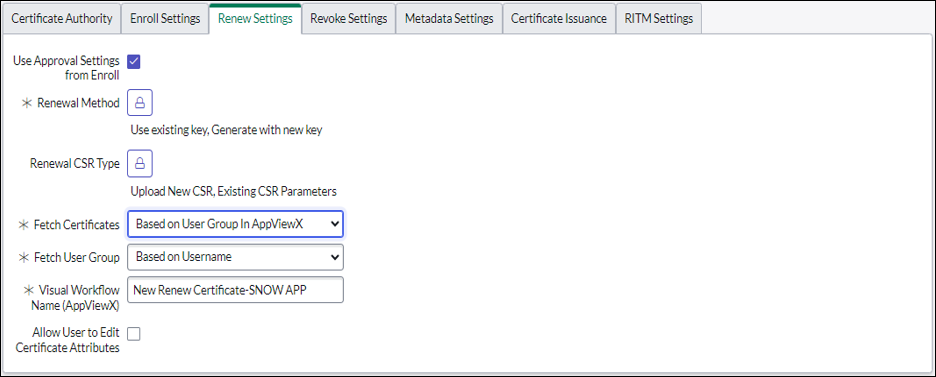 The following table describes the fields in this section:
Table 3. Renew Settings - Field and Description Table Field Description Use Approval Settings from Enroll Select this checkbox to use the same settings as configured under the Approval Settings - Enroll tab. Is Approval required in AppViewX? Select this checkbox if you wish to enable approvals in AppViewx. Note: This field is displayed only when the Use Approval Settings from Enroll checkbox is not selected.Number of Levels in AppViewX Select the levels of approvals required in AppViewX. Note: This field is displayed only when the Use Approval Settings from Enroll checkbox is not selected and the Is Approval required in AppViewX? checkbox is selected.* Renewal Method Select a certificate renewal method. The options are: - Use exiting key
- Generate with new key
* Renewal CSR Type Select a CSR type. The options are: - Upload new CSR
- Existing CSR Parameters
*Fetch Certificates Select whether the certificates will be fetched: - Based on user: This option is useful when the logged in user is not configured in AppViewX. The logged in user’s email address is captured as a certificate attribute and all the certificates with this requestor attribute will be fetched.
- Based on usergroup in AppViewX: This option is useful when the logged in user is configured in AppViewX. The certificates associated with the usergroup that the logged in user is mapped to will be fetched.
- Based on usergroup in ServiceNow: This option is useful when the logged in user is not configured in AppViewX. The email addresses of all the user groups that the logged in user is mapped to are captured as certificate attributes. This allows any user mapped to these user groups to access the certificate for renew/revoke actions.
* Fetch User Group Select a fetch user group:- Based on policy: If you select this option, the certificate will be fetched to the user group associated with the policy in AppViewX. If there are more than one user groups associated with the policy, the certificate will be fetched to the Default user group.
- Based on username: If you select this option, the certificate will be fetched to the user group associated with the username. If the user is mapped to more than one user group, the certificate will be fetched to the Default user group.
*Visual Workflow Name (AppViewX) Enter the name of the corresponding Visual Workflow for certificate renewal in AppViewX. Is Approval required in ServiceNow? Select this checkbox if you wish to enable approvals in ServiceNow. Note: This field is displayed only when the Use Approval Settings from Enroll checkbox is not selected.*Number of Levels in ServiceNow Select the levels of approvals required in ServiceNow. Note: This field is displayed only when the Use Approval Settings from Enroll checkbox is not selected and the Is Approval required in ServiceNow? checkbox is selected.*Approver Select the Approver from the options available in the dropdown. - Manager
- Assignment Group
Note: This field is displayed only when the Use Approval Settings from Enroll checkbox is not selected and the Is Approval required in ServiceNow? checkbox is selected.*: Mandatory fields -
Under the Revoke Settings tab, enter the required field
information.
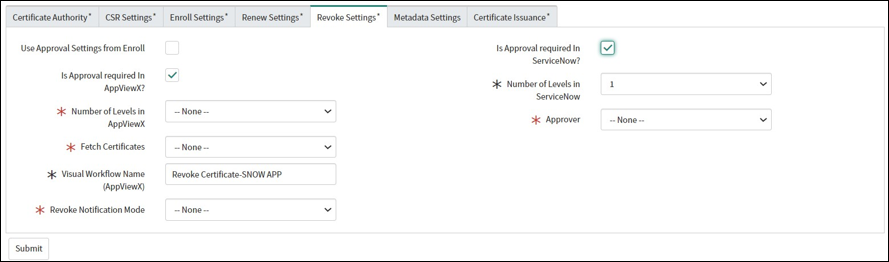 The following table describes the fields in this section:
Table 4. Revoke Settings - Field and Description Table Field Description Use Approval Settings from Enroll Select this checkbox to use the same settings as configured under the Approval Settings - Enroll tab. Is Approval required in AppViewX? This field is displayed only when the Use Approval Settings from Enroll checkbox is not selected. Select this checkbox if you wish to enable approvals in AppViewX.
Number of Levels in AppViewX This field is displayed only when the Use Approval Settings from Enroll checkbox is not selected and the Is Approval required in AppViewX? checkbox is selected. Select the levels of approvals required in AppViewX.
*Fetch Certificates Select whether the certificates will be fetched: - Based on user: This option is useful when the logged in user is not configured in AppViewX. The logged in user’s email address is captured as a certificate attribute and all the certificates with this requester attribute will be fetched.
- Based on usergroup in AppViewX: This option is useful when the logged in user is configured in AppViewX. The certificates associated with the usergroup that the logged in user is mapped to will be fetched.
- Based on usergroup in ServiceNow: This option is useful when the logged in user is not configured in AppViewX. The email addresses of all the user groups that the logged in user is mapped to are captured as certificate attributes. This allows any user mapped to these user groups to access the certificate for renew/revoke actions.
*Visual Workflow Name (AppViewX) Enter the name of the corresponding Visual Workflow for certificate revocation in AppViewX. * Revoke Notification Mode Select a revoke notification mode. Is Approval required in ServiceNow? This field is displayed only when the Use Approval Settings from Enroll checkbox is not selected. Select this checkbox if you wish to enable approvals in ServiceNow.
*Number of Levels in ServiceNow This field is displayed only when the Use Approval Settings from Enroll checkbox is not selected and the Is Approval required in ServiceNow? checkbox is selected. Select the levels of approvals required in ServiceNow.
*Approver This field is displayed only when the Use Approval Settings from Enroll checkbox is not selected and the Is Approval required in ServiceNow? checkbox is selected. Select the Approver from the options available in the dropdown.- Manager
- Assignment Group
*: Mandatory fields Note: Information under the Metadata Settings tab is pulled directly as per the metadata configured in AppViewX. -
Under the Certificate Issuance tab, in the Issuance Settings
section, enter the required field information.
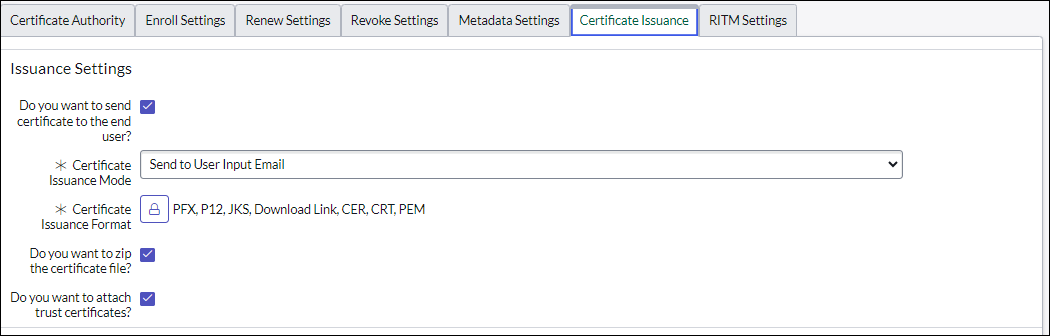 The following table describes the fields in this section:
Table 5. Certificate Issuance - Field and Description Table Field Description Do you want to send the certificate to the end user? Selecting the checkbox will display the next fields. Select this checkbox to send the certificate to the end user.
*Certificate Issuance Mode This field is displayed only when the Do you want to send the certificate to the end user? checkbox is selected. Select the mode of issuing the certificate from the options available in the dropdown. The options available are:- Send to User Input Email: The certificate will be sent to the email address entered in the input form.
- Send to Certificate Requester Email: The certificate will be sent to the requestor’s (logged in user) email address. The email address field in the input form will display as a read-only field.
- Attach to RITM Ticket: The certificate will be attached to the RITM ticket created on ServiceNow.
*Certificate Issuance Format This field is displayed only when the Do you want to send the certificate to the end user? checkbox is selected. Select the format in which the certificate file will be issued from the options available in the dropdown. The options available are:- CER
- CRT
- PFX
- Download link
* Do you want to zip the certificate file? Select this checkbox to compress or bundle the certificates into a zip file format. * Do you want to attach trusted certificates? Select this checkbox to include trusted certificates as attachments. *: Mandatory fields -
Under the Certificate Issuance tab, in the Push to End Device
section, enter the required field information.
The following table describes the fields in this section:
Table 6. Certificate Issuance - Field and Description Table Field Description Push to end device Selecting the checkbox will display the next fields. Select this checkbox to push the certificate to the end device.
Vendor Name This field is displayed only when the Do you want to send the certificate to the end user? checkbox is selected. - Unlock the Vendor Name field by clicking .
- Select the vendor(s) from the options available in the dropdown.
- To confirm the vendor selection, click .
Time Zone This field is displayed only when the Do you want to send the certificate to the end user? checkbox is selected. Select the time zone where the end device is placed.
Assignment Group Selection This field is displayed only when the Do you want to send the certificate to the end user? checkbox is selected. Select the assignment group to which the certificate will be sent.- Use logged-in user assignment group
- Allow user to select assignment group
- Use assignment group from CLM settings
*: Mandatory fields
- Unlock the Vendor Name field by clicking
-
Under the RITM Settings tab, in the Assignment Group Selection
field, select the assignment group to which the RITM tickets will be assigned as
part of the RITM ticket creation.The options available here are:
- Allow user to select assignment group
- Use assignment group from CLM settings
- Use logged-in user assignment group
- None of the group
-
Under the RITM Settings tab, in the Catalog Task Settings
section, enter or select the required field information.
The following table describes the fields in this section:
Table 7. RITM Settings - Field and Description Table Field Description Do you want to create catalog task ticket? Select this checkbox to create a catalog task ticket. Note: Selecting the checkbox will display the next fields.*Task Priority Select the task priority from the following options available in the dropdown: - 1 - Critical
- 2 - High
- 3 - Moderate
- 4 - Low
Note: This field is displayed only when the Do you want to create catalog task ticket? checkbox is selected.*Task Assigned To Enter the user(s) to whom the task will be assigned. For example: Cert Requestor. Note: This field is displayed only when the Do you want to create catalog task ticket? checkbox is selected.*: Mandatory fields
-
Click Submit.
The CA settings are configured in the instance.
