
Renewing Certificates
You can renew the certificates via the Certificate Inventory section also.
Renewing a Server Certificate
If you are renewing a single certificate, you can trigger the renewal from the holistic view as they can verify all the details before initiating the renewal.
To renew a server certificate:
-
Go to
 (Menu) > CERT+ > CERTIFICATE
ACTION > Renew Certificate >
Server.
The Server Certificate page is displayed.
(Menu) > CERT+ > CERTIFICATE
ACTION > Renew Certificate >
Server.
The Server Certificate page is displayed. - To open the holistic view of a certificate, under Common Name, select the required certificate name.
-
From the
 (More) menu for the
certificate, click Renew.
(More) menu for the
certificate, click Renew. 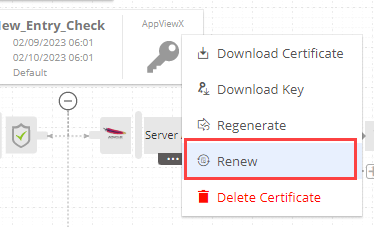 The Server Certificate > Renew page is displayed. The fields on this page are displayed depending on the type of certificate and the issuing certificate authority.
 -
On the Server Certificate > Renew page, update the renewal details
if and as required.
For field descriptions, you can refer to the instructions for enrolling a server certificate.Note: Starting version 2023.1.0 FP2, for certificates issued by Entrust and Microsoft, you can upload a new CSR in the CSR Generation field.
- If you are uploading a new CSR, ensure that the new and existing Common Name in the CSR Parameters are the same.
-
Click Renew.
The Renew dialog box is displayed.
-
Enter your comments in the text field and click Yes.
A request ID, which is the work order ID, is generated automatically, and work order status is displayed adjacent to the certificate in the holistic view. If the approval required option is enabled in the CA policy, the request is moved to the Approve and Implementation stages.
-
Click Approve to proceed.
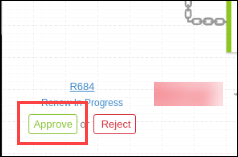 The Approve dialog box is displayed.
 -
Enter your comments in the text field.
Note: If the workflow request has to be approved automatically in the future, click the Schedule later button .
-
Click Yes.
Once the approval process is complete, the Implement option is displayed in the holistic view.
-
Click Implement.
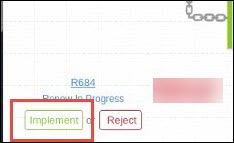 The Implement dialog box is displayed.
 -
Enter your comments in the text field.
If the workflow request has to be implemented automatically in the future, click Schedule later .
-
Click Yes.
The renewal process is triggered. After renewal is completed, the workflow status updates to Completed.
Once the certificate is renewed, AppViewX compares the Extended Key Usage (EKU) and Key Usage (KU) fields between the parent and the renewed certificates. If a difference is detected, you will be notified via alerts and emails across mediums within the product. Detailed documentation for this is covered in the section Updating the EKU/KU Metrics for Renewed Certificates.
Renewing a Client Certificate
Note: v2021.1.0 onwards, AppViewX provisions the renewal functionality for certificates issued via Google CA. This is done by utilizing the certificate's existing CSR or private key details.
If you are renewing a single certificate, you can trigger the renewal from the holistic view as they can verify all the details before initiating the renewal.
To renew a client certificate:
-
Go to (Menu) > CERT+ > CERTIFICATE
ACTION > Renew Certificate >
Client.
The Client Certificate page is displayed.
- To open the holistic view of a certificate, under Common Name, select the required certificate name.
-
From the
(More) icon for the certificate, click Renew. The Client Certificate > Renew page is displayed. The fields on this page are displayed depending on the type of certificate and the issuing certificate authority.
-
On the Client Certificate > Renew page, update the renewal details
if and as required.
Note: Starting version 2023.1.0 FP2, for certificates issued by Entrust and Microsoft, you can upload a new CSR in the CSR Generation field.
- If you are uploading a new CSR, ensure that the new and existing Common Name in the CSR Parameters are the same.
-
Click Renew.
The Renew dialog box is displayed.
-
Enter your comments in the text field and click Yes.
A request ID, which is the work order ID, is generated automatically, and work order status is displayed adjacent to the certificate in the holistic view. If the approval required option is enabled in the CA policy, the request is moved to the Approve and Implementation stages.
-
Click Approve to proceed.
The Approve dialog box is displayed.
-
Enter your comments in the text field.
Note: If the workflow request has to be approved automatically in the future, click the Schedule later button .
-
Click Yes.
Once the approval process is complete, the Implement option is displayed in the holistic view.
-
Click Implement.
The Implement dialog box is displayed.
-
Enter your comments in the text field.
If the workflow request has to be implemented automatically in the future, click Schedule later .
-
Click Yes.
The renewal process is triggered. After renewal is completed, the workflow status updates to Completed.
Bulk Renewing Server/Client Certificates
Bulk renewal of the certificates can be triggered from the inventory by selecting more than one certificate.
To renew server certificates in bulk:
-
Go to (Menu) > CERT+ > CERTIFICATE
ACTION > Renew Certificate >
Server / Client.
The Server/Client Certificate page is displayed.
- Under Common Name, select the checkboxes corresponding to all the certificates you want to renew.
-
From the Actions dropdown menu, click
Renew Certificate.
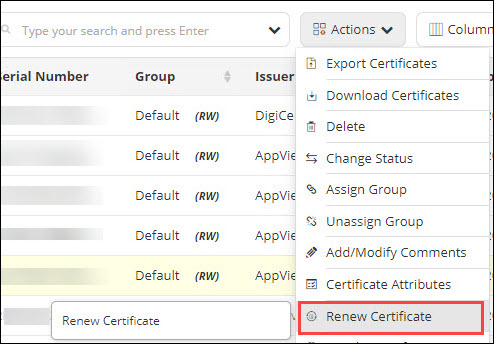 The Renew Certificate dialog box is displayed.
 -
From the following options, select when do you want to Renew Selected
Certificate(s):
- To immediately renew the selected certificate(s), select
Now.
- Certificate renewal request, for the selected
certificate(s), will be triggered immediately.Note:
- Certificates with the work order status in progress or with read-only permission will be skipped.
- In case of Digicert certificates, the certificates will be auto-reissued unless the Order validity is expired.
- Certificate renewal request, for the selected
certificate(s), will be triggered immediately.
- To schedule an automatic renewal for a later time, select Set auto-renew.
- In the Renew Certificates ______ Days before Expiry field, to
specify how many days before their expiry the selected
certificate(s) should be renewed, enter a value between 1 and
120.
- Assuming that you have entered 120 in this text field, certificates with validity less than 120 days will be triggered for renewal within the next 6 hours.
Note:- Certificates with the work order status in progress or with read-only permission will be skipped.
- In case of Digicert certificates, the certificates will be auto-reissued unless the Order validity is expired.
- To immediately renew the selected certificate(s), select
Now.
-
Click Submit.
Depending on the selections made in the Renew Certificate dialog box, the certificate renewal process will be triggered.Note: The status of the renewal process is monitored using the Process explorer.
Updating the EKU/KU Metrics for Renewed Certificates
- Certificate holistic view
A
Click View Changes to view the Key Usage Warning details that list the Removed Usages and Added Usages for the renewed certificate. icon is displayed in the renewed
certificate's holistic view in the event a change is detected in the
EKU/KU fields, along with a View Changes
link.
icon is displayed in the renewed
certificate's holistic view in the event a change is detected in the
EKU/KU fields, along with a View Changes
link. - Email notifications
Details of the changes detected in the EKU/KU fields are appended to the pre-configured certificate renewal email notifications sent to a user/user group/certificate group.
- In-app notifications
Post issuance of the renewed certificate, for changes detected in the EKU/KU fields, a notification message is displayed in AppViewX's notification center that details the changes observed.
- Certificate Logs
Details of the changes detected in the EKU/KU fields post certificate renewal are mentioned in the Log Message field of the certificate logs.
