
Certificate Logs
Logs keep track of all activities that take place within AppViewX or any external entity that is connected to the AppViewX system. The Logging functionality in AppViewX tracks user activities and creates the device and object-level event logs. Certificate Logs helps you with logs that are related to certificates. Any system or certificate-related actions performed in the application are captured as logs. With these logs, you can check the system performance and it helps you with audit purposes to meet industry standards.
To check logs,
- Log in to AppViewX application with valid credentials.
- Click the menu button located in the upper left corner of the screen.
The left navigation pane appears.
- Click CERT+.
The CERT+ left navigation pane appears.
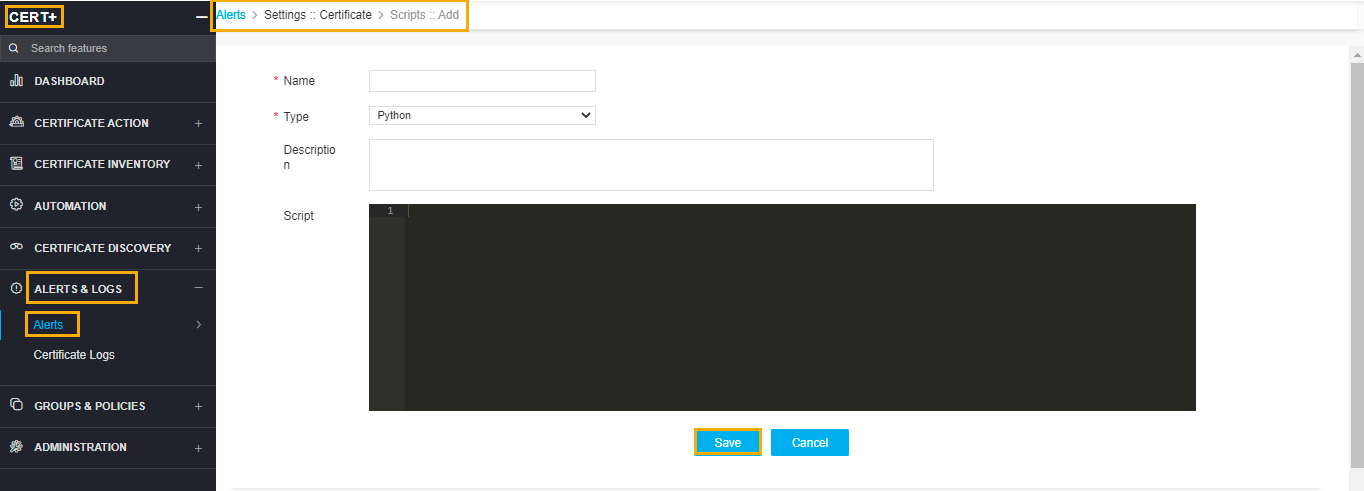
- Under the section Alerts & Logs, select Certificate Logs.
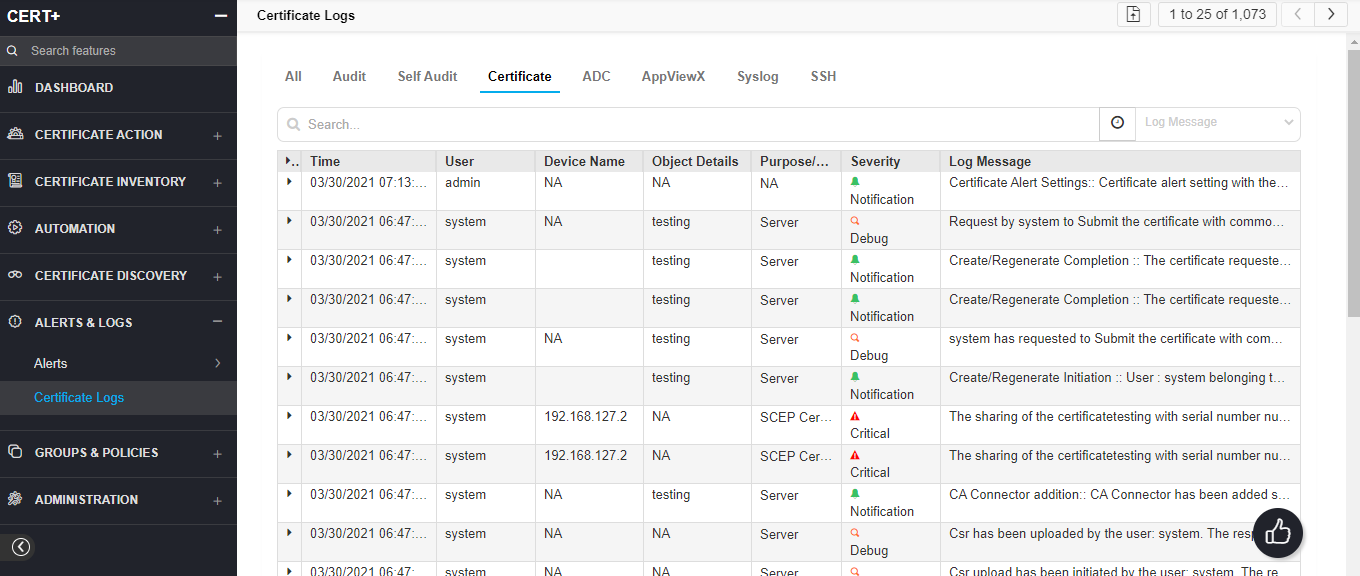
- On the Certificate logs list view page, you can find the list of logs related to the certificates. Any actions performed on the certificates are captured under this list view.
- You can search for logs based on the time, user, device name, object details, and severity.
- You can also filter logs based on the date and time and through the Log Message filter.
- On the log screen, view all details for a log by hovering your cursor over each column of data or click the (Expand) icon for the log you want to view. The table row expands to display all details for the log.
