
Configuring a CLM Action Failure Alert
A Certificate Lifecycle Management (CLM) action failure alert in certificate management is a notification generated when a CLM action fails. CLM involves managing digital certificates throughout their lifecycle, such as Enroll, Regenerate, Renewal, Revoke, Suspend, Reissue, and Reinstate.
- Network Issues: Connectivity problems between the certificate authority (CA) and the requesting system.
- Configuration Errors: Incorrect settings or parameters within the certificate management system.
- Authentication/Authorization Failures: Issues with credentials or permissions required to perform the CLM action.
- Expired Certificates: Attempting to renew or use an expired certificate.
- CA Service Problems: Outages or issues with the CA providing the certificates.
- Policy Violations: Actions that do not comply with the defined security policies or certificate policies.
To configure a CLM action failure alert:
-
Go to
 (Menu) > CERT+ >
ALERTS & LOGS > Alerts >
Certificate Alerts.
The Certificate Alerts page is displayed.
(Menu) > CERT+ >
ALERTS & LOGS > Alerts >
Certificate Alerts.
The Certificate Alerts page is displayed. -
Click the (
 ) Settings icon.
The Configure Alerts page is displayed.
) Settings icon.
The Configure Alerts page is displayed. - Enter an Alert name.
-
From the Event type dropdown list, select CLM action failure alert.
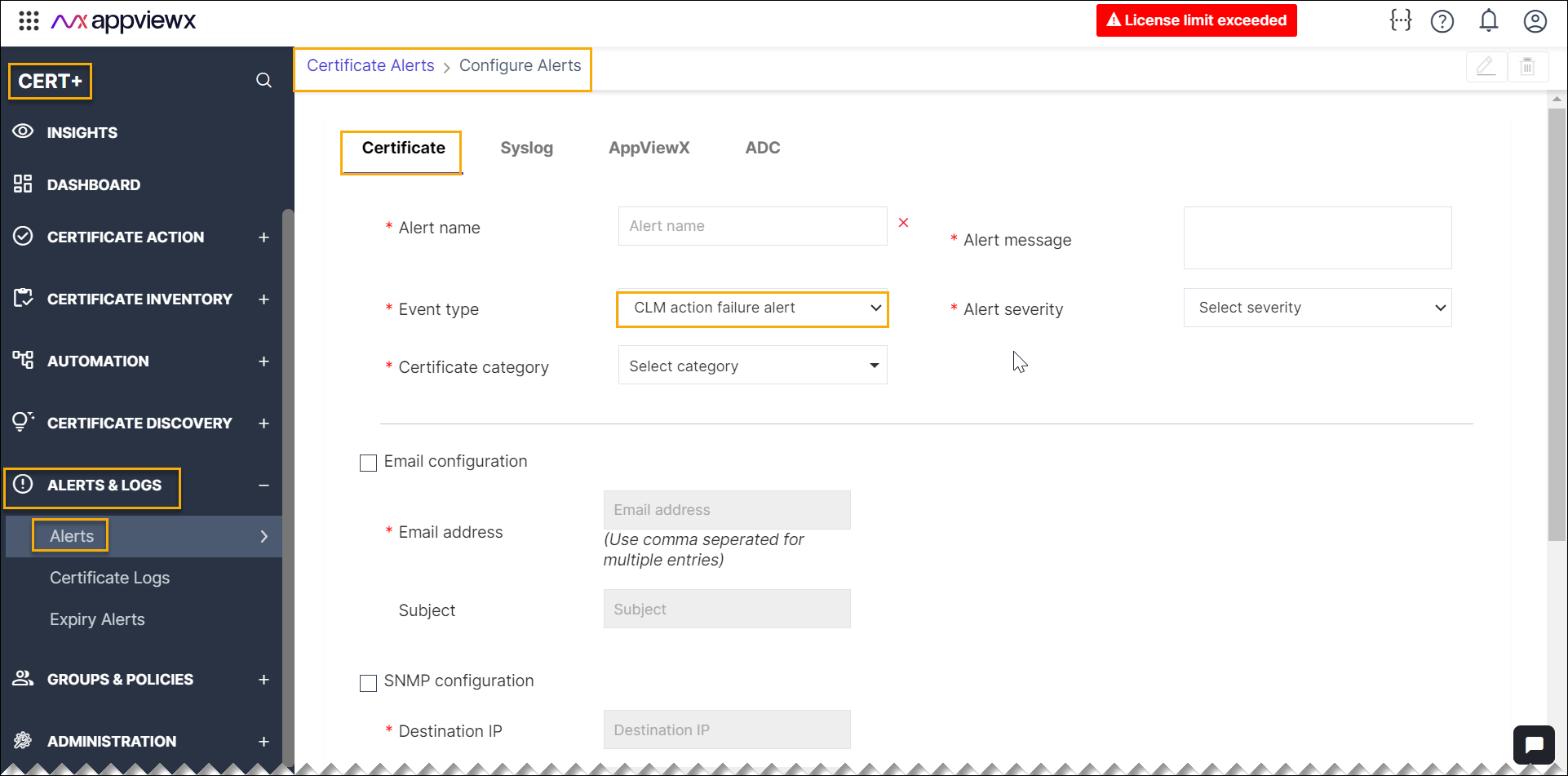
- From the Certificate category dropdown list, select the type of certificate.
- In the Alert message field, enter the additional information.
- Set the Alert severity as required.
- To configure email alerts, in the Email configuration section, enter the valid Email address that will receive the email notifications in the event of a connection failure.
- Enter the relevant subject in the Subject field.
-
To use the Simple Network Management Protocol (SNMP) for sending the alerts:
- Enter the Destination IP address for the alert.
- Select the SNMP Version to be used.
- Enter the Port number to be used for the alert.
-
Enter the Community string for the alert.
The string is similar to a user ID or password and allows users to access the requested information on the device.
-
Click the Add button to create the alert.
The new alert is now listed in the Certificate Alerts page, and below in the same Configure Alerts page.
- Click Reset, if you want to re-enter the details.
- Click Cancel, if you want to close Configure Alerts page and return to Certificate Alerts page.
Modifying the Configured CLM Action Failure Alerts
To ensure effective monitoring and timely resolution of issues in certificate management, you can modify the configured CLM (Certificate Lifecycle Management) action failure alerts.
To modify a CLM action failure alert:
- In the Configure Alerts page > failure alerts list in bottom of page, click the check-box that the configured failure alert to be modified.
-
Once the check-box is selected, the (
 )
Modify icon and (
)
Modify icon and ( )
Delete icon appears on the right-top of the page.
)
Delete icon appears on the right-top of the page.
-
Click the () Modify icon.
The configure alerts page appears with existing information.
- Enter the re-select/enter the required details in the fields.
-
Click Update.
The pop-up appears as Updated Successfully.
- Click Cancel, if you want to close Configure Alerts page and return to Certificate Alerts page.
Deleting the Configured CLM Action Failure Alerts
You can delete the configured CLM action failure alerts from the certificate alerts list.
To delete a CLM action failure alert:
- In the Configure Alerts page > failure alerts list in bottom of page, click the check-box that the configured failure alert to be modified.
-
Once the check-box is selected, the ()
Modify icon and ()
Delete icon appears on the rig-top of the page.
-
Click the () Delete icon.
The Confirmation window is displayed with message as Do you want to delete certificate alert?
-
Click Yes.
The pop-up message appears as Deleted Successfully
- Click No, if you want to return to Configure Alerts page.
