
Updating Renewal Validity
You can now specify a custom validity period for enrolled and active server, client, or
code-signing certificates prior to their next renewal or regeneration. This custom
validity will be applied during the upcoming renewal or regeneration. This action is
possible only if the certificate group is set to RW (read-write).
Note: Re-enrollment will continue to use the validity period defined
in the policy.
To update renew validity of a certificate:
- Go to
 Menu > CERT+ > CERTIFICATE INVENTORY.
 - Select a certificate for which you want to specify custom validity period. You
can do it either from:
- Holistic view
- Actions menu
- To set new renewal validity from the holistic view, select the certificate by
clicking the link. Click the
 (More) icon and select Update Renew Validity from the options as
shown.
(More) icon and select Update Renew Validity from the options as
shown.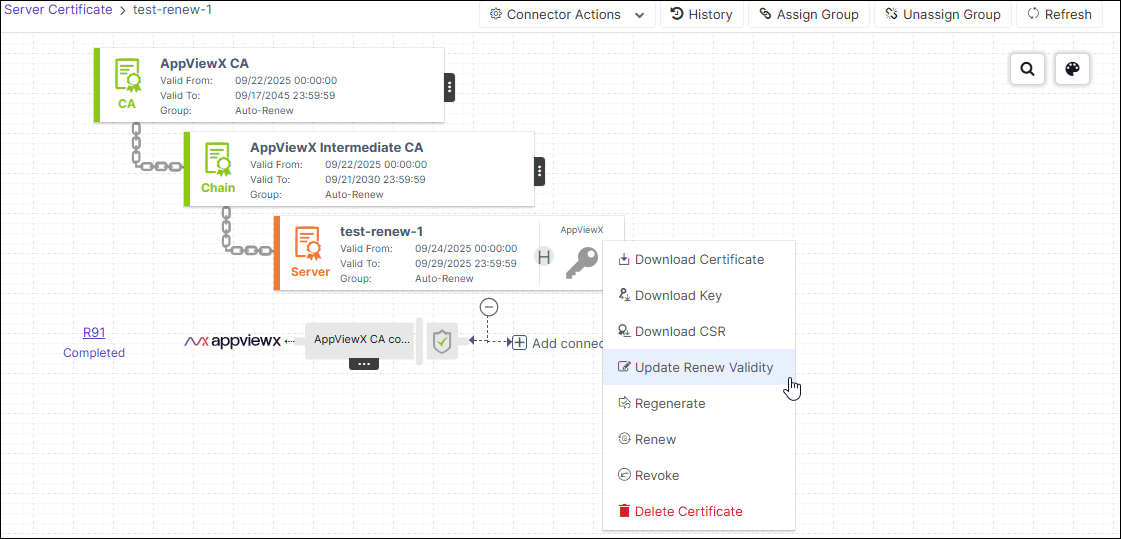
- To set new renewal validity from the Actions menu, select one or more
certificates by clicking the check box. Click the Actions menu and select
Update Renew Validity from the options.
The Update Renew Validity pop-up windows opens.
- Specify the new validity in days (1-365), months (1-12), or years (up to 99).
- Click Save.
A message, Selected certificate renew validity for certificate has been updated successfully, appears.
The new value is displayed in the Next Renew Validity column as shown.
This value is displayed in the Validity field when you try to renew or regenerate the certificate.
You can also use the Next Renew Validity field in the Advanced Search to find certificates based on their validity.
