
Configuring Onboarding Group
-
Go to
 (Menu) > CERT+ >
ADMINISTRATION > Device Management.
Note: You can also access it through the Platform module.
(Menu) > CERT+ >
ADMINISTRATION > Device Management.
Note: You can also access it through the Platform module.- Go to
(Menu) > Platform > ASSET
MANAGEMENT > Device Inventory.
By default, the ADC tab opens. - Go to
-
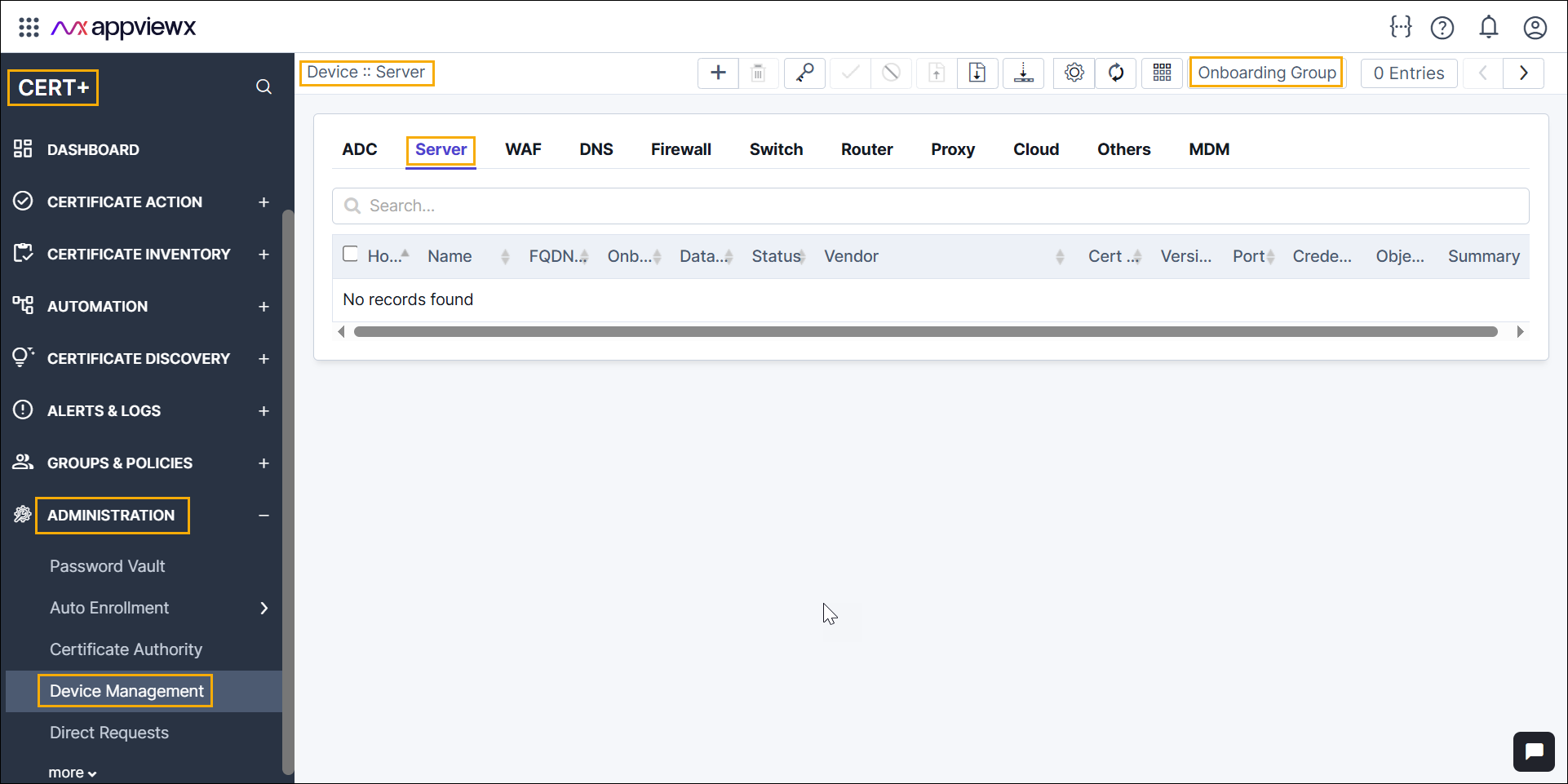
Click the Server tab.
-
Click the Onboarding Group tab in the command bar.
The Onboarding Group window is displayed.
-
Click + Configure tab.
The Onboarding Group Configuration window is displayed.
-
In the Onboarding Group Configuration section, enter details as
mentioned below.
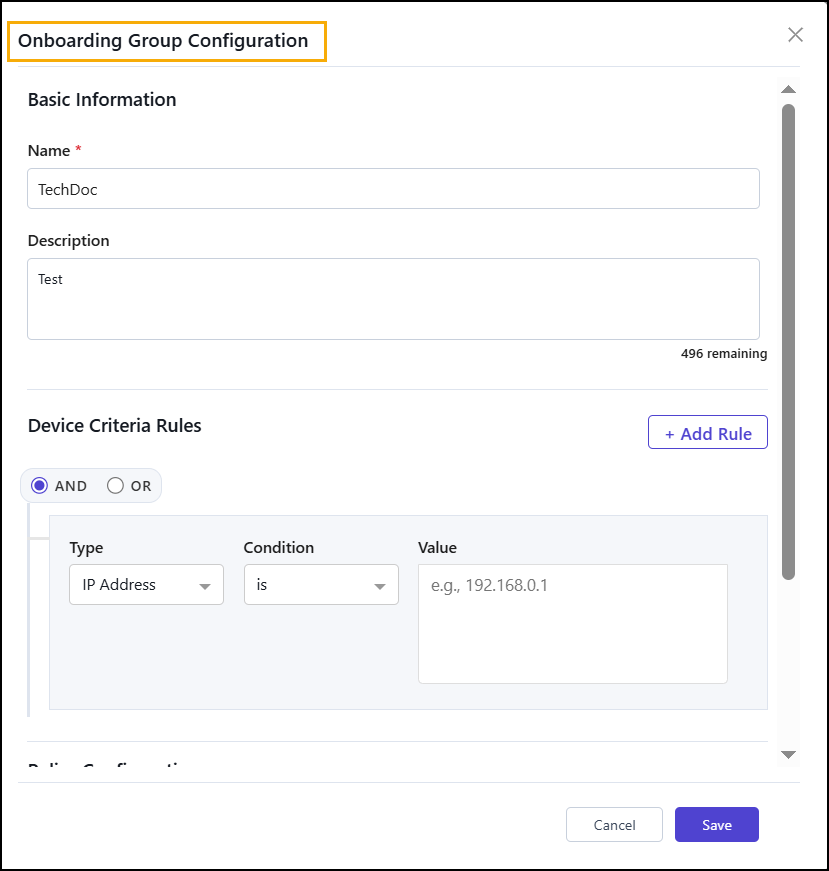
Table 1. Onboarding Group Configuration Details - Field Description Table Fields Description * Name Enter the name of the onboarding group. Description Enter the required onboarding group description. Device Criteria Rules Choose the logic operator AND or OR. - Type - pick the attribute to match (for example,
IP Address,Hostname,DNS Name,Port, andVendor). - Condition - pick how to compare (for example
is,is not,is one of,is not one of,cidr, andregex). - Value - enter the value to match (for example, IP Address:
192.168.0.1). - Click + Add Rule to add an additional rule row.
Policy Configuration > Device Onboarding Policy Select an existing onboarding policy from the dropdown, which will be applied to devices mapped to the onboarding group. Policy Engine If you need a new or modified policy, click Policy Engine (link shown in the dialog) to create or manage policies. After creating/updating the policy in Policy Engine, return and select it from this dropdown. *: Mandatory fields - Type - pick the attribute to match (for example,
- Click Save button to create the onboarding group.
- Click Cancel to exit without saving and return to the Onboarding Group home page.
