
Step 2: Configure resource access
MCP Policy
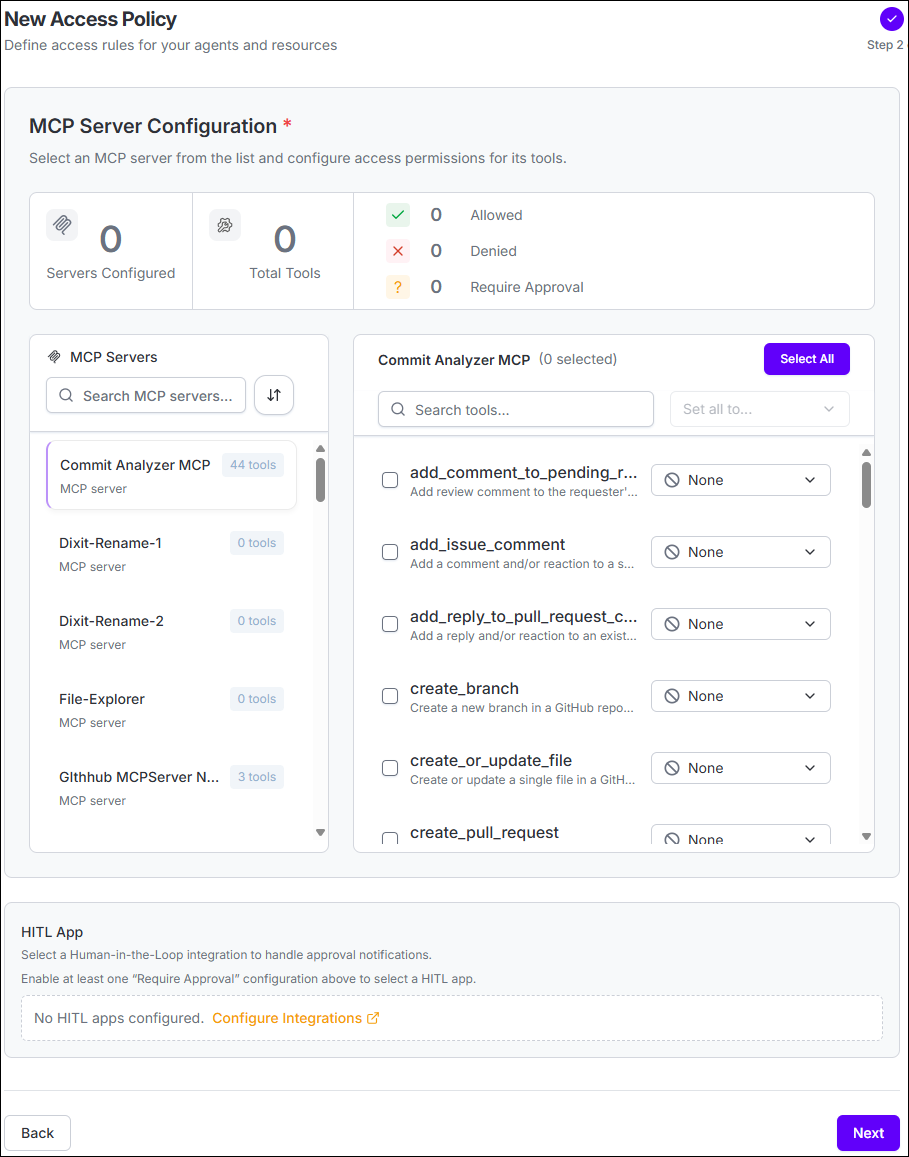
Configure MCP Access
- Select an MCP server from the available server list.
- Review the tools exposed by the selected server.
- Select the tools the policy should govern.
- Set each selected tool to Allow, Deny, or Require Approval.
- Repeat the configuration for additional MCP servers as required.
- If any tool requires approval, select the HITL App that should receive the approval request.
File Policy
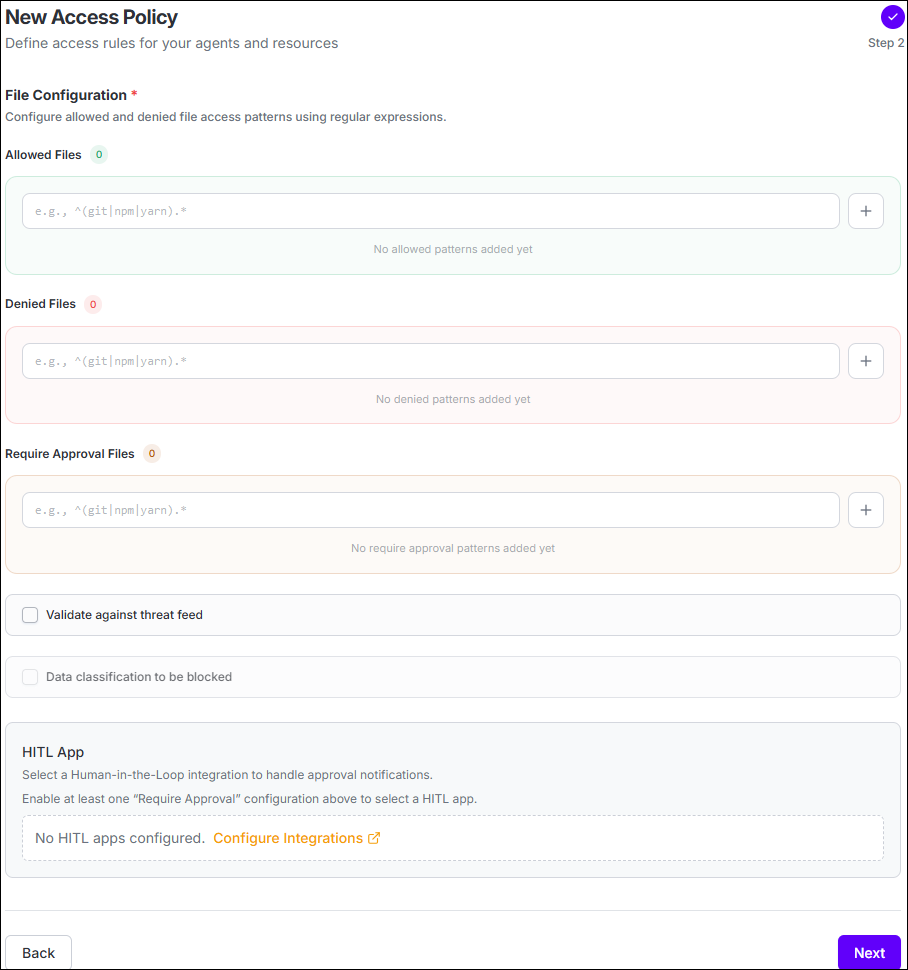
Configure File
Access
Configure file names under the three policy outcomes:
- Allowed Files - files the agent is permitted to access.
- Denied Files - files the agent is prevented from accessing.
- Require Approval Files - files that require a human decision before access proceeds.
Threat Feed Validation
File Policies support Validate against threat feed. When enabled, Agent Identity Security checks the file for the presence of secrets as part of policy evaluation.
Data Classification
File Policies can also block access based on data classifications obtained from a configured Data Loss Prevention (DLP) integration. Enable Data classification to be blocked and select the classifications that should be prevented from agent access.
For example, if the connected DLP integration provides classifications such as Public, General, Personal, and Confidential, an administrator can select the classifications that should be blocked for the policy.Package Policy
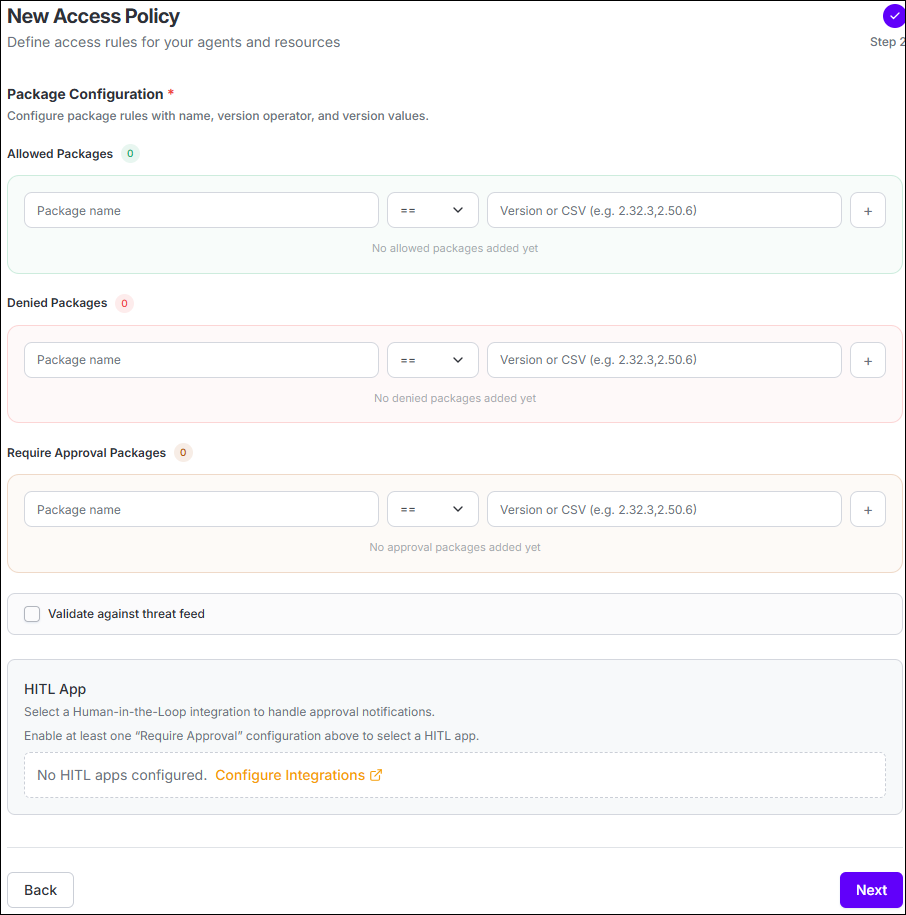
Configure Package Installation
Package rules can be added under Allowed Packages, Denied Packages, and Require
Approval Packages. For each rule, configure the package name and, when required, a
version condition.
Threat Feed Validation
| Field | Description |
|---|---|
| Package name | The package to which the rule applies. |
| Version operator | Choose ==, !=, >, >=, <, or <=. |
| Version | Specify the version, or the version values supported by the configuration. |
Package Policies support Validate against threat feed. When enabled, Agent Identity Security checks the package for known vulnerabilities as part of policy evaluation.
Web Policy
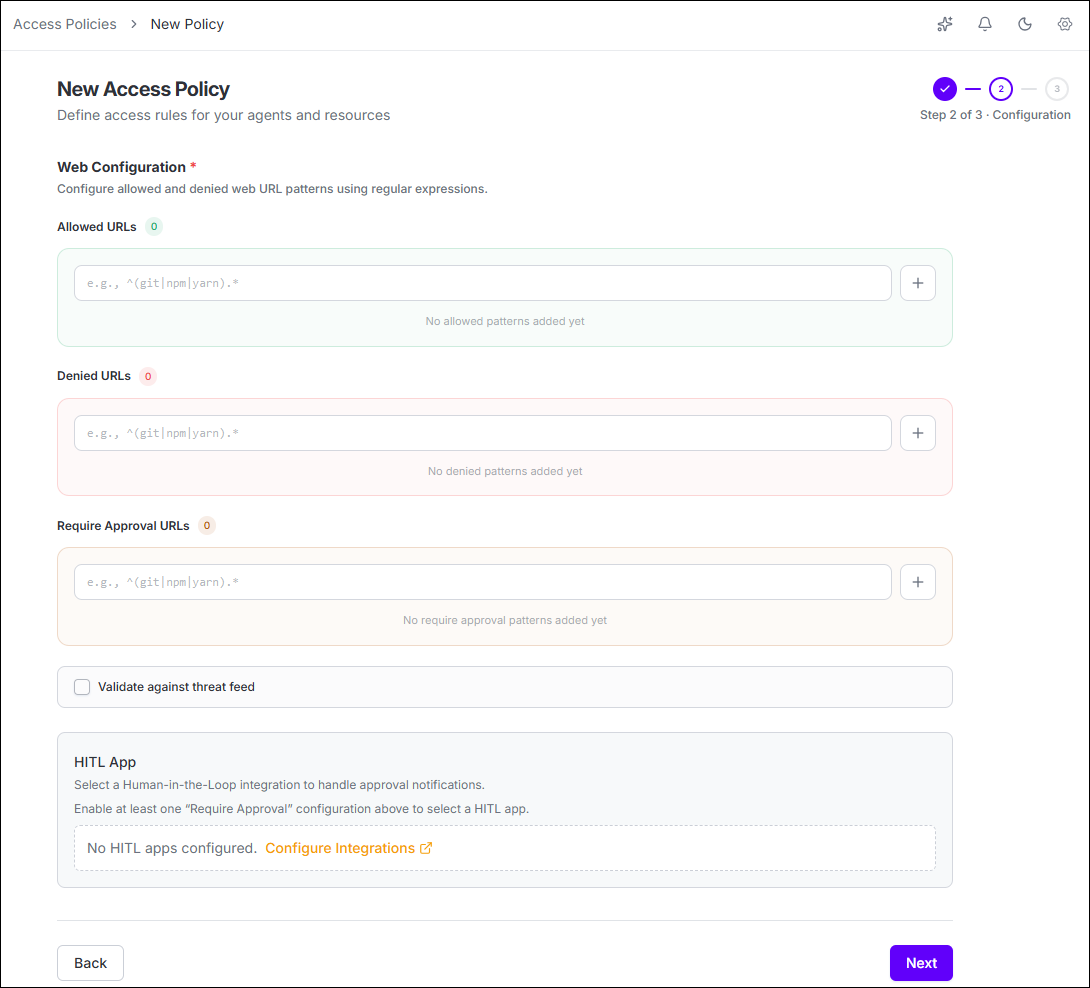
Configure Web Access
- Allowed URLs - web destinations the agent is permitted to access.
- Denied URLs - web destinations the agent is prevented from accessing.
- Require Approval URLs - web destinations that require human approval before access proceeds.
Terminal Policy
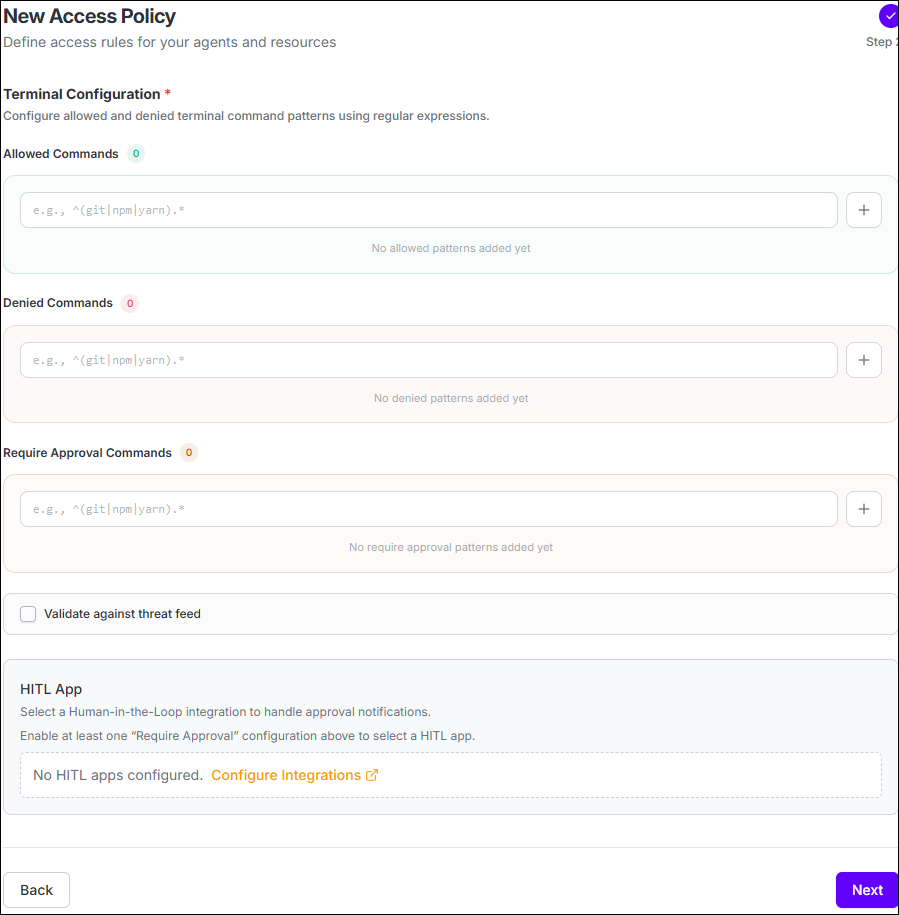
| Fields | Purpose |
|---|---|
| Allowed Commands | Regular-expression patterns for commands the agent is permitted to execute. |
| Denied Commands | Regular-expression patterns for commands that must be blocked. |
| Require Approval Commands | Patterns that pause execution until a human approval decision is received. |
| HITL App | Select the Human-in-the-Loop integration when Require Approval commands are configured. |
Version Control System Policy
| Policy Mode | Behavior |
|---|---|
| Allow all except blocked repositories | Repositories are allowed unless a matching rule blocks access or requires approval. |
| Allow only approved repositories | Repository access is denied unless it matches an approved rule; additional rules can block or require approval for specific access. |
Configure Repository Access
Allow
all except blocked repositories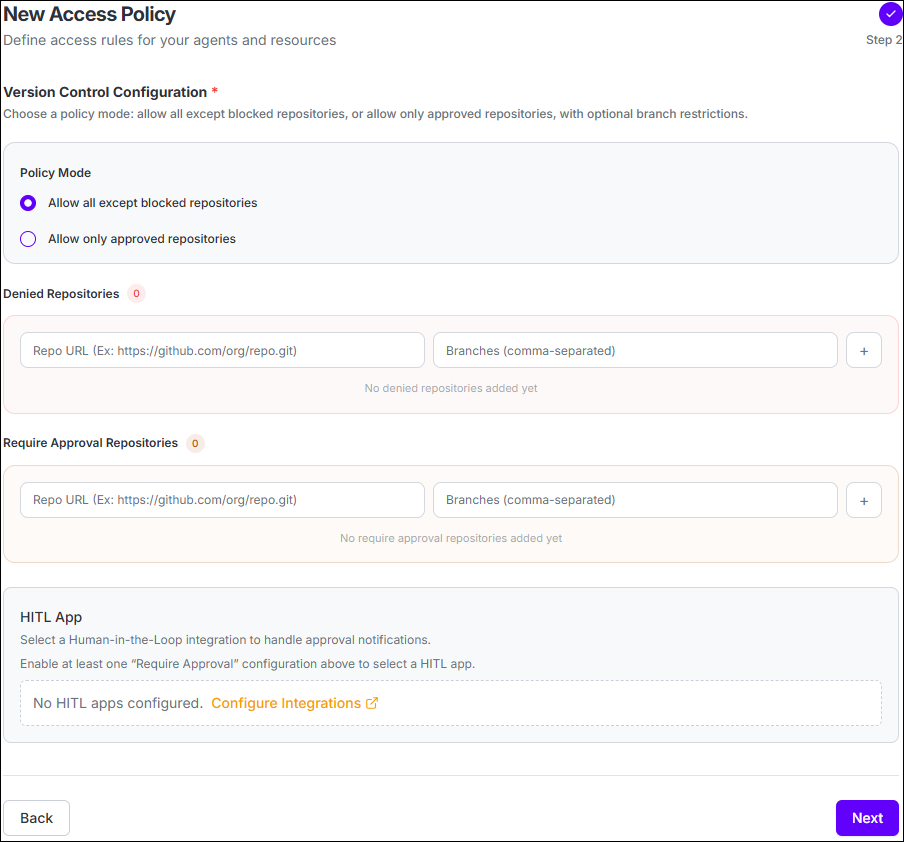
- Denied Repositories - block Git operations for the configured repository and branches.
- Require Approval Repositories - require a human decision before the matching Git operation proceeds.
Allow only approved repositories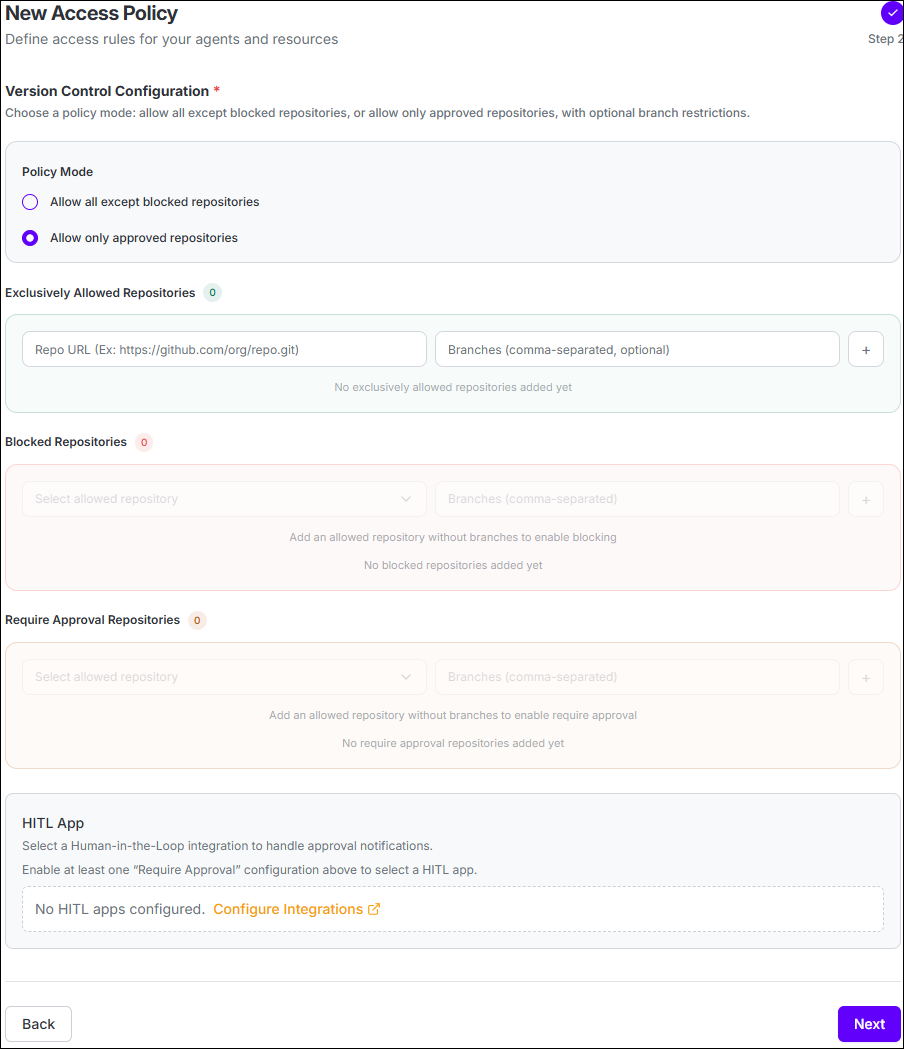
When Require Approval rules are configured, select a HITL
App.- Exclusively Allowed Repositories - define repositories that the agent may access.
- Blocked Repositories - deny specific repository or branch access within the allowed scope.
- Require Approval Repositories - require approval for selected repository or branch access.
AI Usage Policy
AI Usage is
platform-specific. In the current product guidance, this resource type is available for
Claude Code. Configure the applicable usage cap and period. When the configured limit is
exceeded, further usage is denied according to the policy.
Note: AI
Usage policies do not use Human-in-the-Loop approval and do not use the standard
enforcement schedule described for the other resource types.
Human Approval
The action proceeds or remains blocked
based on the approval decision. HITL App becomes relevant only when at least one Require
Approval rule is configured.
Note: MCP, File, Package, Web, Terminal,
and Version Control System policies when Require Approval is used. It does not apply to
AI Usage policies.
What's next: With the resource access
rules in place, proceed to Review and Create the
Policy to verify the complete configuration before the policy goes live.
