
Controls
The Controls page shows every individual compliance control across all enabled frameworks letting you see exactly which controls are failing, which agents are responsible, and what to fix.
What are Controls
The Controls page is a full, paginated list of every compliance control across all frameworks you have enabled. Where the main Compliance page shows your posture at the framework level, the Controls page lets you drill into each specific requirement seeing its current pass/fail status, which agents are violating it, and which platforms they run on.
Navigate here by selecting Total Controls or Controls Failing in the Compliance page header, by selecting any framework name in the frameworks list, or by selecting Controls from the Compliance sub-navigation in the left sidebar.
Page header summary
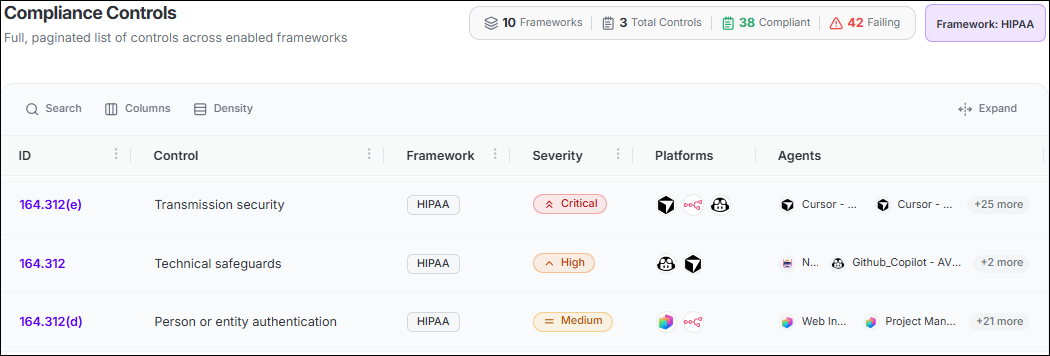
| Number | What it means |
|---|---|
| Frameworks | The number of enabled frameworks contributing controls to this view. Select this link to go back to the main Compliance page and reset any active framework filters. |
| Total Controls | All controls combined across every enabled framework. |
| Compliant (green) | Controls where all associated agents are currently passing. Select to show passing controls only. |
| Failing (red) | Controls where one or more agents are in violation right now. Select to show failing controls your primary remediation focus. |
Summary insight cards
Above the controls table, three cards give an instant compliance health snapshot:
| Card | What it shows |
|---|---|
| Overall Compliance | A ratio of passing controls to total controls, shown as a color-coded progress bar that shifts from green (healthy) through amber to red as posture worsens. Use this as a quick indicator at the start of each review cycle. |
| Violations | The total number of active control violations across all agents, with a sub-label showing how many new violations appeared in the last seven days. Use this to track whether your posture is improving or getting worse over time. |
| Most Exposed Agent | The name of the agent failing the most compliance controls. Start here when you want to focus remediation on the single highest-impact agent. |
Controls table columns
| Column | What it shows |
|---|---|
| ID | The unique identifier for this control within its parent framework for example, 164.312(e) for a HIPAA control, Article 15 for an EU AI Act article, or LLM01:25 for an OWASP Top 10 LLM control. Select the ID to open the Control Drilldown page. |
| Control | The descriptive name of the compliance requirement for example, "Transmission security" or "Prompt Injection". Select the name to open the same Control Drilldown page. |
| Framework | The regulatory standard defining this control, shown as a badge chip for example, HIPAA, GDPR, EU AI Act, or OWASP Top 10 LLM. |
| Severity | The compliance risk level if this control is violated: Critical (red), High (orange), Medium (amber), or Low (green). The table defaults to sorting by severity so the most critical failures appear first. |
| Platforms | Circular logo icons showing which AI platforms have agents failing this control. Hover over any icon to see the platform name. If no icon appears, no agents are currently failing this control. |
| Agents | The first one or two agents violating this control. When more agents are affected, a +N more badge appears. Select the badge to see all affected agents with their platform and severity rating. |
Filtering the controls list
| What you want | How to filter |
|---|---|
| See only failing controls | Select the Failing link (shown in red) in the page header. |
| See only one framework's controls | Select the framework name on the main Compliance page, or use the filter icon on the Framework column. |
| See only Critical controls | Select the filter icon on the Severity column and select Critical. |
| Find a specific control by ID | Select the filter icon on the ID column and type the control ID (for example, LLM01:25). |
| See controls that are passing | Select the Compliant link (shown in green) in the page header. |
| See controls for a specific agent | Navigate to the agent's detail page in Registry > Agents and open the Agent Posture tab to see compliance issues for that agent specifically. |
Control Drilldown page
Select any control ID or control name to open the Control Drilldown page. This page focuses on a single compliance control and shows every agent currently violating it, which platform that agent runs on, and the severity of the violation.
The drilldown is the most actionable page in the Compliance section. It answers the question: "Exactly which agents and teams need to fix this specific compliance gap?"
The page header shows:
| Field | What it shows |
|---|---|
| Control name | The full descriptive name of the control you are viewing for example, "Transmission security". |
| Control ID and Framework | The control identifier and the standard it belongs to for example, "164.312(e) • HIPAA". |
| Affected Agents | The total number of agents currently violating this control across all platforms. |
| Platforms | The number of distinct AI platforms on which violations are active for this control. |
The agent violation table lists every agent failing this control:
| Column | What it shows |
|---|---|
| Agent | The name of the AI agent violating this control. Select the agent name to go to that agent's full detail page in Registry > Agents. |
| Platform | The AI platform the agent runs on shown as a platform logo icon and name. |
| Severity | The risk severity of this agent's violation Critical, High, Medium, or Low. |
| Framework | The compliance framework defining the control being violated. |
| Control | The control identifier, confirming which specific requirement this agent is failing. |
Remediation workflow
The following steps show how to move from identifying a failing compliance control to resolving it. The example uses HIPAA 164.312(e) (Transmission security), but the same steps apply to any failing control:
- Find failing controls On the main Compliance page, select the Controls Failing link (shown in red) to see all controls that are currently failing.
- Open the drilldown Select the control ID or control name to open the Control Drilldown page. Review how many agents are affected and which platforms they run on.
- Investigate each agent For each agent in the list, select the agent name to open its detail page in the Registry. Open the Agent Posture tab to see the specific posture issues driving this compliance violation.
- Identify the root cause Read the Description and Findings in the expanded posture issue row. Identify which MCP server connections or outbound data paths are causing the problem.
- Sanction approved servers If the MCP server connections are legitimate and approved by your organization, navigate to Registry > MCP and sanction those servers. Sanctioning automatically resolves the related posture issues and removes the agent from the compliance violation list.
- Create a policy if needed If the connections are not approved, create an Access Policy (Secure > Policies) that restricts the agent's outbound MCP connections to the approved list only.
- Verify resolution Return to the Control Drilldown page and select Refresh. Resolved agents should no longer appear in the violation list.
- Confirm the control is passing Once all agents are remediated, return to the main Compliance page. The Controls Failing count should decrease, and the resolved control should move into the Compliant category.
Common difficulties
| Difficulty | What to do |
|---|---|
| A control shows as failing but I cannot find related posture issues for the affected agents. | Select Refresh on both the Agent Posture page and the Compliance Controls page. If the discrepancy persists, check Settings > System Configuration > Job System to confirm the evaluation job is running on schedule. |
| The Control Drilldown shows many agents but I only need to act on one platform's agents. | Use the Platform column filter on the drilldown page. Select the platform you are responsible for. The list narrows to just those agents, and you can export that filtered view to share with the relevant team. |
| I need to show an auditor that specific controls are passing. | Filter by the relevant framework, then select the Compliant link in the page header to show only passing controls. Export as JSON for the auditor. Export the failing controls separately auditors typically require both passing and failing evidence. |
