
Workflows
Workflows provide the automation layer for AI security and governance in Agent Identity Security. They enable organizations to automate security and governance processes by responding to events and conditions with predefined actions.
Workflows help teams reduce manual intervention, respond consistently to security and governance events, and connect Agent Identity Security with enterprise processes and tools.
What is a Workflow
| Trigger An event or schedule starts the workflow. |
Evaluate Conditions The workflow evaluates the available context and configured conditions. |
Perform Actions
Configured actions are performed when the workflow conditions are met. |
Example: Agent discovered without an owner -> Verify ownership condition -> Disable the agent and send a notification.
Out-of-the-Box Workflows
| OOB Workflow | Trigger | What It Does | Primary Outcome |
|---|---|---|---|
| Agent Activation on Discovery | New agent discovered | Evaluates configured governance requirements when an agent is discovered and applies the configured activation state. Can also notify through Slack and record a governance event. | Agent lifecycle control |
| Agent Posture Alerts | Agent discovery or update | Checks the agent for active posture issues and sends a Slack notification when configured posture issues are detected. | Posture notification |
| Disable Agents with Missing an Owner | Agent discovered without an owner | Identifies agents without an owner, automatically disables them, sends a Slack notification, and records the action. | Automated governance enforcement |
| Stale Agents Slack Alert | Scheduled weekly | Identifies agents with no activity for a configured period (30 days by default) and sends a Slack summary. Does not change the agent state. | Stale agent visibility |
| Transfer Agent Ownership on User Disable | User disabled or deleted | Finds Copilot Studio agents owned by the affected user, identifies the user's manager, and transfers agent ownership. A Slack notification can also be sent. | Ownership continuity |
| Unused MCP Server Alert | Scheduled daily | Identifies MCP servers that have not been accessed for the configured inactivity period (30 days by default), sends a Slack alert, and records an event. Does not disable or remove the MCP server. | Unused MCP visibility |
Workflows list page
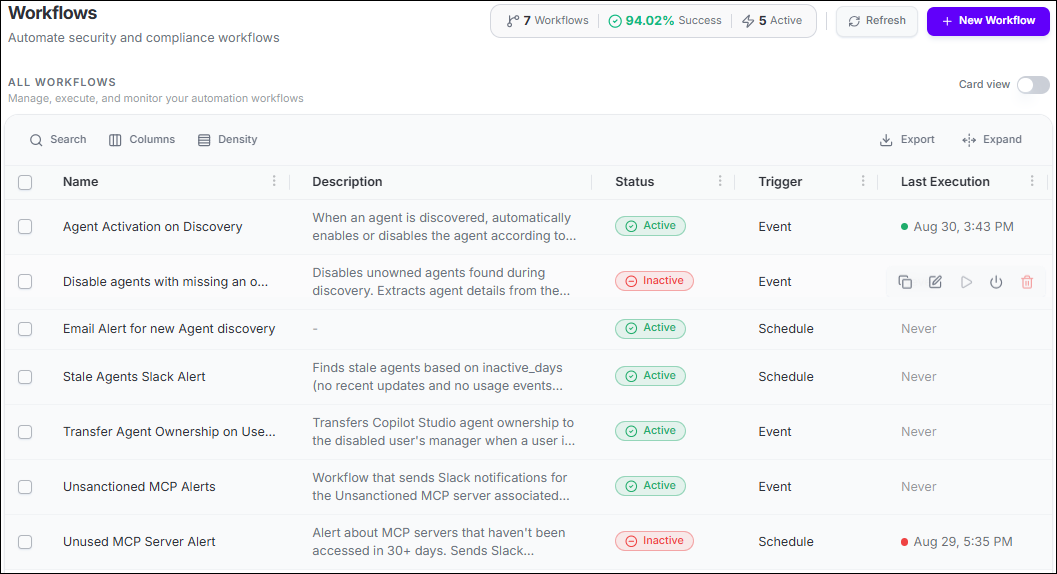
Page header badges
| Badge | What it shows | What it does when selected |
|---|---|---|
| Workflows | The total number of workflow definitions configured in Agent Identity Security. | Display-only. Shows all workflows. |
| Success | The percentage of recent workflow executions that completed without errors. A low percentage indicates that one or more workflows are failing when they run. | Select to filter the list to workflows that have had recent execution failures. |
| Active | The number of workflows that are currently enabled and will run when their trigger fires. | Select to filter the list to active workflows only. |
Workflow inventory columns
| Column | What it shows |
|---|---|
| Name | The user-defined name of the workflow. Long names are truncated with a tooltip. Select any row to open the workflow in the editor. |
| Description | A brief summary of what the workflow does. Truncated to two lines with a tooltip on hover. Displays a dash when no description is set. |
| Status | Active the workflow is enabled and runs when triggered. Inactive the workflow is disabled and will not run even if its trigger fires. Draft the workflow has been saved but not yet activated. |
| Trigger | How the workflow starts: Event (fires when an Agent Identity Security platform event occurs), Schedule (fires on a recurring time-based schedule), or Manual (only runs when you select Execute). |
| Last Execution | When the workflow last ran, shown as a relative timestamp such as "2 days ago". Displays Never if the workflow has not yet been executed. |
Row actions
| Action | What it does |
|---|---|
| Edit | Opens the workflow in the visual editor so you can change its steps, name, or description. |
| Execute | Runs the workflow immediately, regardless of its configured trigger type. Useful for testing or running a scheduled workflow outside its normal schedule. |
| Deactivate / Activate | Toggles the workflow between Active and Inactive without deleting it. Deactivating preserves the workflow configuration and execution history. |
| Delete | Permanently removes the workflow and all its execution history. A confirmation dialog appears before deletion. This action cannot be undone. |
Pre-built workflows
Agent Identity Security ships with a set of pre-built workflows that cover the most common AI agent governance scenarios. All pre-built workflows are active by default. You can edit, deactivate, or clone them to fit your organization's specific requirements.
| Workflow | What it does | Default trigger |
|---|---|---|
| Agent Activation on Discovery | When a Claude Code agent is discovered, evaluates whether it meets configured eligibility rules integration instance, owner, and approved model. Automatically enables or disables the agent based on the evaluation result, notifies via Slack, and logs a governance event. | Event Claude Agent Discovered |
| Auto-Assign Agent Admin on Creation | When a new agent is created on n8n or other platforms, automatically assigns management rights to a designated admin user. Looks up the creator's manager first and falls back to a configured admin email if no manager is found. | Event Agent Created |
| Certificate Rotation Reminder | Alerts your team when agent certificates have not been rotated within a configurable number of days, or are expiring within a configurable window. Sends both email and Slack notifications and logs the result. | Schedule |
| Disable Agents with Missing Owner | Automatically disables agents discovered without an assigned owner. Sends a Slack notification and logs the outcome. | Event Agent Discovered |
| Revoke Stale OAuth Token | Automatically revokes OAuth tokens for agents that have not been used within a configurable number of days. Notifies admins via Slack and logs the action. | Schedule |
| Stale Agents Slack Alert | Finds agents that have been inactive for a configurable number of days and posts a summary to the configured Slack channel. | Schedule |
| Transfer Agent Ownership on User Disable | When a user account is disabled in Microsoft Entra ID, automatically transfers ownership of all their AI agents to the disabled user's manager. Updates both Agent Identity Security and external platforms such as Copilot Studio and n8n. | Event User Disabled |
| Unused MCP Server Alert in Slack | Alerts about MCP servers that have not been accessed for a configurable number of days. Sends a Slack notification listing the dormant servers. | Schedule |
Workflow Editor
Selecting any workflow row opens the Workflow Editor a visual canvas where you build and manage workflow steps by dragging activity nodes onto the canvas and connecting them in sequence. The same editor opens when you select New Workflow.
Editor layout
| Area | What it contains |
|---|---|
| Breadcrumb | Shows your navigation path: Workflows > {Workflow name} > Edit. Select Workflows to return to the list without saving. |
| Workflow name | Select the name to edit it. The name appears in the workflow list and in Event Logs when the workflow runs. |
| Canvas | The main working area. Drag activity nodes from the Activities panel onto the canvas and draw connections between them to define the workflow sequence. Use the zoom controls in the bottom-left corner to zoom in, zoom out, or fit the full workflow to the screen. |
| Right panel | Contains three sections: Slack Notifications (configure the Slack channel for notification steps), Description (an editable text area for your workflow description), and Activities (the draggable node library). |
| Toolbar buttons | Cancel (return to the list without saving), Activate / Deactivate (toggle the workflow state), Execute (run the workflow immediately), Save (save changes). |
| Executions panel | A collapsible panel at the bottom showing the history of past runs for this workflow, including when each run started and whether it succeeded or failed. |
Activities panel available nodes
The Activities panel on the right side lists every node you can drag onto the canvas. Nodes are grouped into five categories:
| Category | Nodes available | What they do |
|---|---|---|
| Triggers | Event Trigger, Schedule, Manual Trigger | Define how and when the workflow starts. Every workflow must begin with exactly one trigger node. Event Trigger fires when a specific Agent Identity Security platform event occurs. Schedule fires on a recurring time-based schedule. Manual Trigger fires only when you select Execute. |
| Actions | HTTP Request, Log Event, Create JIRA Ticket, Execute Code | Perform an action or record something. HTTP Request calls any external URL. Log Event creates an entry in Agent Identity Security Event Logs. Create JIRA Ticket opens a ticket in your Jira instance. Execute Code runs a custom script for advanced scenarios. |
| AppViewX | Query Agents, Revoke Credentials, Suspend Agent, Assign Owner, Query Posture Issues, Find Manager, Query MCP Servers, and more | Interact directly with Agent Identity Security data and agent operations find agents with problems, suspend or re-enable agents, assign owners, revoke credentials, and more. |
| Notifications | Send Slack Message, Send Email | Notify your team. Send Slack Message posts to the channel configured in the Slack Notifications section of the right panel. Send Email sends to one or more recipients. |
| Flow Control | Extract Data, Condition, Wait for Approval, Delay, End | Control the path the workflow takes. Condition branches the workflow based on a true/false evaluation. Wait for Approval pauses until a human approves via a HITL channel. Delay introduces a time pause. End explicitly terminates the workflow at that point. |
Managing existing workflows
Editing a workflow
- On the Workflows page, select the workflow name or the Edit button in its row.
- The Workflow Editor opens with the existing configuration loaded on the canvas.
- Make your changes to nodes, connections, names, or panel settings.
- Select Save to save changes, or select Activate to save and activate immediately.
Running a workflow on demand
- On the Workflows page, select the Execute button on the workflow's row.
- A notification confirms that execution has started.
- After the workflow finishes, the Last Execution timestamp updates and a second notification confirms completion.
Activating and deactivating a workflow
- On the Workflows page, select Deactivate on an active workflow to stop it running.
- Select Activate on an inactive workflow to re-enable it.
- The Status badge updates immediately.
Viewing execution history
Every time a workflow runs, Agent Identity Security records the execution. You can review the history in two places:
- In the editor. Select Executions at the bottom of the canvas to expand the execution panel. This shows the run history for that specific workflow when each run started, whether it succeeded or failed, and which steps executed.
- In Event Logs. In Govern > Event Logs, filter the Category column to workflow or search for the workflow name. Every Log Event step in your workflow writes an entry here, giving you a searchable audit trail.
Common difficulties
| Difficulty | What to do |
|---|---|
| The Save button is greyed out. | The workflow canvas has no trigger node. Every workflow must start with exactly one trigger. Drag an Event Trigger, Schedule, or Manual Trigger node from the Activities panel onto the canvas and connect it to the first action node. |
| A workflow ran but no Slack message arrived. | Check three things: (1) The Slack Notifications channel name in the right panel is correct and starts with #. (2) The Slack integration is active in the Integrations page. (3) The Condition node is evaluating to the expected value expand the Executions panel to see which path the workflow took. |
| The workflow is Active but never seems to fire. | If the trigger is an Event Trigger, confirm that the event type is one your environment is generating. For example, an Agent Discovered trigger only fires when a new agent sync brings in a new agent. Try using Manual Trigger and selecting Execute to confirm the workflow logic is correct. |
| A node is showing an error or is not connecting. | Select the node to open its configuration in the right panel. Each required field is marked with a red indicator when it is missing or invalid. For AppViewX nodes, make sure fields reference valid output variables from earlier nodes using the ${variable} syntax. |
| I want to send alerts to a different Slack channel for different workflows. | The Slack channel is set per-workflow in the Slack Notifications section of the right panel. Each workflow can have its own channel name. You do not need to create multiple Slack integrations one integration supports multiple channels. |
| The Success percentage badge on the Workflows page is low. | Select the Success badge to filter to failing workflows. Then open each failing workflow and review the Executions panel for error details. Common causes include invalid Slack channel names, expired credentials in HTTP Request steps, and Jira configuration issues. |
