
Agent Posture
Agent Posture is your continuous security inspection report showing every open security and compliance problem across your AI agent fleet right now, ranked by severity so your team knows exactly where to act first.
What is Agent Posture
After your AI platforms are connected through Integrations and your agents appear in the Registry, Agent Identity Security continuously scans each agent against a set of security and compliance rules. Any time an agent's configuration, connections, or behavior deviates from those rules, Agent Identity Security records a posture issue here.
Think of Agent Posture as a continuous inspection report: Event Logs show what happened in the past, while Agent Posture shows what is wrong now before it leads to a security incident.
Agent Posture helps your security and compliance teams:
- See every open security problem across all agents in one place, ranked by severity.
- Identify which agents are creating the most risk exposure right now.
- Understand which compliance frameworks such as GDPR, SOC 2, NIST AI RMF, EU AI Act, and OWASP Top 10 LLM are being violated and by which agents.
- Prioritize remediation work by sorting and filtering issues by severity, status, or agent.
- Track whether issues have been resolved, are under investigation, or are still open.
Navigation overview
Summary numbers
Four filter badges at the top of the page each show a live count and work as one-click filters. Select a badge to filter the list instantly. Select it again to clear the filter.
| Badge | What it means and how to use it |
|---|---|
| Issues (total) | Every posture issue recorded across all agents at all severity levels. Select to clear all active filters and see the full list. |
| Critical | Issues where the risk is highest for example, a sensitive data exfiltration path is open, or an agent is connected to an unapproved server with no authentication. Select to see only Critical issues. |
| High | Issues that are serious and need attention soon, but are one step below Critical. Select to see only High issues. |
| Unresolved | Issues that are still open status is Unresolved or under investigation. This is the most useful daily filter for a security team triaging their backlog. |
Posture issue inventory columns
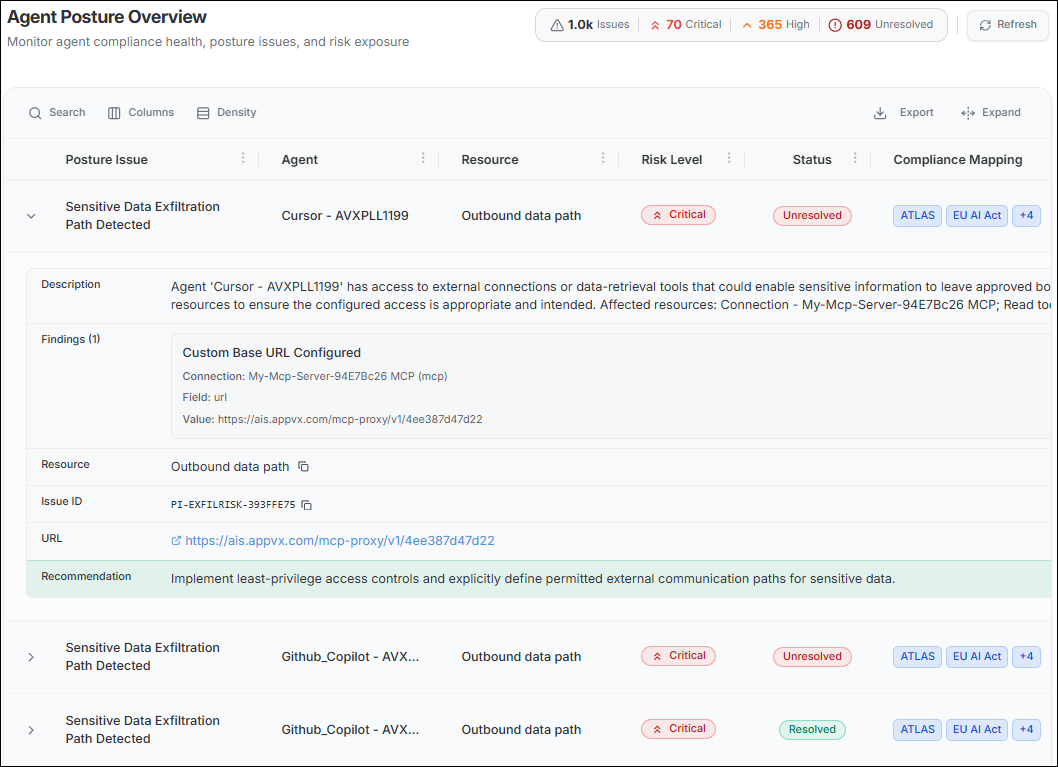
The main area shows a paginated table of all posture issues, sorted by risk level (highest first) by default. Each row represents one posture issue for one agent the same issue type can appear multiple times if it affects multiple agents or resources.
| Column | What it shows |
|---|---|
| Posture Issue | The name of the detected security or compliance problem for example, "Sensitive Data Exfiltration Path Detected", "Local MCP Server Detected", or "Agent Using Unapproved MCP Server". |
| Agent | The name of the agent that has this problem. Select the agent name to navigate to that agent's full detail page in the Registry. |
| Resource | The specific resource involved such as "Outbound data path", "Playwright MCP", or "Microsoft-Word MCP". This is where the problem was detected. |
| Risk Level | The severity of this issue: Critical (red), High (orange), Medium (amber), or Low (green). The list is sorted by risk level (highest first) by default. |
| Status | The current state of the issue: Unresolved (still open), Investigating, Monitoring, or Resolved (fixed). |
| Compliance Mapping | The compliance frameworks this issue violates, shown as colored badges for example, GDPR, OWASP Top 10 LLM, EU AI Act, NIST AI RMF. Hover over the +N chip to see all mapped frameworks. |
| Detected | The date and time when Agent Identity Security first identified this issue. Hover over the short date to see the full timestamp. |
Common posture issue types
| Issue type | Severity | What it means |
|---|---|---|
| Sensitive Data Exfiltration Path Detected | Critical | An agent has access to external connections or data-retrieval tools that could allow sensitive information to leave approved boundaries. The agent is connected to one or more external MCP servers with custom URLs that have not been reviewed. |
| Agent Using Unapproved MCP Server | High | An agent is connected to an MCP server that is not on the organization's approved server list. The server may not have been vetted for security or compliance. |
| MCP Tool Parameter Mutation | High | A tool exposed by an MCP server has changed its parameters or schema since it was last approved. This may indicate an unauthorized change to the server. |
| Unsanctioned Model In Use | High | An agent is running on an AI model that has not been approved by the organization. The model may lack required compliance certifications. |
| Local MCP Server Detected | Medium | An MCP server is running locally on a developer's device rather than on a managed, centrally monitored endpoint. Local servers are harder to audit and may not have the same security controls. |
| Unassigned Agent Owner | Medium | No owner has been assigned to the agent. There is no one accountable if the agent causes a problem. |
Reading a posture issue in detail
Select the chevron arrow (▶) at the left edge of any row to expand it. An inline detail panel opens with six fields:
- Description a plain-language explanation of exactly what the problem is and which resources are involved. No technical knowledge required to understand it.
- Findings the specific evidence Agent Identity Security found to support this issue. For example, a "Sensitive Data Exfiltration Path Detected" issue will list each MCP server connection that constitutes an outbound data path, including the URL.
- Resource the name of the specific resource category Agent Identity Security used to classify the problem for example, "Outbound data path". Use the copy icon to copy it for a ticket or remediation task.
- Issue ID a unique identifier in the format PI-{TYPE}-{HASH}. Select the Issue ID to copy it to the clipboard. Use this ID when filing remediation tickets, referencing the issue in a compliance audit, or searching Event Logs for related activity.
- URL the URL of the affected endpoint or resource. Select the link to open it in a new browser tab for direct inspection.
- Recommendation a plain-language action your team should take to resolve the problem and return the agent to a compliant state.
Filtering and searching posture issues
Agent Identity Security gives you several ways to narrow the list to exactly what you need to work on:
- Select a severity badge (Critical, High) or the Unresolved badge at the top of the page.
- Select the filter icon next to any column header for example, filter Status to "Unresolved" to show only issues that need action, or filter Agent to see all issues for a specific agent.
- Select Search and type a keyword such as a posture issue name, agent name, or resource name.
- Combine multiple filters at the same time. Active filters appear as chips below the toolbar. Select x on a chip to remove it, or select Clear all to start fresh.
Useful filter combinations for a security team:
| What you want to see | How to filter |
|---|---|
| All open Critical issues that need same-day action | Select the Critical badge, then filter Status = Unresolved. |
| All issues for one specific agent | Select the filter icon on the Agent column and type the agent's name. |
| All issues that violate GDPR | Filter the Compliance Mapping column to GDPR. |
| Issues detected today | Filter the Detected column to today's date range. |
| Issues that were recently resolved | Filter Status = Resolved and sort by Detected (newest first). |
How to remediate a posture issue
- Understand the issue Expand the row and read the Description. Confirm whether the flagged connections or configurations are expected for this agent.
- Investigate the resource Review the Findings section to identify the specific MCP server connections or configurations causing the problem.
- Sanction approved resources If the flagged connections are legitimate and approved by your organization, navigate to Registry > MCP and sanction those servers. Sanctioning automatically resolves the related posture issues.
- Remove unapproved connections If the connections are not approved, remove them from the agent's configuration and consider deactivating the agent until the review is complete.
- Create a policy if needed Navigate to Secure > Policies to create an Access Policy that explicitly defines which external communication paths this agent is permitted to use.
- Verify resolution After making changes, select Refresh. Resolved issues should show a Resolved status. The issue counts in the summary badges update automatically.
Common difficulties
| Difficulty | What to do |
|---|---|
| There are hundreds of posture issues and I don't know where to start. | Select the Critical badge and filter Status = Unresolved. Work through Critical Unresolved issues first. Once those are addressed, move to High Unresolved. Use Workflows (Govern > Workflows) to automate resolution of common issue types. |
| An issue appears multiple times in the list. | The same issue type can be raised for the same agent on consecutive Agent Identity Security evaluation cycles if it remains unresolved. Filter by Posture Issue name and Agent name to group all instances together. |
| The issue shows as Resolved but I can still see the problem in the agent's configuration. | Agent Identity Security may have cached a previous evaluation result. Select Refresh to force a re-evaluation, or wait for the next scheduled sync cycle. Check Settings > System Configuration > Job System to see how frequently evaluations are recalculated. |
| The Compliance Mapping column shows +3 but I can't see all the frameworks. | Hover over the +3 badge to see a tooltip listing all the additional frameworks. Alternatively, expand the row the full compliance mapping is shown in the drilldown panel. |
| A posture issue is for an agent I don't recognize. | Navigate to Registry > Agents and search for the agent name. Check the Owner column if it shows a dash, the agent has no assigned owner, which is itself a posture issue. Contact the team responsible for the platform shown in the Platform column. |
