
HAProxy
Before You Begin
Prerequisites
- Version Supported: Open source version: 1.4.x, 1.5.x, 1.6.x, 2.x (Community), 2.x (Enterprise)
- IP Address/FQDN: IP address
- User Privilege: Username /Password, Credential List AppViewx/CyberArc/Delinea
- Enable Password: Not applicable
- License Check: Yes
- Services and Ports for AppViewX Communication: Port 22 SSH
- Internet Access/Proxy if Required: Not applicable
- Location from which Certificates are discovered if managed:
/config/filestore/fil es_d/_d /certificate_d/ /etc/httpd/conf/ssl. crt/ /etc/pki/tls/certs/
V10
/config/ssl/ssl.crt/ /etc/httpd/conf/ssl. crt/ /etc/pki/tls/certs/
| Browsers | Version |
|---|---|
| Internet Explorer | v11.0.9600.18817 or later |
| Firefox | v74.0.1 (64-bit) or later |
| Google Chrome | 117.0.5938.134 (Official Build) (64-bit) or later |
- ADC > Inventory > Add / Modify
- ADC > Device group > Add / Modify
- Old menu: menu > Accounts > Role
- New menu: menu > Platform > IDENTITY > Role
Adding HAProxy Device
To add a HAProxy device:
- Go to Menu > ADC+ > ASSET MANAGEMENT.
-
Perform one of the followings:
-
Click Device Inventory, and then select Add (+) icon to navigate to the Device details page.
-
Click Onboard Device in the left navigation panel.
-
-
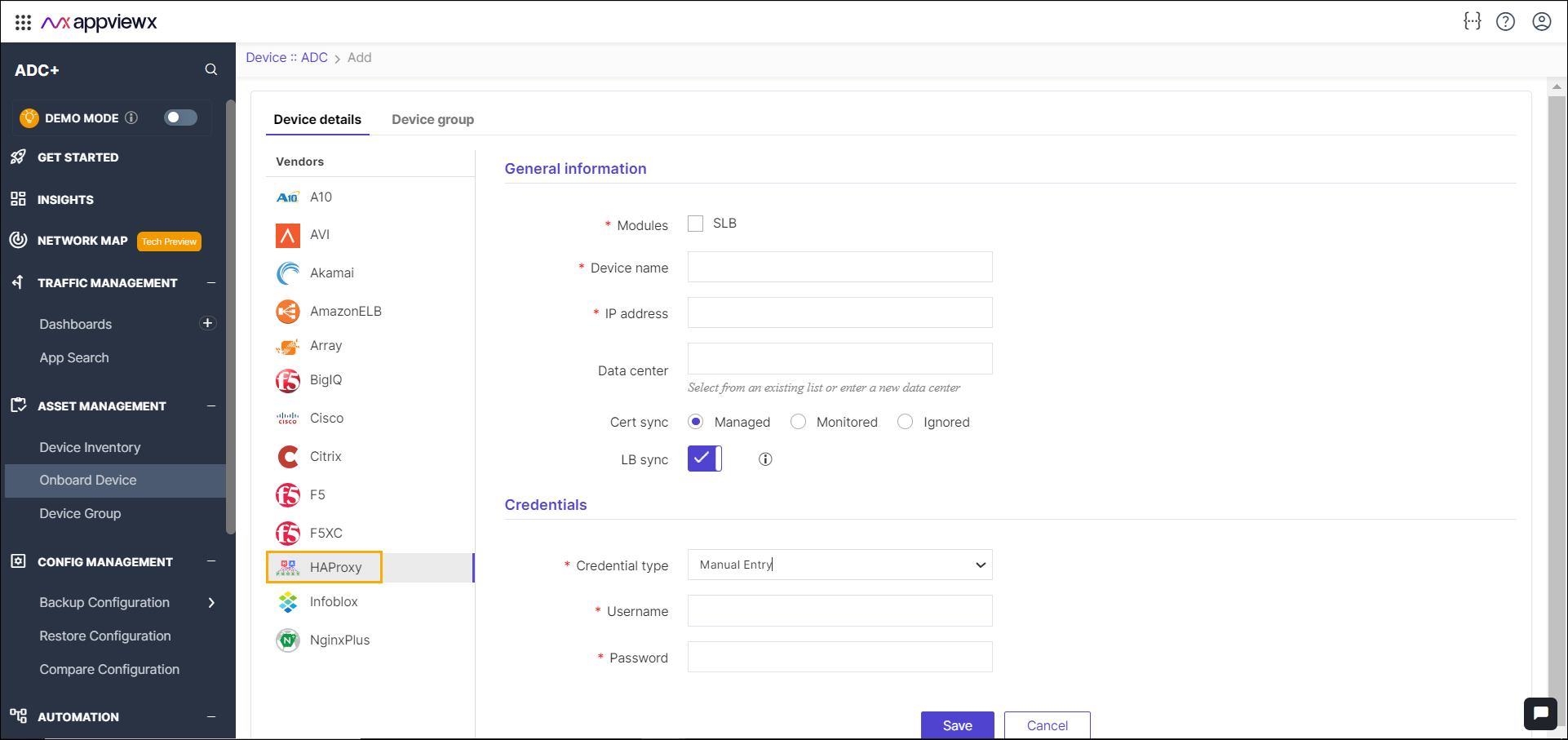
In the Device details page, select HAProxy
from the left sidebar.
-
Enter or select the field information in the General
information section.
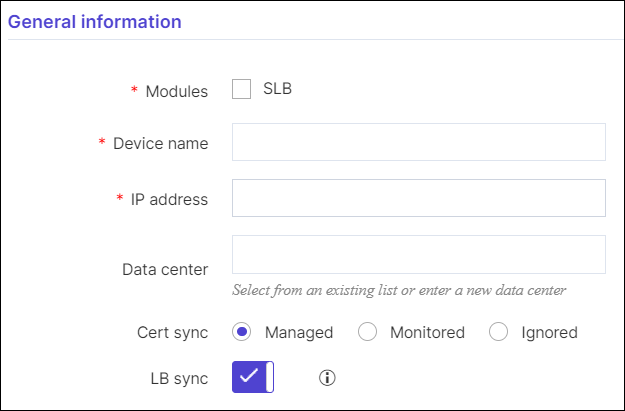
Table 1. General information Section - Field and Description Table Name Type Description Validation *Modules Checkbox Select a module. NA *Device name Text Unique name of the device to be added. Device names can only contain alphanumeric characters, '-' , '_' , '.' , '*' , '|' , '!' and spaces. *IP Address Text The ipv4 address of the device. The IP address should be in the right format. Data center Text Datacenter name where the device is configured. The default value is Absecon. Data center name can only contain alphanumeric characters, '-' , '_' , '.' , '*' , ':' , '|' and spaces. *Cert Sync Radio button Managed: The certificates of the device can be managed.
Monitored: The certificates of the device can be monitored.
Ignored: The certificate sync can be ignored.
NA LB Sync Checkbox By default, this option is enabled to discover and manage the load balancer configurations. If not required, you can disable this option. *: Mandatory fields -
Enter or select the field information in the Credentials
section. You can select Manual Entry or Credentials
List.
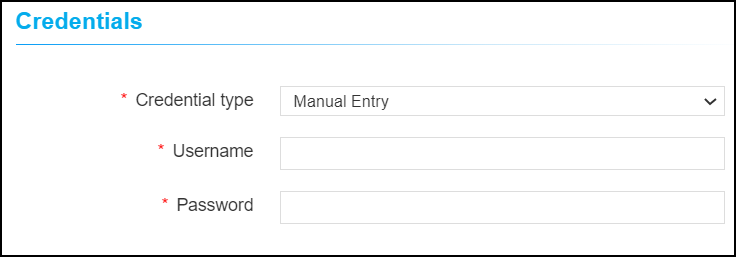
Table 2. Credentials Section Field and Description Table Name Type Description Validation *Credential type Dropdown Manual entry: The user should enter the username and password.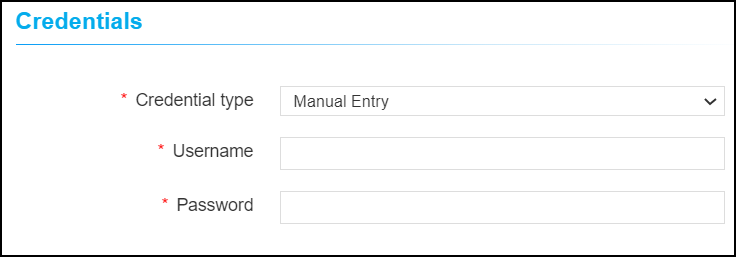 Credential List: The user can select the credential details which are already stored in the credential inventory page.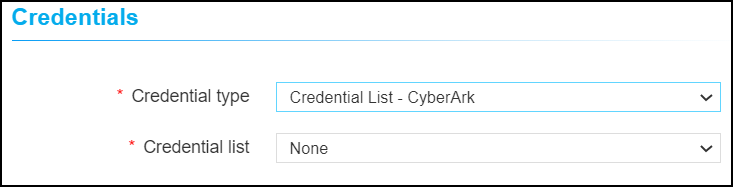
NA *Username Text The user name of the device. NA *Password Text The password of the device. NA *: Mandatory fields - Click Save.
Validating the HAProxy Device Addition
After adding the device, you can validate the device by searching device in the device inventory.
- Go to Menu > ADC+ > ASSET MANAGEMENT > Device Inventory.
-
Search the device name and validate whether the device is
added successfully.

