AVI
Before You Begin
Prerequisites
- Version Supported: 16.2.x, 16.3.x, 17.1.x,17.2.x,18.2.x, 20.1.x,
22
 , 30, 31.x
 - IP Address/FQDN: IP address and FQDN Note: Device should not be added with Cluster IP
- User Privilege: System Admin Role for all tenants. Note: SuperUser Access is required only to verify terminal check, not mandatory.
- Enable Password: Not applicable
- License Check: No
- Services and Ports for AppViewX Communication: 22, 443, 5514 (To receive syslog on AppViewX from AVI)
- Internet Access/Proxy if Required: Not required
- Location from which Certificates are discovered if managed: No specific location (we use API's to get certificate details)
| Browsers | Version |
|---|---|
| Internet Explorer | v11.0.9600.18817 or later |
| Firefox | v74.0.1 (64-bit) or later |
| Google Chrome | 117.0.5938.134 (Official Build) (64-bit) or later |
- ADC > Inventory > Add / Modify
- ADC > Device group > Add / Modify
- Old menu: menu > Accounts > Role
- New menu: menu > Platform > IDENTITY > Role
Adding AVI Device
To add an AVI device:
- Go to Menu > ADC+ > ASSET MANAGEMENT.
-
Perform one of the followings:
-
Click Device Inventory, and then select Add (+) icon to navigate to the Device details page.
-
Click Onboard Device in the left navigation panel.
-
-
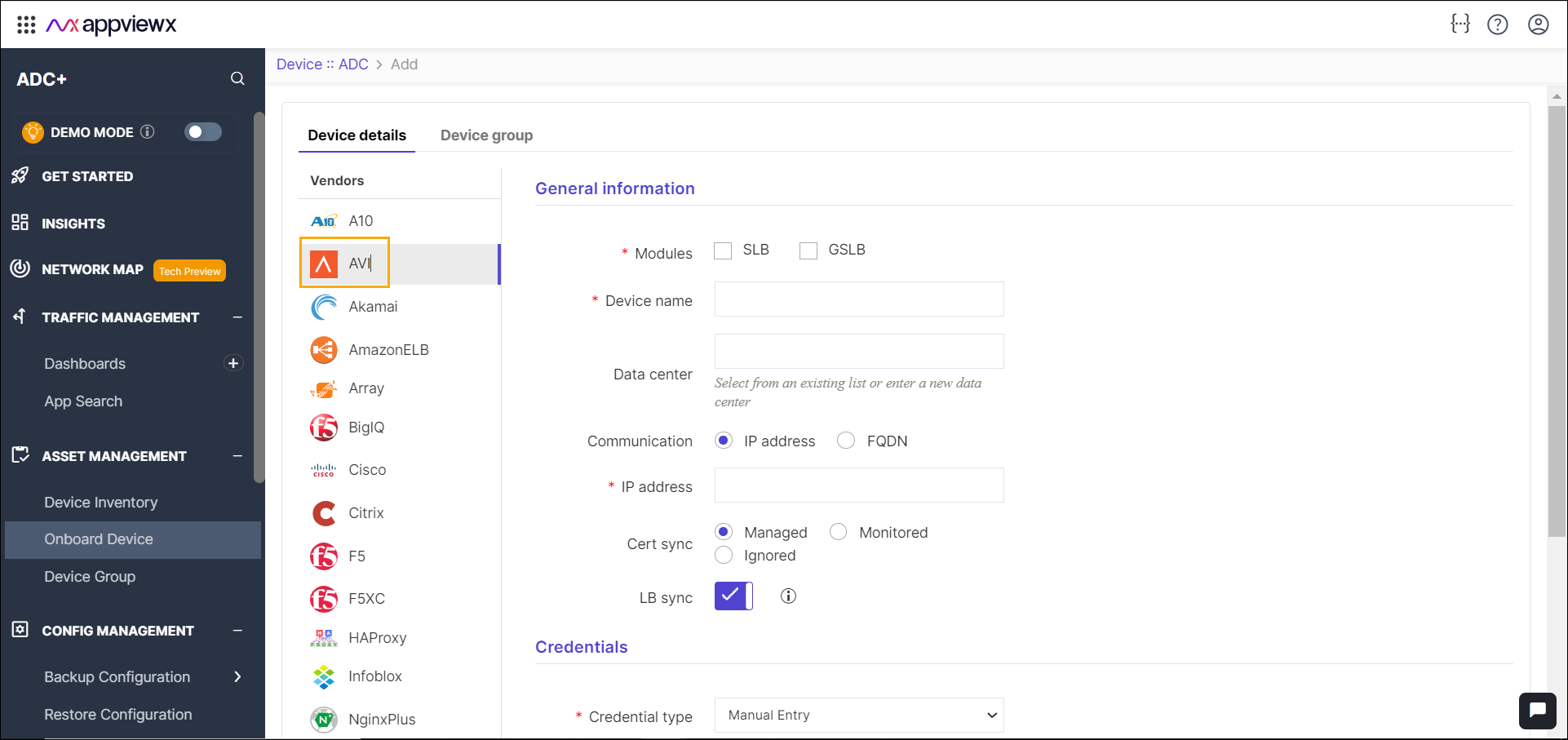
In the Device details page, select AVI from the
left sidebar.
-
Enter or select the field information in the General information
section.
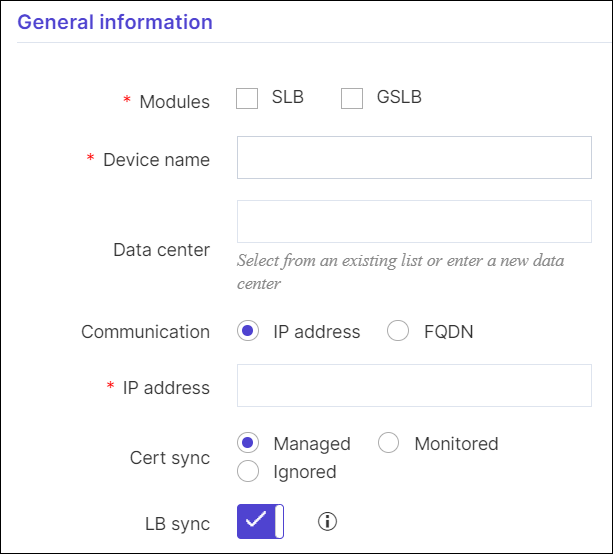
Table 1. General information Section - Field and Description Table Name Description *Module SLB / GSLB Module. *Device name Unique name of the device to be added. Note: Device name can only contain alphanumeric characters, '-' , '_' , '.' , '*' , '|' , '!' and spaces.Data center Datacenter name where the device is configured. The default value is Absecon. Note: Data center name can only contain alphanumeric characters, '-' , '_' , '.' , '*' , ':' , '|' and spaces.Communication Devices can be accessed using an IP address or FQDN. *IP Address The IPv4 address of the device. Note: The IP address should be in the right format.FQDN The FQDN of the device. Note: The FQDN should be in a valid format.Cert Sync Managed: The certificates of the device can be managed.
Monitored: The certificates of the device can be discovered and can only be monitored.
Ignored: The certificate sync can be ignored.
LB Sync By default, this option is enabled to discover and manage the load balancer configurations. If not required, you can disable this option. *: Mandatory fields -
Enter or select the field information in the Credentials
section.
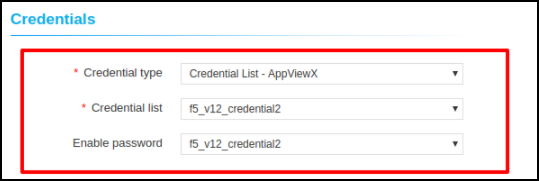
Table 2. Credentials Section - Field and Description Table Name Description *Credential type Manual entry:
The user should enter the username and password.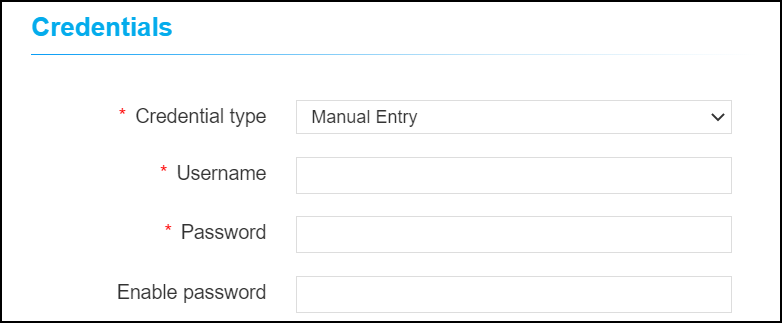
Credential List:
The user can select the credential details which are already stored in the credential inventory page.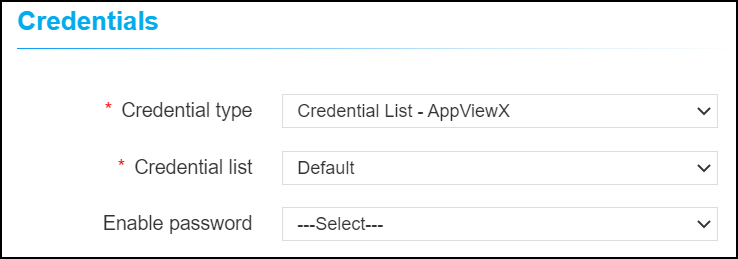
*Username If manual entry is selected, the user name should be entered by the user. *Password If manual entry is selected, the password should be entered by the user. Enable password Enable password of the AVI device. *: Mandatory fields -
Enter or select the field information in the Secondary device
information section.
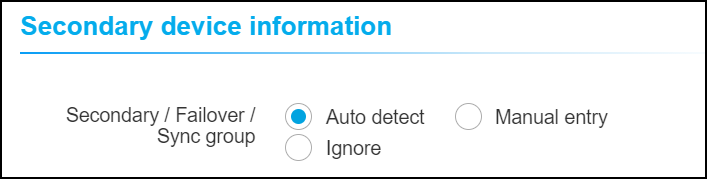
Table 3. Secondary device information Section - Field and Description Table Name Description Secondary device information Auto detect:
The user should select this option to auto-detect and add the peer devices in the inventory page.
Manual entry:
The user can use this option to add the peer devices manually.
Ignore:
The user can use this option to ignore the auto-detection of the peer devices.
- Click Save.
Validating the AVI Device Addition
After adding the device, you can validate the device by searching the device in the device inventory.
- Go to Menu > ADC+ > ASSET MANAGEMENT > Device Inventory.
-
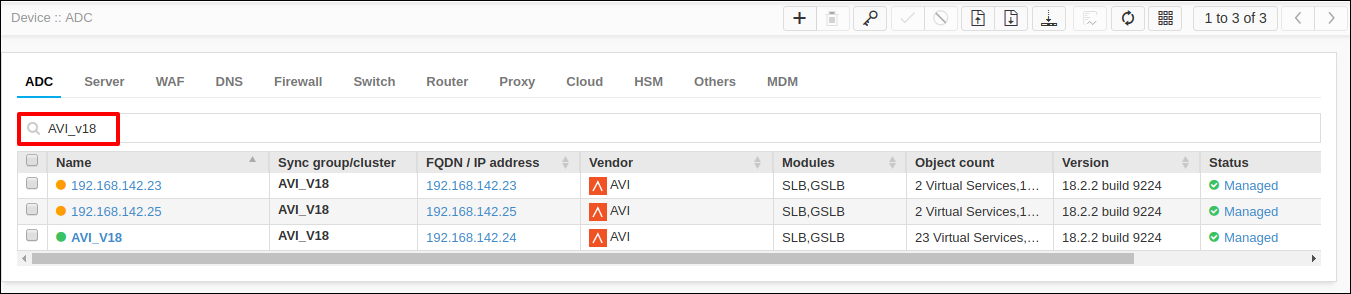
Search the device name and validate whether the device is added
successfully.