
F5

Before You Begin

Prerequisites

Prerequisites for Managing F5 devices on AppViewX are:
  • Version Supported: v10.x , v11.x , v12.x , v13.x, v14.x, v15.x, v16.x, v17
  • IP Address/FQDN: IP address or FQDN
  • User Privilege: { Role : Admin , bash access is required } Username /Password, Credential List AppViewx/CyberArk/BeyondTrust
  • Enable Password: Not applicable
  • License Check: Yes
  • Services and Ports for AppViewX Communication: 22 and 443
  • Internet Access/Proxy if Required: Not applicable
  • Location from which Certificates are discovered if managed:

    /config/filestore/files_d/<partition>_d/certificate_d/

    /etc/httpd/conf/ssl.crt/

    /etc/pki/tls/certs/

    V10

    /config/ssl/ssl.crt/

    /etc/httpd/conf/ssl.crt/

    /etc/pki/tls/certs

Web Browser Requirement
Browsers Version
Internet Explorer v11.0.9600.18817 or later
Firefox v74.0.1 (64-bit) or later
Google Chrome 117.0.5938.134 (Official Build) (64-bit) or later
ACF Permission
Ensure the following ACF permission is available to add and manage devices:
  • ADC > Inventory > Add / Modify
  • ADC > Device group > Add / Modify
You can check this under any of the following menus:
  • Old menu: menu > Accounts > Role
  • New menu: menu > Platform > IDENTITY > Role
To associate ACF permissions with a role, see Platform User Guide.

Adding F5 Device

To add a F5 device:

  1. Go to Menu > ADC+ > ASSET MANAGEMENT.
  2. Perform one of the followings:
    • Click Device Inventory, and then select Add (+) icon to navigate to the Device details page.
    • Click Onboard Device in the left navigation panel.
  3. In the Device details page, click the F5 icon.
  4. Enter or select the field information in the General information section.
    1. For the device type Device/Tenant:
      Table 1. General information Section for "Device/Tenant" Device Type - Field and Description Table
      Name Type Description Validation
      Device Type Drop-down When you select Device Type as Device/Tenant, you will need to provide the relevant device information in the following fields. NA
      *Module Check box LTM / BIG-IP DNS Module. NA
      VCMP Guest Check box To add a device as a vcmp guest, this checkbox should be checked. NA
      *Device name Text Unique name of the device to be added. Device names can only contain alphanumeric characters, '-' , '_' , '.' , '*' , '|' , '!' and spaces.
      Data center Text Data center name where the device is configured. The default value is Absecon. Data center name can only contain alphanumeric characters, '-' , '_' , '.' , '*' , ':' , '|' and spaces.
      *Communication Radio button Devices can be accessed using an IP address or FQDN. NA
      *IP Address Text The ipv4 address of the device. The IP address should be a valid IPv4 format.
      *FQDN Text The FQDN of the device. the FQDN should be in a valid format.
      *SSH Port Text Communication port of the device. Numbers only.
      *Cert Sync Radio button

      Managed: The certificates of the device can be managed.

      Monitored: The certificates of the device can be monitored.

      Ignored: The certificate sync can be ignored.

      NA
      DNSSEC sync Radio button By default, the Ignored option is selected. If your ADC acts as an authoritative DNS server, then select the Managed option to manage the DNSSEC Zones and Keys (KSK and ZSK).
      AppViewX Group Sync Check box This should be enabled if the user wants to sync the devices within the device group. NA
      LB Sync Checkbox By default, this option is enabled to discover and manage the load balancer configurations. If not required, you can disable this option.
      *: Mandatory fields
    2. For the device type Host:
      Table 2. General information Section for "Host" Device Type - Field and Description Table
      Name Type Description Validation
      Device Type Drop-down When you select Device Type as Host, you will need to provide the relevant device information in the following fields. NA
      Host Type Radio button Select any of the following host types:
      • vCMP Host - Enables the running of multiple virtual instances of BIG-IP software on a single physical device

      • rSeried Host - A host type representing the F5 rSeries hardware platform, designed for high-performance application delivery and security.

      • Velos Partition - A logical partition on the F5 VELOS platform, allowing for the segmentation of resources and management of multiple tenants within a single VELOS chassis.
      NA
      *Device name Text Unique name of the device to be added. Device names can only contain alphanumeric characters, '-' , '_' , '.' , '*' , '|' , '!' and spaces.
      Data center Text Data center name where the device is configured. The default value is Absecon. Data center name can only contain alphanumeric characters, '-' , '_' , '.' , '*' , ':' , '|' and spaces.
      *Communication Radio button Devices can be accessed using an IP address or FQDN. NA
      *IP Address Text The ipv4 address of the device. The IP address should be a valid IPv4 format.
      *FQDN Text The FQDN of the device. the FQDN should be in a valid format.
      *SSH Port Text Communication port of the device. Numbers only.
      *: Mandatory fields
    3. For the device type Controller:
      Table 3. General information Section for "Controller" Device Type - Field and Description Table
      Name Type Description Validation
      Device Type Drop-down When you select Device Type as Controller, you will need to provide the relevant device information in the following fields. NA
      *Device name Text Unique name of the device to be added. Device names can only contain alphanumeric characters, '-' , '_' , '.' , '*' , '|' , '!' and spaces.
      Data center Text Data center name where the device is configured. The default value is Absecon. Data center name can only contain alphanumeric characters, '-' , '_' , '.' , '*' , ':' , '|' and spaces.
      *Communication Radio button Devices can be accessed using an IP address or FQDN. NA
      *IP Address Text The ipv4 address of the device. The IP address should be a valid IPv4 format.
      *FQDN Text The FQDN of the device. the FQDN should be in a valid format.
      *SSH Port Text Communication port of the device. Numbers only.
      *: Mandatory fields
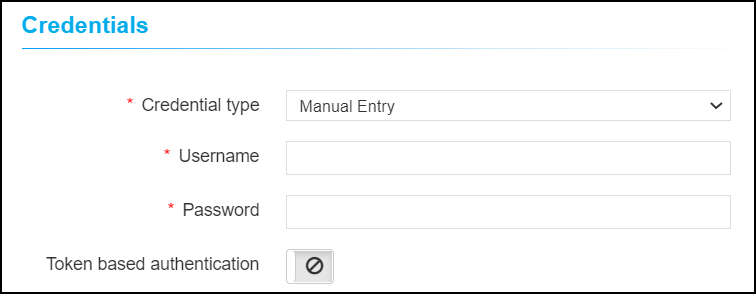
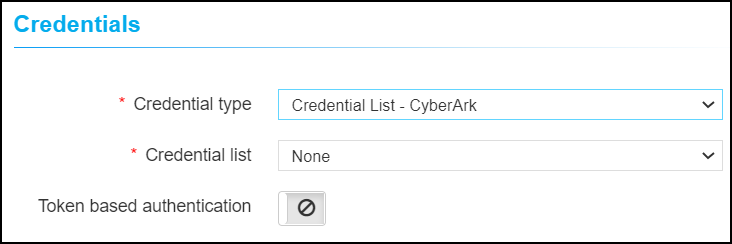
  5. Enter or select the field information in the Credentials section. You can select Manual Entry or Credentials List.
    Table 4. Credentials Section - Field and Description Table
    Name Type Description Validation
    *Credential type Dropdown
    Manual entry: The user should enter the username and password.
    Credential List: The user can select the credential details which are already stored in the credential inventory page. For more details on secure authentication, refer to Platform User Guide.
    NA
    *Username Text The user name of the device. NA
    *Password Text The password of the device. NA
    Token based authentication Toggle button To access the device REST API using token. NA
    *: Mandatory fields
  6. Enter or select the field information in the Secondary device information section.
    Table 5. Secondary device information Section - Field and Description Table
    Name Type Description Validation
    Secondary device information Radio button

    Auto detect: The user should select this option to auto-detect and add the peer devices in the inventory page.

    Manual entry: The user can use this option to add the peer devices manually.

    Ignore: The user can use this option to ignore the auto-detection of the peer devices.

    NA
  7. Click Save.

Validating F5 Device Addition

After adding the device, you can validate the device by searching the device in the device inventory.

  1. Go to Menu > ADC+ > ASSET MANAGEMENT > Device Inventory.
  2. From the device inventory page, search for the added F5 device name.
