
Configuring Certificate Expiry Alerts over Email
- To do this, follow the instructions given here and enable Expiry Alerts under Authorized Functions > CERT+.
- Modify the resource mapped to this
role to assign the following workflow requests (Access Control
> Workflow Requests) to the resource:
- Cert_Expiry_Mail_Individual
- Cert_Expiry_Mail_Bulk
To configure certificate expiry alerts over email:
-
Go to
 ( Menu) >
CERT+ > ALERTS & LOGS >
Expiry Alerts.
The expiry alerts inventory is displayed.
( Menu) >
CERT+ > ALERTS & LOGS >
Expiry Alerts.
The expiry alerts inventory is displayed. -
To create a new email expiry alert, click + Create.
The Expiry Alert > Expiry Alert Add page is displayed.Tip: This page has a list of best practices you are advised to follow when creating a new expiry alert.
- For the new alert, enter a unique Alert Name (mandatory) and a description (optional) with additional details about the alert.
-
In the Alert Configuration section, click + Add.
The Add Configuration pane is displayed.
-
Select the Certificate Type for which you want to configure the expiry
alert.
- End Certificate
- CA Certificate
-
Enter the Filter Configuration details.
Table 1. Field descriptions for the Filter Configuration section Field Description Certificate Expiry Period To filter certificates based on their expiry: - Range in days: Sends an expiry
alert email for certificates that will expire within
the specified range of days from the current
date
For example, to set an alert for certificates that will expire between 10 and 40 days from the current calendar date, enter 10 and 40.
Alerts will be sent for all certificates expiring between 00:00:00 AM on the start day and 11:59:59 on the end day. - On specified days: Sends an expiry
alert email for certificates that will expire on the
nth day from the current date
For example, to send an alert for certificates expiring on the 50th day from the current calendar date, enter 50.
Alerts will be sent for all certificates expiring between 00:00:00 AM and 11:59:59 PM of the specified day. - Range in dates: Sends an expiry
alert email for all certificates expiring in a
specific duration
Use the calendar widget to select the Start date and End date for this duration.
Alerts will be sent for all certificates expiring between 00:00:00 AM on the start date and 11:59:59 on the end date.
Additional Filters To add a filter in addition to the certificate expiry period: - Select the required filter from the Select option dropdown list.
- Enter the corresponding value in the Type to enter value field.
- Click Add.
The selected filter option and its value are displayed.
*Notification Method To send an expiry alert over email, select Email. Note: For instructions on sending an expiry alert over an ITSM tool (ServiceNow/JIRA), click here.Individual Alerts : Allow certificate renewal This field is displayed only when Notification Method = Email. To trigger individual emails for each certificate that matches the filter criteria along with a renewal and unsubscribe link for the certificate, enable this button. Ignore renewed/regenerate certificate To stop alerts for certificates that have already been renewed or regenerated, enable this button. Ignore Alerts if No Certificate Expirations By default, this is enabled. Disabling this option will trigger alerts even if there are no certificate expirations to report.
- Range in days: Sends an expiry
alert email for certificates that will expire within
the specified range of days from the current
date
-
Enter the Email Configuration details.
Table 2. Field descriptions for the Email Configuration section Field Description Template From the dropdown list, according to the format and structure of the email content required, select an email template. This dropdown list is populated with predefined email templates that can be created and managed in the Platform module of the product. For instructions on creating a custom email template, click here.
To* Recipient(s) Enter the recipient(s) email address. You can enter a maximum of 20 email addresses separated by a comma.
Certificate Parameter(s) To add more recipients for the alert email, you can retrieve email addresses from the following certificate parameters: - Subject Email
- SAN (rfc822)
- Certificate Group
From the dropdown list, select the required parameter(s).
Certificate Attribute(s) To add more recipients for the alert email, you can retrieve email addresses from any certificate attribute that has the email ID as its value, for example, Cert Owner. From the dropdown list, select the certificate attribute. CC Recipient(s)* Enter the email address of stakeholders who are to receive a copy of the expiry alert email. Certificate Parameter(s) To add more recipients to the CC field in the alert email, you can retrieve email addresses from the following certificate parameters: - Subject Email
- SAN (rfc822)
- Certificate Group
From the dropdown list, select the required parameter(s).
Certificate Attribute(s) To add more recipients to the CC field in the alert email, you can retrieve email addresses from any certificate attribute that has the email ID as its value, for example, Cert Owner. From the dropdown list, select the certificate attribute. Email Subject Subject* Enter the subject line for the expiry alert email using the following (recommended) format: Expiry Alert :: |Common Name| certificate| expiring on |Valid Until|Note:- Specify the dates in the mm/dd/yyyy format.
- The full list of placeholders and their corresponding values is given here.
Body* Enter the body text for the email using the following (recommended) format: Certificate with Common Name |Common Name|
Serial number |Serial Number|
issued by |Issuer Common Name|
is about to expire on |Valid Until|
Note:- Specify the dates in the mm/dd/yyyy format.
- The full list of placeholders and their corresponding values is given here.
-
Click Add.
The created alert is listed in the table below the + Create button.Tip: To edit/delete an alert, use the Edit/Delete button, as required.
-
Under Alert Execution Type:
Note: The settings configured here will be applicable to all expiry alerts listed in the above table.OR
-
Click Save.
Once the expiry alerts are configured with Allow certificate renewal option, the individual certificate renewal email will be sent to the stakeholders with two links:
- Link for certificate renewal
- Link for unsubscribing from the alerts for that specific certificate
Tip: You can repeat steps 4 to 9 to add more than one Alert Configuration under a Alert Name. -
To renew the certificate:
-
Click the renewal link and login to AppViewX.
You will be redirected to the holistic view for the certificate and the following renewal alert will be displayed:
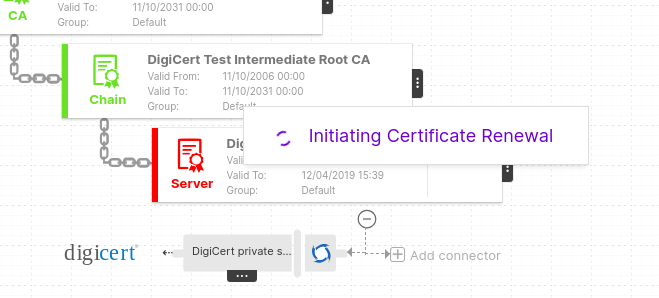
To unsubscribe from the alerts for the certificate, click the unsubscribe link from the alert email.You will be redirected to the certificate inventory page and the following unsubscribe alert will be displayed: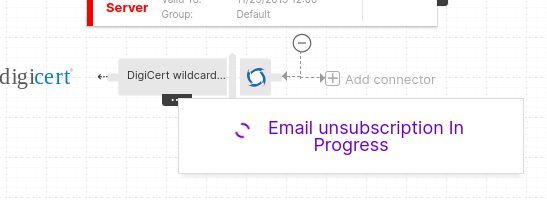
-
Click the renewal link and login to AppViewX.
