
Renew Task
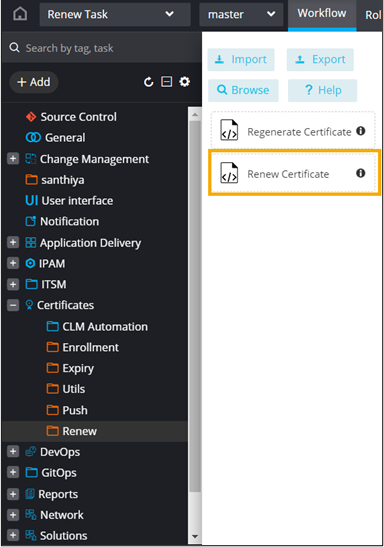
To design a custom workflow using the Renew task:
- Navigate to the Workflow page in the Automation module and click Create New.
-
Enter a Name for the workflow and click Save.
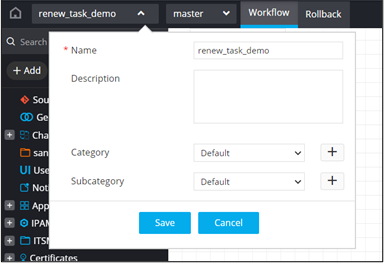
-
From the Certificates folder, under Renew, drag and drop the
Renew Certificate task.
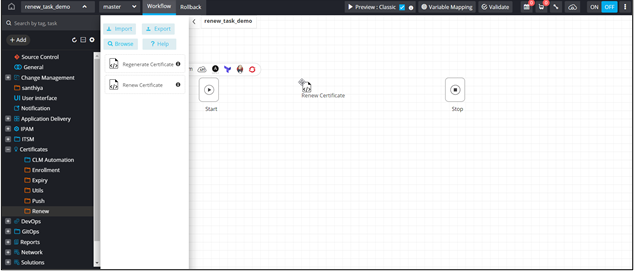 This task can be used to renew certificates.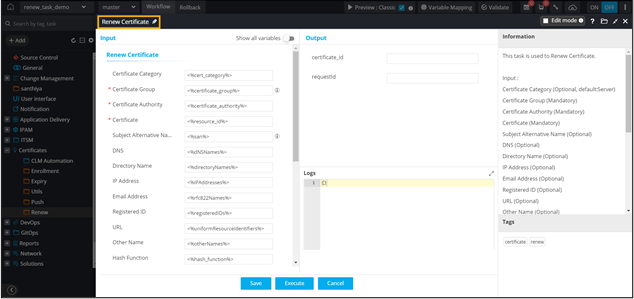
-
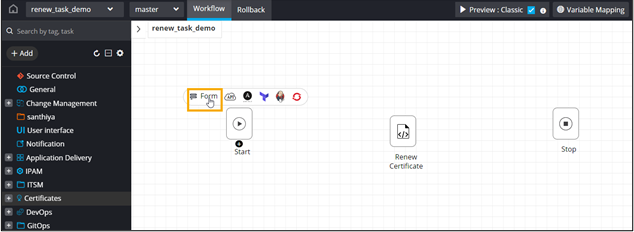
To auto-generate a form for this workflow, click Form above the Start
task.
-
Click
 above the Renew Certificates task to auto-populate the form fields.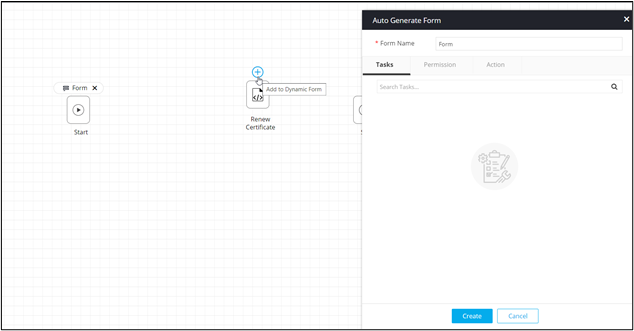
- Select the fields required in the input form.
- Provide a Form Name and click Create.
- From the Utils folder under the Certificate section, drag and drop the View and Download Certificate task.
-
To get a preview of the user input form, connect all the workflow tasks and
click Preview.
The User Inputs form is displayed on the screen.
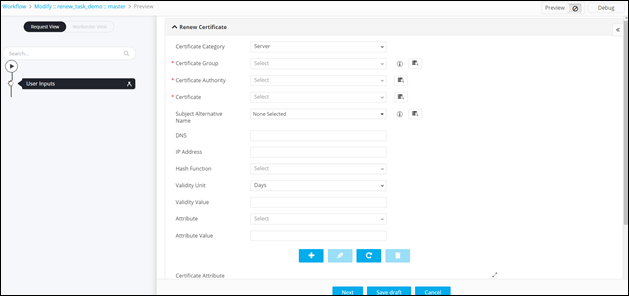
Table 1. Field Description for the User Inputs form Field Description Certificate Category Select the Certificate Category from the options available in the dropdown. Note: Server is the default selection.*Certificate Group Select the Certificate Group from the options available in the dropdown. Note: To retrieve the values in the Certificate Group field, click .
.*Certificate Authority Select the Certificate Authority from the options available in the dropdown. Note: To retrieve the values in the Certificate Authority field, click.*Certificate Select the Certificate from the options available in the dropdown. Note: To retrieve the values in the Certificate field, click.Subject Alternative Name Select the Subject Alternative Name from the options available in the dropdown. Note: To retrieve the values in the Subject Alternative Name field, click.DNS Enter a valid DNS if you select the DNS option in the SAN field. IP Address Enter a valid IP Address if you select the IP Address option in the SAN field. Hash Function Select the Hash Function from the options available in the dropdown. Validity Unit Select the Validity Unit from the options available in the dropdown. Validity Value Enter the Validity Value based on the Validity Unit selected. Attribute Select the Attribute from the options available in the dropdown. Attribute Value Enter the Attribute Value based on the Attribute selected. All Asterisk (*) marked fields are mandatory. -
To add this attribute to the Certificate Attributes grid, click
 .
.
-
To edit the value of a particular attribute, select the attribute in the grid
and click
 .
.
-
Enter the new value for the attribute in the Value field and click
again to update
the value.
-
To delete a certificate attribute, select the attribute in the grid and click
 .
.
-
To maximize the Certificate Attributes grid, from the top right corner
of the grid, click
 .
.
- To search for a particular attribute in the grid, type the keyword(s) in the search field.
-
Click Next.
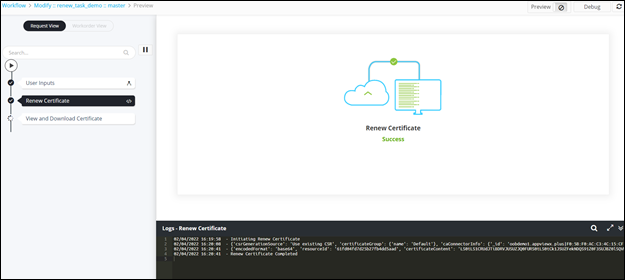
Certificate renewed successfully.
-
To download the certificate, at the View and Download Certificate stage,
hover your mouse over
 and from the options displayed, click
Download Certificate.
and from the options displayed, click
Download Certificate.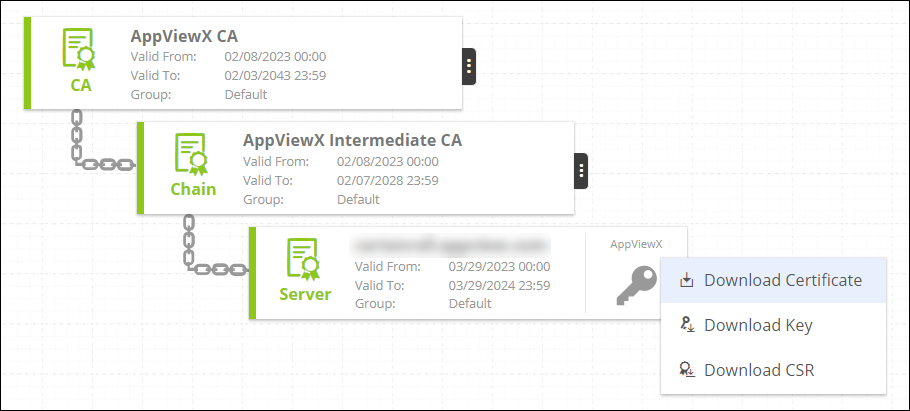
-
Hover your mouse over
 to view the Certificate
status.
to view the Certificate
status.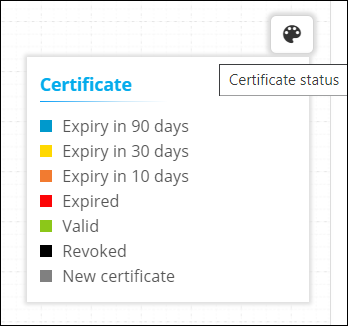
-
Click on the renewed certificate to view the Certificate Details.
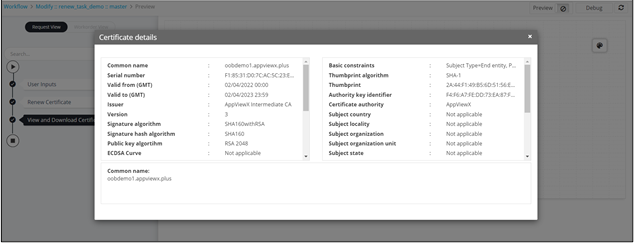 Note: For more information on how to design custom workflows, refer to the Automation User Guide.
