Pinning Application Widgets
The Application View widget displays all the configured devices in your database. Through the widget you can also perform actions such as enabling/disabling a device, view logs and alerts, backup and restore and so on.
To pin the Application view widget to your page:
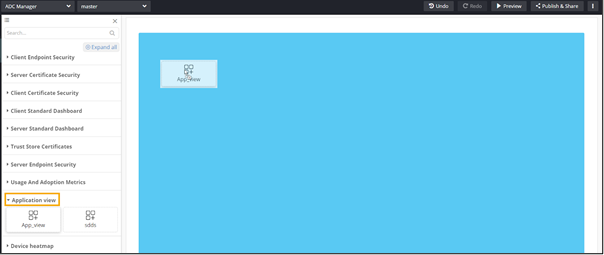
- From the component panel on the left, click Reports.
-
Under Application view, drag and drop the widget that you want
to pin to the page.
 The App_view widget displays all the devices configured in the database.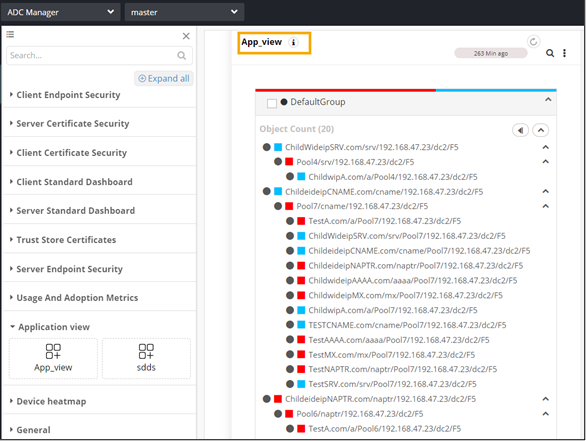
-
To modify the widget, hover your mouse over the top right corner of the widget
and click
 (Edit) icon.
Note: For more information on configuring the Report widget, click here.
(Edit) icon.
Note: For more information on configuring the Report widget, click here. -
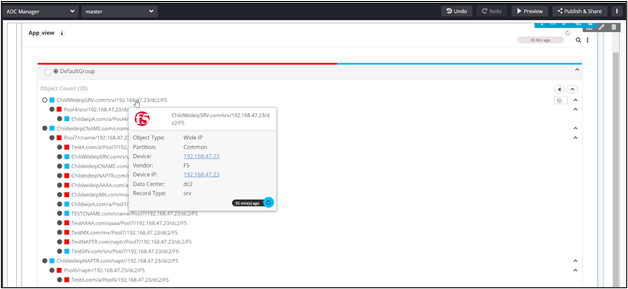
To view details about any device, hover your mouse over the device name.
-
To see the list of actions that can be performed on these devices, right-click
on a device name.
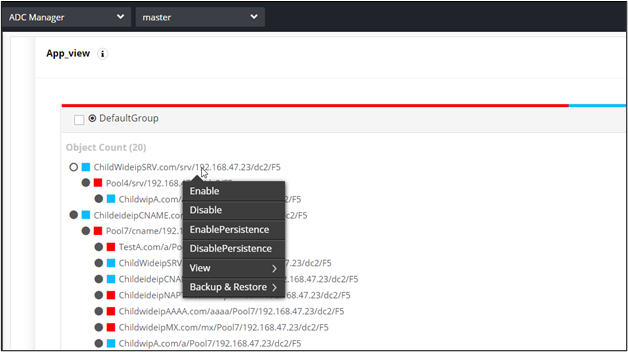
-
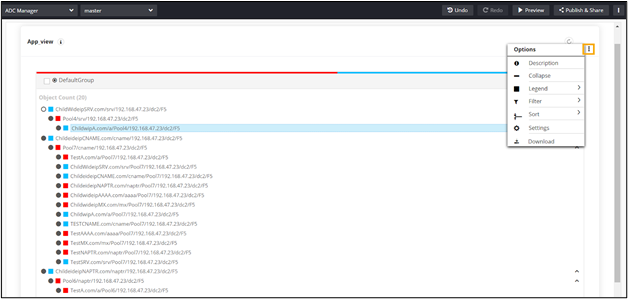
To see the list of available options for the App_view widget, from the top
right corner of the widget, click
 .
.