Managing Alerts
Alert management is important for an organization to monitor and respond to security concerns before they become a threat to the organization’s security.
As part of its alert management, AppViewX enables you to identify complications that may occur within an application. Alerts can then be configured, to notify the users of these complications, and send a predetermined date and time using email and SNMP configurations.
| Alert type | Description |
|---|---|
| Certificate | Alerts triggered when a certificate is invalid, about to expire, or out of sync |
| SSH | Alerts related to SSH components |
| ADC | ADC alerts for changes that are triggered through AppViewX |
| AppViewX | Alerts related to AppViewX-specific components |
| Syslog | Syslog alerts of critical applications and devices for changes that are executed on the device and execute workflow as an action |
| Severity level | Description |
|---|---|
| Critical | Alerts for issues that can disastrously impact functionality are marked as critical alerts. These are top priority and must be resolved immediately. |
| Fatal | Alerts for issues that can disastrously impact functionality are marked as fatal alerts. These are top priority and must be resolved immediately. |
| Major | Alerts for issues that are important and require a resolution, but are not a top priority, are marked as major alerts. |
| Minor | Alerts for issues that are low priority are marked as minor alerts. |
| Notification | Alerts for issues that users have to only be notified/warned of are marked as notifications. |
- View alerts
- Configure alerts
- Search for alerts
- Purge alerts
- Delete alerts.
Accessing the Alerts Page
| New Menu | Old Menu |
|---|---|
| In the Platform module, from the navigation pane on
the left, under OBSERVE & EXPLORE, select
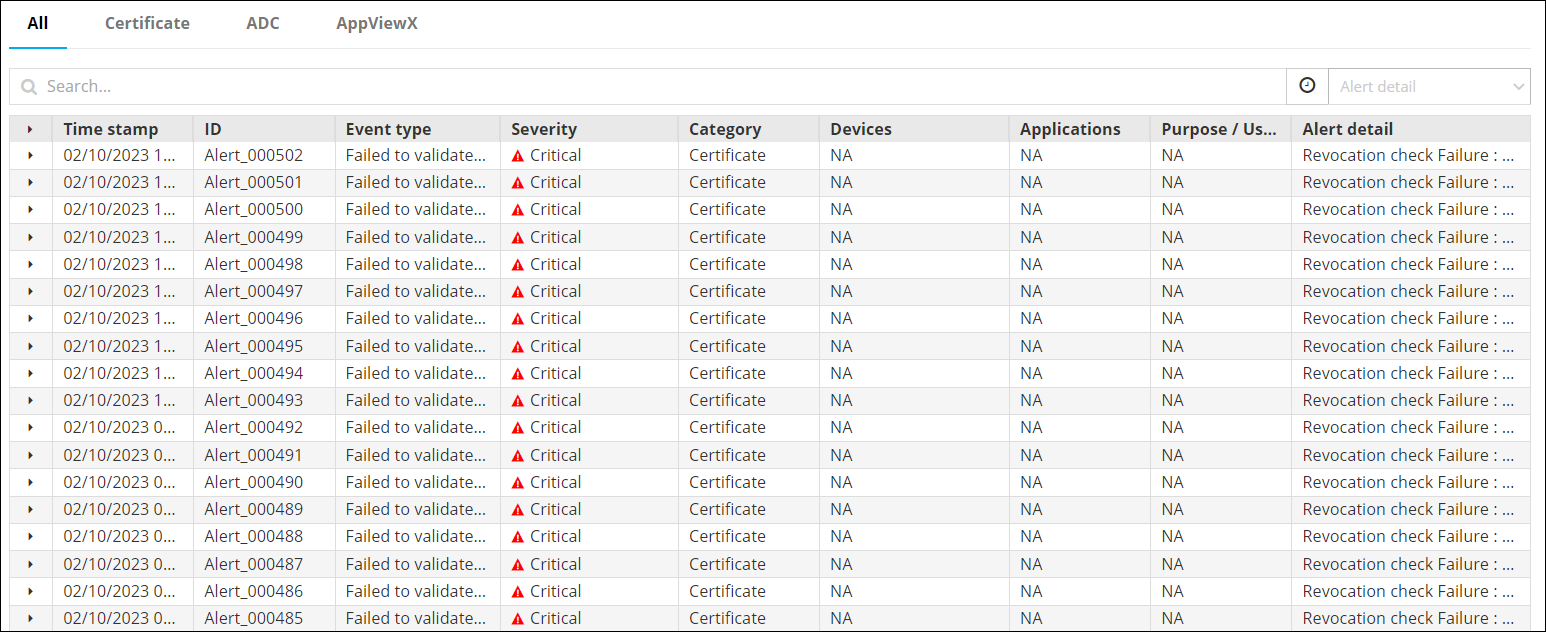
Alerts. The Alerts :: All page is displayed with the All tab open by default. |
From the main navigation menu, select Alert. The Alert :: All page is displayed with the All tab open by default. |
| For more information on how to switch between menus, click here. | |
Setting the Record Count Preference for Viewing Alerts
To set the record count preference:
-
On the Alert :: All page, from the top-right corner of the screen,
click
 .
Note: By default, 25 alert records are displayed on one page (which is why the control reads 1 to 25).
.
Note: By default, 25 alert records are displayed on one page (which is why the control reads 1 to 25). -
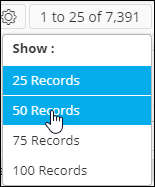
From the Show menu displayed, select your record
count preference (for example, 50 records).
-
The Alert page is updated according to the record count preference
selected. A message, Record count preference saved successfully, is
displayed. The UI control is also updated to display the current selection,
as shown in the following image: