
Enroll Certificate Based on Policy | CSR Details | CSR Upload
To trigger this workflow:
-
From the Certificate Lifecycle
Automation catalog, under the Enrollment category, hover your mouse
over the Enroll Certificate Based on Policy | CSR Details | CSR Upload workflow and
click
 .
The workflow execution page is displayed with the workflow inputs requested at the first stage.
.
The workflow execution page is displayed with the workflow inputs requested at the first stage. -
Under the CA Details section, select the requested field information as
described in the table below.
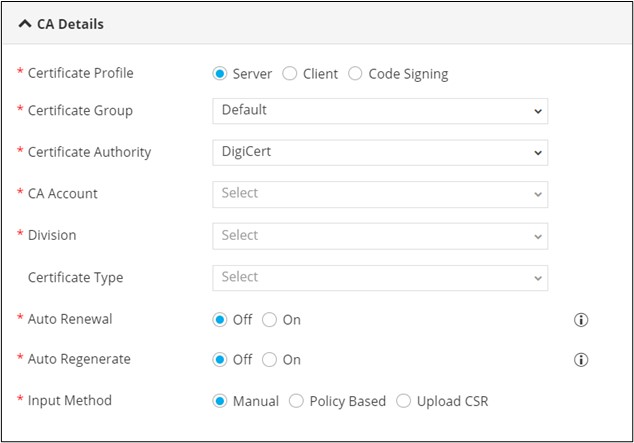
Table 1. Field description for CA Details section Field Description *Certificate Profile Select the Certificate Profile from the following options: - Server
- Client
- Code Signing
Note: Server is the default selection.*Certificate Group Select the Certificate Group from the options available in the dropdown. *Certificate Authority Select the Certificate Authority from the options available in the dropdown. The following CAs are supported: - DigiCert
- Entrust
- EJBCA
- Microsoft Enterprise
- AppViewX
Note: This field is populated based on the Certificate Group selected.*CA Account Select the CA Account from the options available in the dropdown. Note: This field is populated based on the Certificate Authority selected.*Division Select the Division from the options available in the dropdown. Note: This field is displayed only when DigiCert is selected as the CA.Certificate Type Select the Certificate Type from the options available in the dropdown. *Auto Renewal Select the required radio button to enable/disable Auto Renewal. Note: Default selection is set to Off.Renew Before (Days) Enter the number of days in the Renew Before (days) field. For example, if you enter 5, then the renewal request will be triggered 5 days prior to the expiry date. Note: This field is displayed only when the Auto Renewal field is enabled.*Auto Regenerate Select the required radio button to enable/disable Auto Regenerate. Note: Default selection is set to Off.Start Regenerating (Days) Enter the number of days in the Start Regenerating (days) field. Note: This field is displayed only when the Auto Regenerate field is enabled.*Input Method Select the required Input Method. The options available are: - Manual: (Default) If you select the Input Method as
Manual, the CSR parameters will have to be entered/selected
manually.
For instructions, click here.
- Policy Based: If you select the Input Method as Policy
Based, the CSR parameter fields will be auto-populated based on the
policy associated with the selected Certificate Group.
For instructions, click here.
- Upload CSR: If you select the Input Method as Upload
CSR, you can upload the CSR file to fetch the CSR parameters.
For instructions, click here.
All Asterisk (*) marked fields are mandatory.
Enrolling Certificates Based on Input Method
Manual
-
Under the CSR Parameters section, enter or select the requested field
information as described in the table below.
Table 2. Field description for CSR Parameters section Field Description *Common Name Enter the Fully Qualified Domain Name (FQDN) of the server for which certificate is requested. Subject Alternative Name Select the SAN as either: - DNS
- IP Address
DNS Enter a valid DNS if you select the DNS option in the SAN field. IP Address Enter a valid IP Address if you select IP Address in the SAN field. Organization Unit Enter the name of the organization unit with which the certificate will be associated. Locality Enter the name of the locality in which the organization is situated. State Enter the name of the state in which the organization is located. Country Enter the name of the country in which the organization is located. Email Address Enter the email address associated with the Certificate Group. Zip Code Enter the zip code. *Validity Unit Select the Validity Unit as either: - Days
- Months
- Years
*Validity Value Enter a Validity Value based on the selected validity unit. Challenge Password Configure the Challenge Password to protect the certificate. *Hash Function Select the Hash Function from the options available in the dropdown. *Key Type Select the Key Type from the options available in the dropdown. *Bit Length Select the Bit Length from the options available in the dropdown. Note: This field will be populated based on the selected Key Type.All asterisk (*) marked fields are mandatory. - Under the Certificate Attributes section, select the Attribute from the available options.
-
Enter a value for the selected attribute.
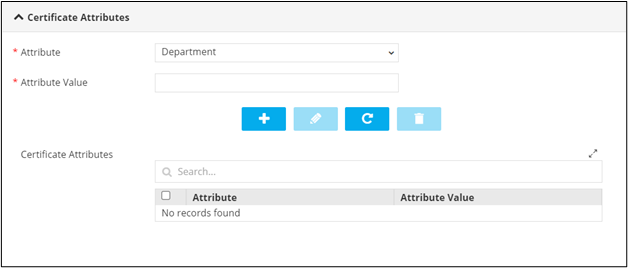
Table 3. Actions available in the Certificate Attributes grid Action Description 
Allows you to add the attribute to the Certificate Attributes grid. 
Allows you to edit the value of a particular attribute. You can do this by selecting the attribute in the grid, click , enter the new value
for the attribute, and click again.
Allows you to delete a certificate attribute. 
Allows you to maximize the Certificate Attributes grid. Search bar Allows you to search for a particular attribute in the grid. - Under the Vendor Specific Details section, select the field information from the options available in the dropdown.
-
Under the Notifications section, enter the Email ID to which the
certificate creation notification will be sent.
Note: The Email ID field will auto-populate with the logged in user’s email address by default if the email address has been configured in the SMTP settings. You can also enter a different email address in this field or enter multiple email addresses separated by commas.
-
Click Submit.
AppViewX certificate is created successfully and an email notification is sent to the recipient specified in the input form.
-
To download the certificate, at the View and Download Certificate stage,
hover your mouse over
 and from the options displayed, click Download Certificate.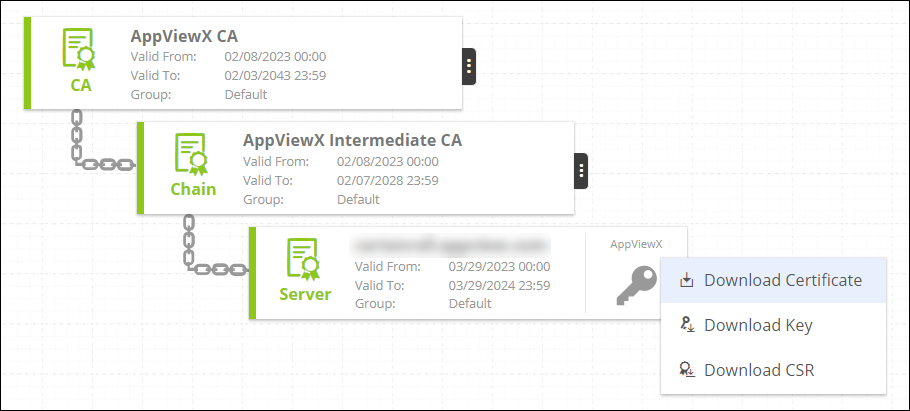
-
Hover your mouse over
 to view the Certificate status.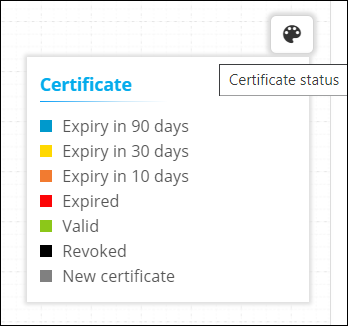
Policy Based
-
Under the CSR Parameters section, enter or select the requested field
information as described in the table below.
Note: Some CSR Parameters will be auto-populated based on the policy associated with the Certificate Group.Note: For more information on the form fields, refer to the field information described in the Manual section.
- Under the Certificate Attributes section, select the Attribute from the available options.
-
Enter a value for the selected attribute.
Table 4. Actions available in the Certificate Attributes grid Action Description Allows you to add the attribute to the Certificate Attributes grid. Allows you to edit the value of a particular attribute. You can do this by selecting the attribute in the grid, click , enter the new value
for the attribute, and click again.Allows you to delete a certificate attribute. Allows you to maximize the Certificate Attributes grid. Search bar Allows you to search for a particular attribute in the grid. -
Under the Vendor Specific Details section, select the field information from
the options available in the dropdown.
Note: This section is displayed only when DigiCert or EJBCA is selected as the Certificate Authority under the CA Details section. The field(s) displayed will vary based on the CA selected.
-
Under the Notifications section, enter the Email ID to which the
certificate creation notification will be sent.
Note: The Email ID field will auto-populate with the logged in user’s email address by default if the email address has been configured in the SMTP settings. You can also enter a different email address in this field or enter multiple email addresses separated by commas.
-
Click Submit.
AppViewX certificate is created successfully and email notification is sent to the recipient specified in the input form.
-
To download the certificate, at the View and Download Certificate stage,
hover your mouse over and from the options displayed, click Download Certificate.
-
Hover your mouse over
to view the Certificate status.
Upload CSR
-
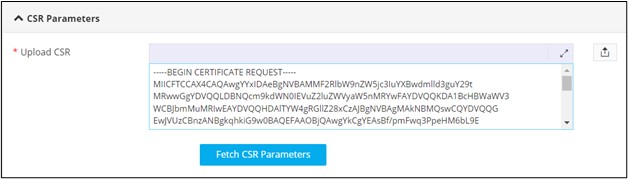
Under the CSR Parameters section, to Upload CSR, click
 .
.
-
Click Fetch CSR Parameters.
Note: Some CSR parameters are fetched from the uploaded CSR file. For more information on the remaining form fields, refer to the field information described in the Manual section.
- Under the Certificate Attributes section, select the Attribute from the available options.
-
Enter a value for the selected attribute.
Table 5. Actions available in the Certificate Attributes grid Action Description Allows you to add the attribute to the Certificate Attributes grid. Allows you to edit the value of a particular attribute. You can do this by selecting the attribute in the grid, click , enter the new value
for the attribute, and click again.Allows you to delete a certificate attribute. Allows you to maximize the Certificate Attributes grid. Search bar Allows you to search for a particular attribute in the grid. -
Under the Vendor Specific Details section, select the field information from
the options available in the dropdown.
Note: This section is displayed only when DigiCert or EJBCA is selected as the Certificate Authority under the CA Details section. The field(s) displayed will vary based on the CA selected.
-
Under the Notifications section, enter the Email ID to which the
certificate creation notification will be sent.
Note: The Email ID field will auto-populate with the logged in user’s email address by default if the email address has been configured in the SMTP settings. You can also enter a different email address in this field or enter multiple email addresses separated by commas.
-
Click Submit.
AppViewX certificate is created successfully and email notification is sent to the recipient specified in the input form.
-
To download the certificate, at the View and Download Certificate stage,
hover your mouse over and from the options displayed, click Download Certificate.
-
Hover your mouse over
to view the Certificate status.
