Enroll Certificate with Certificate Group and CSR Upload
To trigger this workflow:
-
From the Certificate Lifecycle Automation catalog, under the Enrollment
category, hover your mouse over the Enroll Certificate with Certificate Group and CSR
Upload workflow and click
 .
The workflow execution page is displayed with the workflow inputs requested at the first stage.
.
The workflow execution page is displayed with the workflow inputs requested at the first stage. -
Under the CSR Details section, select the requested field information as
described in the table below.
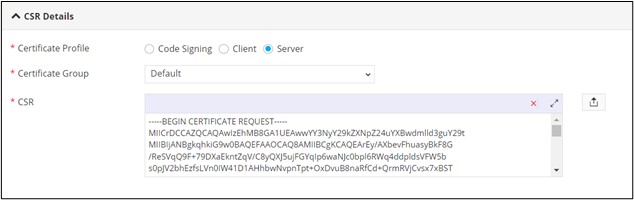
Table 1. Field description for CSR Details section Field Description *Certificate Profile Select the Certificate Profile from the following options: - Code Signing
- Server
- Client
Note: Server is the default selection.*Certificate Group Select the Certificate Group from the options available in the dropdown. *CSR Click  to
upload the CSR file.
to
upload the CSR file.All asterisk(*) marked fields are mandatory. -
Click Submit.
AppViewX Certificate is generated successfully.
-
To download the certificate, at the View and Download Certificate stage, hover
your mouse over
 and from
the options displayed, click Download Certificate.
and from
the options displayed, click Download Certificate.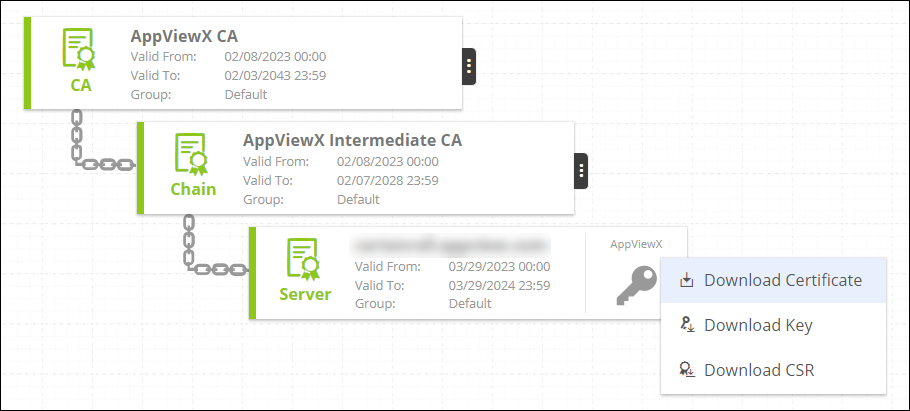
-
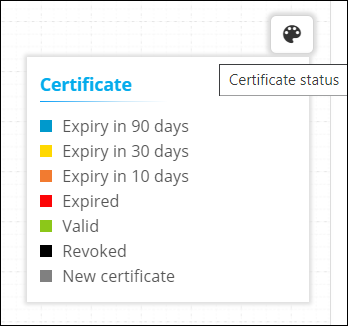
Hover your mouse over
 to
view the Certificate status.
to
view the Certificate status.