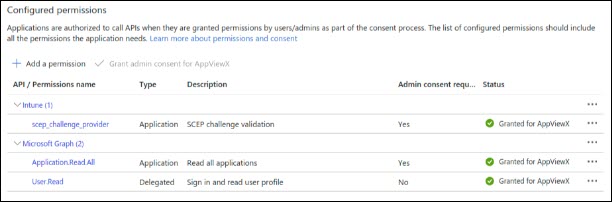
Configuring AppViewX MS Intune Client
Testing on Windows v10.0 Device
Configuring Windows Accounts Setting
- Log in to the system that has Windows v10.0 operating system.
- Open Settings.
- Click Accounts > Access work or school.
- Click Connect and confirm your work or school account.
- Click Next to proceed further by providing Azure subscription credentials.
- Once the account is set, the successful message window is displayed.
- Click Done.
Configuring Company Portal
-
Open the Company Portal application and proceed with the device setup
by providing the Azure subscription.
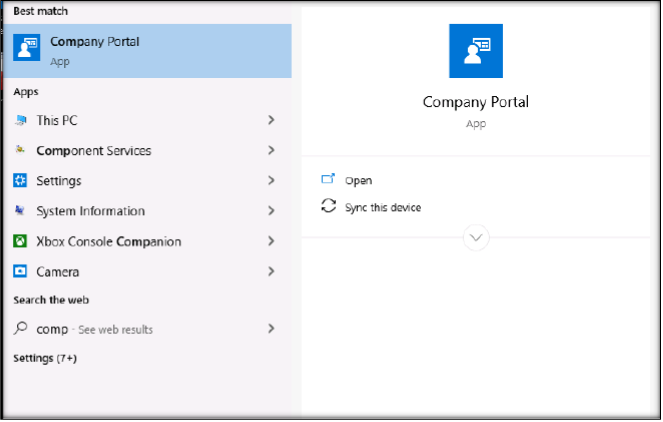
- Click Connect and confirm your work or school account.
- Provide a valid e-mail address and click Next to proceed further to complete the set up.
- Click Done.
Verifying Enrollment Result
- Once configuration is completed, the device invokes the GetCACaps, GetCACerts, and PKIRequest (enrollment request) APIs to SCEP server.
- Monitor the SCEP agent logs in AppViewX and verify that the message ‘AppviewxScepServicePostAction:49 - Response sent successfully for operation: PKIOperation’ occurs in the logs.
- In the AppViewX application, the newly generated certificate must be shown in the inventory.
- If the certificate is requested, the device certificate newly generated certificate will be available in the Server tab in the certificate inventory.
- If the certificate is a requested user certificate, the new certificate will be available under the Client tab in the certificate inventory.
- In the Windows device, open the cert store (Windows key+R -> certlm.msc) and make sure that the serial number of the certificate available in the personal cert store matches with the serial number of the certificate that is newly created in AppViewX.
Best Practices
- For auto-enrollment, create a separate certificate group and CA policy in AppViewX.
- During policy creation, select only the required bit-length (minimum 2048-bit).
Troubleshooting
| # | Error Message | Description | Troubleshooting |
|---|---|---|---|
| 1 | Challenge Password Authentication Failed | The issue is either with
|
Check the following:
|
| 2 | Given organization must match with organization defined in group policy. | The policy mapped for the MS Intune endpoint configured group
is set as strict and organization is configured in the policy.
The CSR sent from the client does not contain the exact organization name. |
Set the policy as suggestive OR Provided a proper value for Organization in the SCEP profile in MS Intune portal. |
| 3 | Failed to submit the certificate to CA | Certificate enrollment has failed from the CA side due to the issue with the submitted CSR. | Check the respective VW request or direct request to find more about the error details and remediate the same. |
| 4 | Either CSR parameters,CA details or certificate algorithm values are not compliant with the policy name - <Policy Name> | CSR parameters from the client are not matching with parameters configured in the AppViewX policy. | Check if the policy is set as strict.
|