|
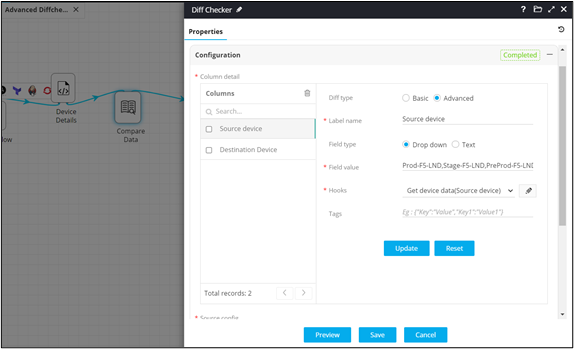
*Label Name
|
Define custom label names as headings for every diff
checker column. |
| Field Type |
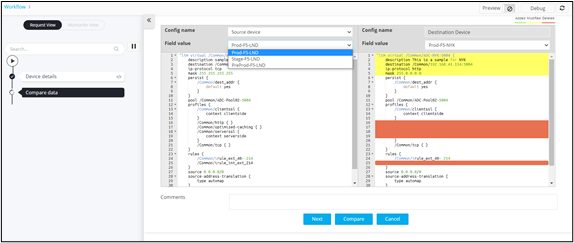
Allows you to define the input required to execute a hook
dynamically during the diff checker view in real time. It
allows for either providing the inputs dynamically as:
- Text: Values can be
entered within a text box which will be taken as an
input variable to execute the hook.
- Dropdown: Inputs to execute
the hooks can be defined as dropdown values allowing
hooks to trigger dynamically.
|
|
*Field Value
|
Define either a static or dynamic value through a
variable to be displayed in the dropdown field. |
|
*Hooks
|
Select an existing hook from the Hooks
Inventory or define a custom hook specific to the diff
checker task. |
| * : Mandatory
fields |