
Policy Actions
View Policy
Enable/Disable Policy
- After a policy is fully configured, enable it by toggle button to allow execution under Status column.
- Enabling the policy makes it available for use within the system.
- When the policy is enabled, update and delete actions are restricted to prevent unauthorized modifications or accidental removals.
- To make changes to the policy, it must first be disabled.
- Disabling the policy allows modifications or deletion to be made.
- This process ensures the integrity of the policy and maintains operational consistency.
User Access
Once a policy is created, it can be read (R) or modified (RW) by a user with the appropriate access. The User Access option allows granting access to the policy for various resources within an application.
By default, the resource associated with the policy creator is granted Read and Write (RW) permission, and this access cannot be modified later. Other resources can be granted Read (R) or Read and Write (RW) access, and these permissions can be modified at any time.
A user with Read (R) access to a policy can:- View the policy
- Execute the policy
- Approve or reject a policy approval request.
- Edit the policy
- View the policy
- Execute the policy
- Approve or reject a policy approval request.
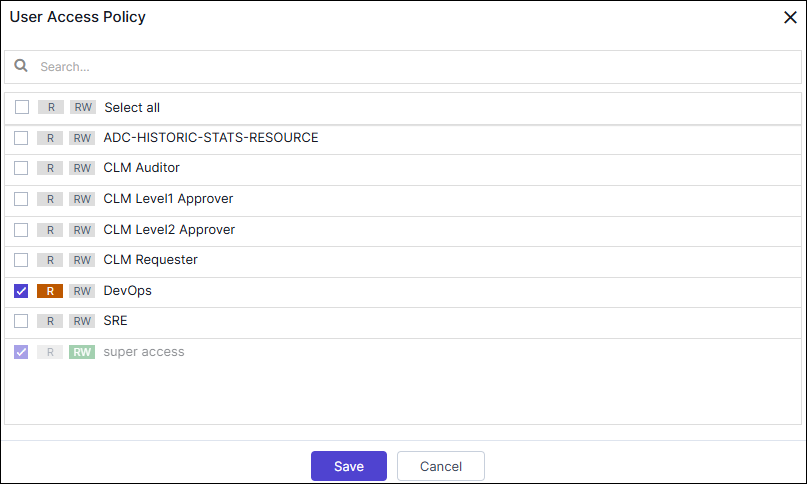 To provide User Access to a policy:
- On the Policy Inventory page, below the actions column.
- Click
 (User Access) icon.
The User Access Policy page is displayed.
- Select the checkbox for the required user access.
- Click Save.
The selected User Access is updated successfully.
Edit Policy
 To Edit a policy:
- On the Policy Inventory page, below the actions column.
- Click
 (Edit Policy) icon.
The [Policy Name] :: Edit page is displayed.
- Modify the required details in the Action, Issuance Template, Approval and Post Issuance Settings sections.
- Click Save.
The selected Policy is modified.
Clone Policy
To clone a policy:- On the Policy Inventory page, below the actions column.
- Click
 (Clone Policy) icon.
The Clone Policy popup is displayed.
- Enter the new Policy Name, Description, and Select a Tag for the policy.
- Click Clone Policy.
The selected policy is cloned.
Delete Policy
A user can delete a policy, but it must be in a disabled state before deletion. Once deleted, all information related to the policy will be removed.
However, if the policy has been created and executed by a user, its ACL will be retained to ensure smoother execution. Additionally, the execution history will be preserved for users to view.
To delete a policy:- On the Policy Inventory page, below the actions column.
- Click
 (Delete Policy) icon.
The Delete Policy popup is displayed.
- In the Confirmation dialog box, click Confirm.
The selected policy is deleted successfully.
Execute Policy
To execute a policy:- On the Policy Inventory page, below the actions column.
- Click
 (Execute Policy) icon.
The Policy Details popup is displayed.
- Update the Certificate Parameters details.
- Click Submit.
The selected policy is executed successfully.
