
Prerequisites
Enabling Policy Engine
Note: By default, Policy Engine is enabled for the admin role,
along with CERT+ and KUBE+ licenses.
To enable Policy Engine:
-
Go to
 .
You will be redirected to the Role page.
.
You will be redirected to the Role page. -
Click the role name to enable the ACF permission.
You will be redirected to the Modify :: [RoleName] page, with the Information tab open by default.
- Switch to the Authorized Functions tab.
-
To enable Policy Engine, select the checkbox for Policy
Engine.
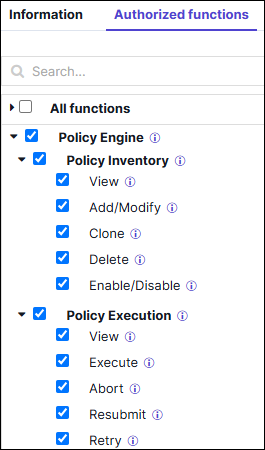 Note:
Note:- Enabling access to Policy Engine will also grant the necessary permissions for the Certificate, Platform, and Automation modules.
- Users with Policy Engine ACF permissions can create or edit KUBE or CERT policies in Policy Engine without having the specific ACF permissions required for KUBE and CERT.
- Policy Inventory: This permission define the access control
and user privileges required to manage and interact with policies.
Users can be granted access to the Policy Inventory based on the
permissions assigned to their role.
Permission Description View Grants access to view the inventory. Add/Modify Allows users to create and modify policies. Clone Allows users to clone existing policies Delete Allows users to delete policies. Enable/Disable Allows users to change the status of a policy (enable or disable). - Policy Execution: This permission define the access control
and user privileges required to manage and interact with policies. A
user may be granted execution permissions based on the access
assigned to their role.
Permission Description View Grants access to view the Policy Requests History. Execute Allows users to execute policies. Abort Allows users to abort an ongoing policy request. Resubmit Allows users to resubmit a failed execution. Retry Allows users to retry an execution.
- Click Save.
Onboard a Certificate Authority
Configure SMTP
-
Go to
.
The Settings :: SMTP page is displayed.
- Configure the SMTP Settings.
Enable the Default Email Template
-
Go to
.
The Settings :: Theme page is displayed with the Logo tab open by default.
-
Click the Email Attachment Customization tab.
The AppViewXDefault template will be set as the Default email template.
