
PingFederate
-
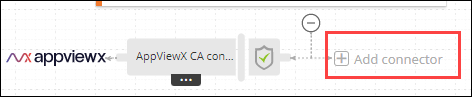
On the certificate holistic view, click Add
Connector.
-
Enter the General Information for the connector.
Table 1. Field descriptions for the connector General Information Field Description *Category From the dropdown list, select Server. If the certificate being pushed was enrolled with CSR generation at endpoint, this field is auto populated with the category selected at the time of certificate enrollment.
*Vendor From the dropdown list, select PingFederate. If the certificate being pushed was enrolled with CSR generation at endpoint, this field is auto populated with the vendor selected at the time of certificate enrollment.
*Connector Name Enter a name <PingFederate connector> for this connector, to be able to identify it later.Tip: AppViewX recommends naming connectors according to use cases so they are easily distinguishable.Description Enter any additional details you want to record for this connector. *: Mandatory fields Based on the information entered here, the Server selection section is populated with the list of available PingFederate devices already onboarded in AppViewX. -
To select the device(s) to which the certificate will be pushed, in the
Server selection section, from the dropdown list in Available
Devices, select one of the following:
- SSL Authentication Certificate Profile: TThis
profile requires a certificate that must be associated from the Client
Inventory. If a certificate enrolled under the Server, Code Signing, or
Client category in AVX is associated, it will be pushed to the device's
Client Inventory. Hence, the appropriate certificate should be bound
from the Client Inventory.
The profile names use the following naming convention: {DeviceName:SPConnectionName:SSL Authentication Certificate}.
- SSL Verification Certificate Profile: This
profile allows association with any certificate permitted by the device,
but only one certificate stays active while others remain non-active. It
maintains a separate inventory from Client, Server, and Code Signing.
Non-active certificates use a default connector that supports push only
operations. Only the certificate, not the key, can be pushed.
-
Active Certificate: Only one certificate can be active.
The profile names use the following naming convention: {DeviceName:SPConnectionName:SSL Verification Certificate:Active}
-
Non-active certificates: All remaining certificates.
Profile Name: {DeviceName:SPConnectionName:SSL Verification Certificate}
-
- Digital Signature Settings Profile: This profile
requires a certificate that must be associated from the Signing
Inventory of the PingFederate device. When a server, client, or code
signing certificate is pushed, it is placed in the device’s Signing
Inventory. Since the device accepts all certificates regardless of their
EKU, the binding process can proceed as long as the certificate resides
in the Signing Inventory. Certificates can be associated with either the
Primary or the optional Secondary signing certificate profiles.
-
Primary Signing Certificate Profile: The profile names use the following naming convention: { DeviceName:SPConnectionName:Digital Signature Settings:Primary }
-
Secondary Signing Certificate Profile: The profile names use the following naming convention: { DeviceName:SPConnectionName:Digital Signature Settings:Secondary }
-
- In addition to associating certificates with specific profiles, they are
also pushed to the corresponding inventories based on their certificate
category.
The profile names use the following naming convention: { DeviceName }
- SSL Verification Certificate Profile: This profile allows
association of any certificate, as permitted by the device. Only one
certificate can be active as Primary and one as Secondary at a time;
others are classified as Active or Non-Active. Active certificates can
be promoted to Primary or Secondary. The profile uses a separate
inventory, distinct from Client, Server, and Code Signing inventories.
Certificates (excluding Primary and Secondary) are supported by a
default connector for push-only operations. Only certificates, not keys,
can be pushed to this profile.
-
Primary Active Certificate: Only one certificate can be primarily active.
Profile Naming : { DeviceName:SPConnectionName:Signature Verification Certificate:Primary }
-
Secondary Active Certificate: Only one certificate can be secondarily active.
Profile Naming: { DeviceName:SPConnectionName:Signature Verification Certificate:Secondary }
-
Active / Non-active certificates: All remaining certificates.
Profile Naming: { DeviceName:SPConnectionName:Signature Verification Certificate:Active }
-
Non-Active - Profile Naming: { DeviceName:SPConnectionName:Signature Verification Certificate }
-
Profiles are displayed based on the selection made. The Selected devices list is updated automatically. - SSL Authentication Certificate Profile: TThis
profile requires a certificate that must be associated from the Client
Inventory. If a certificate enrolled under the Server, Code Signing, or
Client category in AVX is associated, it will be pushed to the device's
Client Inventory. Hence, the appropriate certificate should be bound
from the Client Inventory.
-
From the profiles displayed, to select the required profiles, click
 .
The Selected devices list is updated automatically.
.
The Selected devices list is updated automatically. -
Enter the Certificate Details.
Table 2. Field descriptions for the Certificate Details Field Description *Certificate Type From the dropdown list, select the file type of the certificate to be pushed. Private key in device Select the checkbox if required. *: Mandatory fields -
Enter the Push Details.
Table 3. Field descriptions for the Push Details Field Description *Script Location Script files are commonly used to perform certain tasks required to be completed before and/or after a certificate is pushed to the target system. The script to be run before the certificate is pushed is called a pre-push script and the script to be run after the push is called a post-push script.
From the following options, select the location of the script file(s):
- In AppViewX
- In Device.
Pre - Push Script File Name Enter the file name of the pre-push script. Important: Read the pre and push script usage instructions here.Post - Push Script File Name Enter the file name of the post push script. Important: Read the pre and push script usage instructions here.Push Automatically To automatically push the certificate after it is renewed/reissued to the target system, enable this checkbox. Note: The auto push feature for a certificate works only if enabled for the certificate application connector as well the associated certificate group. To enable this feature at the certificate group level, refer the instructions here. -
Click Save.
The connector is displayed on the certificate holistic view.
What's Next
- To push a server certificate to a device, see Pushing a Server Certificate to a Device.
