
Navigating through the Installation
-
Execute the AppViewX.CertPlus.Installer.exe file.
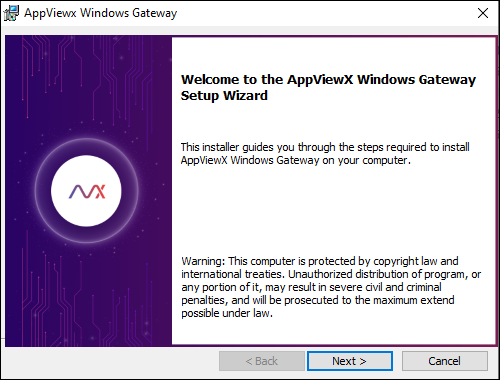
The following welcome screen for the setup wizard is displayed.
-
Click Next.
The License Agreement is displayed.
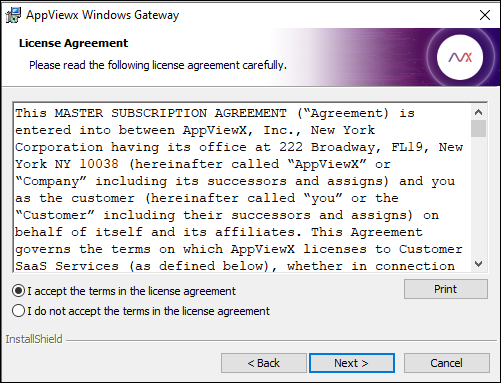
- Select I accept the terms in the license agreement.
-
Click Next.
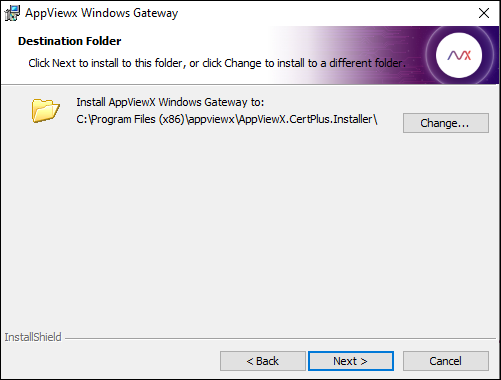
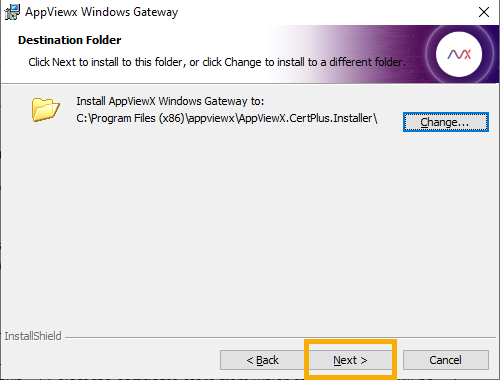
The Destination Folder screen is displayed.
-
To install the AppViewX Windows Gateway at the default location, click
Next.
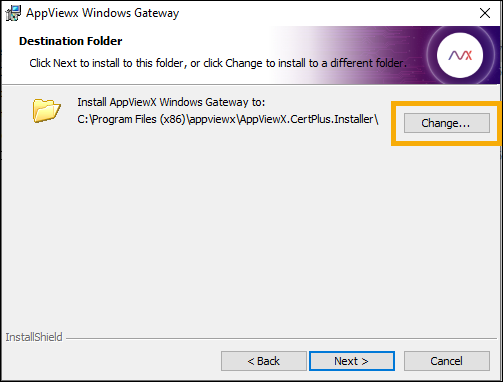
To change the default destination folder:
-
Click Change.
-
On the Change Current Destination Folder screen, use the Look
in dropdown list/
 (up one level)
icon/
(up one level)
icon/ (create new folder) icon to navigate
to/create the required destination folder.
(create new folder) icon to navigate
to/create the required destination folder.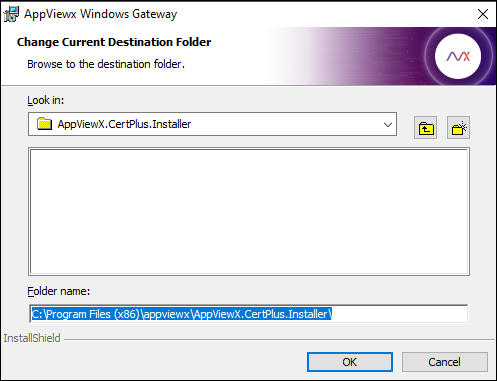
-
On the Destination Folder screen, click Next.
 The Optionally you can modify the below details screen is displayed.Enter the following details (optional):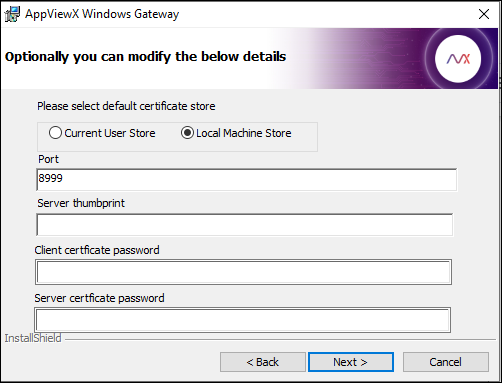
Field Description Please select default certificate store Select the certificate store from which the certificates will be discovered and pushed to by AppViewX from the following options: Port Port for accessing the service. Default value: 8999 (can be modified if required)
Server certificate thumbprint If you are using a custom certificate, enter the corresponding server certificate thumbprint value. Client certificate password Password for accessing the client certificate For custom client certificates, enter the certificate password.
Server certificate password Password for accessing the server certificate For custom server certificates, enter the certificate password.
-
Click Change.
-
Click Next.
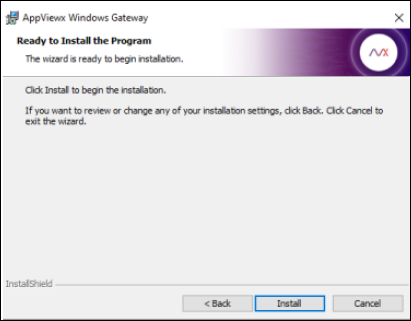
The Ready to Install the Program screen is displayed.
-
Click Install.
This will:
