
FAQ: Installation and Configurations
-
Where to download the Windows Agent Installer Setup?
The most recent Windows agent installer is available at https://release.appviewx.com under the latest version of AppViewX, in the Additional Resources section.
-
How to install AppViewX Windows Agent?
Extract the downloaded package from the portal and execute the AppViewX.CertPlusInstaller.exe and follow the onscreen instructions to install the agent.
For a detailed step by step installation guide refer to the section Installing the AppViewX Windows Gateway.
-
How to verify the installation of the Windows Agent?
Post installing the Windows Agent, to verify the installation status of the Windows Gateway Service refer to the section Step 4: Verifying the AppviewX Windows Gateway Installation.
-
How to Uninstall Windows Agent?
Refer to section Uninstalling the AppViewX Windows Gateway
-
How to enable PowerShell remoting in a target machine?
- Open PowerShell as Administrator and run the command below in the
required remote or target
machine.
Enable-PSRemoting - As a pre-requisites to establish a remote PowerShell session, allow Port 5985 in all firewalls in both the windows agent machine and the remote machine.
- Open an administrator PowerShell and run the command below from the
Windows Gateway Machine to the target
machine
In the <hostname> add the hostname of the remote machine itself, and in the <username> enter the username of the service account.Enter-PSSession -computerName <hostname> -credential <username>
Note: If the first step doesn’t work, please try command below to enable PowerShell remoting.winrm quickconfig - Open PowerShell as Administrator and run the command below in the
required remote or target
machine.
-
How to check the Logon locally permission for a user?
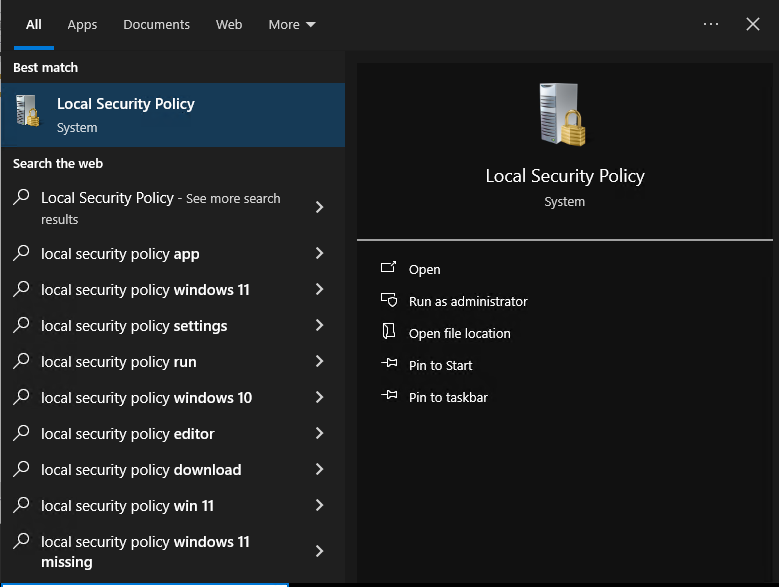
- In the start menu, search for Local Security Policy.
- Open the Local Security Policy > User Rights
assignment.
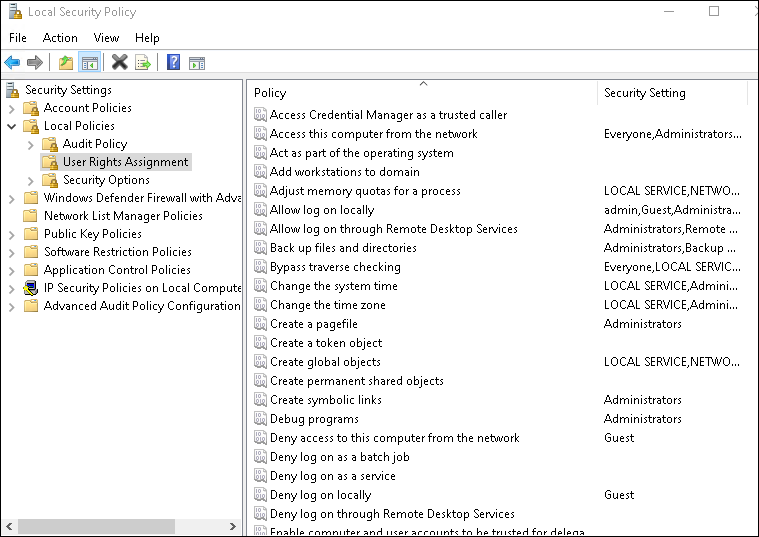
- Double click on Allow logon locally.
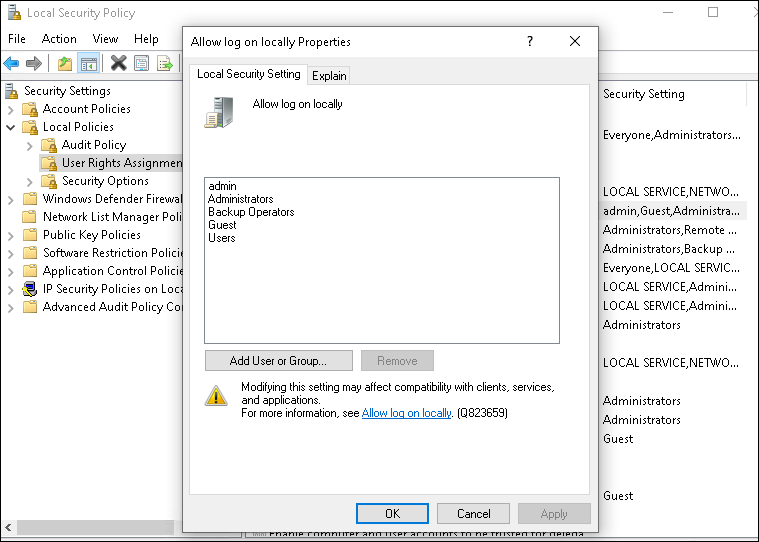
- Check if the service account user is present in the list as seen in the image above.
- Close the Allow logon locally properties, and double click on
Deny log on locally.
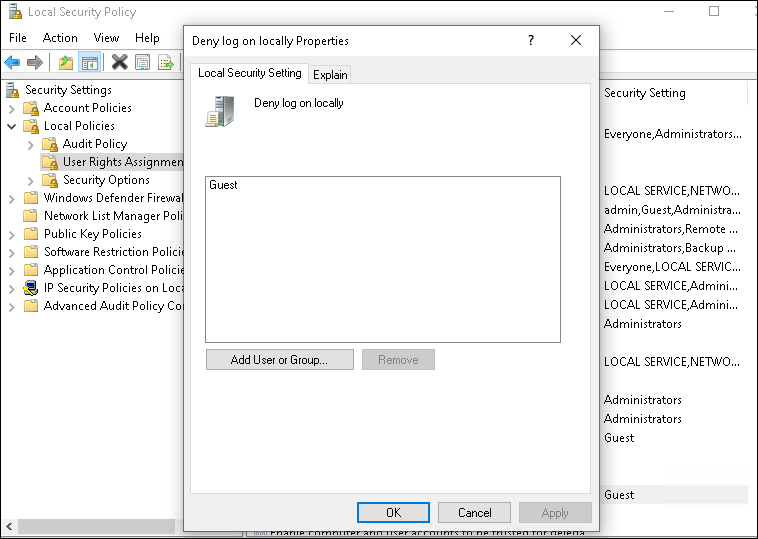
- Check if the user is in the Deny logon locally policy list.
Note:- Deny logon locally takes precedence over the allow logon locally. So if the account is in deny logon locally, it will take precedence and logon locally won’t be present for the account.
- This setting can be disabled or greyed out due to Group Policy Settings. Check the Group Policy Settings or try providing the permission from the Domain Controller Machine.
- In the start menu, search for Local Security Policy.
-
How to enable two-way trust between two different domains?
Refer to secion Enabling Two-way trust between Two Different Domains.
-
How to check if any port is blocked?
Run the command below in Windows PowerShell. Replace <port> and <hostname> with actual values.
Sample expected output:Test-NetConnection -ComputerName <hostname> -Port <port>ComputerName : computername RemoteAddress : 93.184.216.34 RemotePort : 80 InterfaceAlias : Ethernet SourceAddress : 192.168.1.10 PingSucceeded : True TcpTestSucceeded : True -
What are the types of users supported by AppViewX Windows Gateway
Agent?
The Windows Gateway Agent supports the following types of users for managing the devices:
- Domain User with Local Admin Permissions
- A domain user account must belong to the organization's Active Directory domain.
- The account should have local administrator privileges on the target machine and the machine where the agent is installed.
- Service User Account with Local Admin Permissions
- It must be assigned local administrator permissions on the target machine and the windows agent machine for executing privileged operations required by the agent.
- Group Managed Service Accounts (gMSAs)
- These are specialized managed service accounts designed for services running on domain-joined machines.
- gMSAs automatically manage passwords and do not require manual password management.
- They must have local administrator permissions on the windows agent machine and the target machine to perform the required operations for the agent.
- For more info about GMSA: Group Managed Service Accounts Overview | Microsoft Learn
- Domain User with Local Admin Permissions
-
Can CyberArk managed accounts be used for onboarding devices with AppViewX
Windows Gateway Agent?
Yes, it is supported.
- To use CyberArk-managed accounts for onboarding devices with the AppViewX Windows Gateway Agent, the CyberArk PAM module needs to be configured within the AppViewX platform.
- While onboarding the device online, select the CyberArk option and choose the corresponding CyberArk-managed account. This ensures secure and streamlined access during the onboarding process.
Note: The Cyberark PAM managed account cannot be directly used while configuring logon as a service in services.msc for Appviewx CERT+ Windows Agent.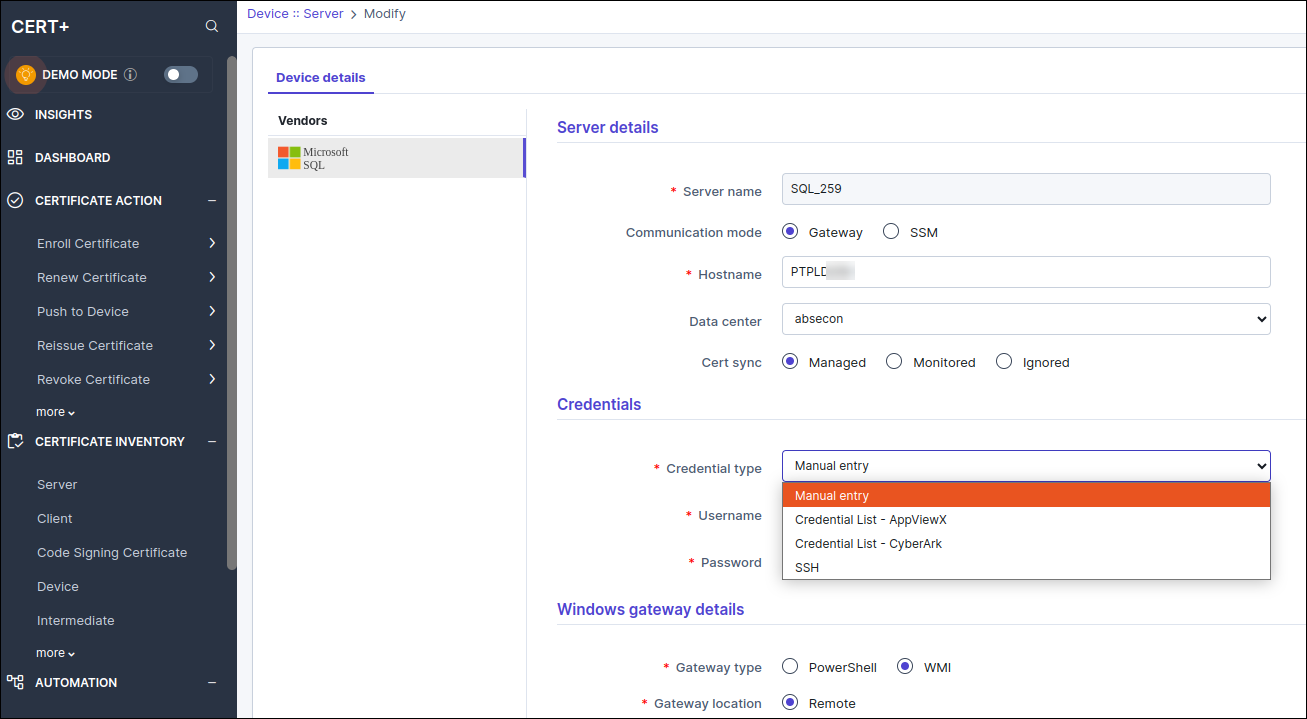
-
Why are CAs from other domains not listed when fetching CA names, even after
enabling two-way trust between domains?
Even with two-way trust enabled between domains, CA details from any domain other than the one where the gateway is installed cannot be retrieved. This limitation arises because the built-in Windows tool, certutil, by default does not support fetching CA details from a domain other than where the gateway is installed.
