Troubleshooting

Connection timeout, Error 404 Gateway Unreachable

Troubleshooting using "nc" command
Troubleshooting Steps
  1. Login to the appviewx pods CLI to check communication
    1. On Prem : Login in to the appviewx CLI, go to the vendor pods.
    2. Saas : Login to the Cloud Connector, go to the platform pod.
  2. After logging in, run the commands below in the terminal.
    nc -zv <Ip or hostname> <8999 or configured port>
    where,
    • <Ip or hostname> is the hostname or IP of the windows agent machine.
    • 8999 is the default port of Windows Agent (provide the configured port in case of any custom port).
Expected Output:
Connection to 192.168.142.124 8999 port [tcp/*] succeeded!
Troubleshooting using "curl" command
Troubleshooting Steps
  1. Login to the appviewx pods CLI to check communication
    1. On Prem : Login in to the appviewx CLI, go to the vendor pods.
    2. Saas : Login to the Cloud Connector, go to the platform pod.
  2. After logging in, run the commands below in the terminal.
    curl -kv https://<hostname or ip>:8999/appviewx/rest/Ping
    where,
    • <Ip or hostname> is the hostname or IP of the windows agent machine.
    • 8999 is the default port of Windows Agent (provide the configured port in case of any custom port).
Expected Output:
Trying 192.168.142.124:8999...
* TCP_NODELAY set
* Connected to 192.168.142.124 (192.168.142.124) port 8999 (#0)
* ALPN, offering h2
* ALPN, offering http/1.1
* successfully set certificate verify locations:
* CAfile: /etc/ssl/certs/ca-certificates.crt
  CApath: /etc/ssl/certs
* TLSv1.3 (OUT), TLS handshake, Client hello (1):
* TLSv1.3 (IN), TLS handshake, Server hello (2):
* TLSv1.2 (IN), TLS handshake, Certificate (11):
* TLSv1.2 (IN), TLS handshake, Server key exchange (12):
* TLSv1.2 (IN), TLS handshake, Request CERT (13):
* TLSv1.2 (IN), TLS handshake, Server finished (14):
* TLSv1.2 (OUT), TLS handshake, Certificate (11):
* TLSv1.2 (OUT), TLS handshake, Client key exchange (16):
* TLSv1.2 (OUT), TLS change cipher, Change cipher spec (1):
* TLSv1.2 (OUT), TLS handshake, Finished (20):
* TLSv1.2 (IN), TLS handshake, Finished (20):
* SSL connection using TLSv1.2 / ECDHE-RSA-AES256-GCM-SHA384
* ALPN, server accepted to use h2
* Server certificate:
*  subject: CN=windows-gateway.appviewx.com
*  start date: May 10 00:00:00 2024 GMT
*  expire date: May  9 23:59:59 2029 GMT
*  issuer: CN=AppViewX Intermediate CA; O=AppViewX Inc; L=Seattle; ST=Washington; C=US
*  SSL certificate verify result: unable to get local issuer certificate (20), continuing anyway.
* Using HTTP2, server supports multi-use
* Connection state changed (HTTP/2 confirmed)
* Copying HTTP/2 data in stream buffer to connection buffer after upgrade: len=0
* Using Stream ID: 1 (easy handle 0x563e972e1650)
> GET /appviewx/rest/Ping HTTP/2
> Host: 192.168.142.124:8999
> user-agent: curl/7.68.0
> accept: */*
> 
* Connection state changed (MAX_CONCURRENT_STREAMS == 100)!
< HTTP/2 403 
< content-length: 0
< date: Thu, 15 Aug 2024 07:13:44 GMT
< 
* Connection #0 to host 192.168.142.124 left intact

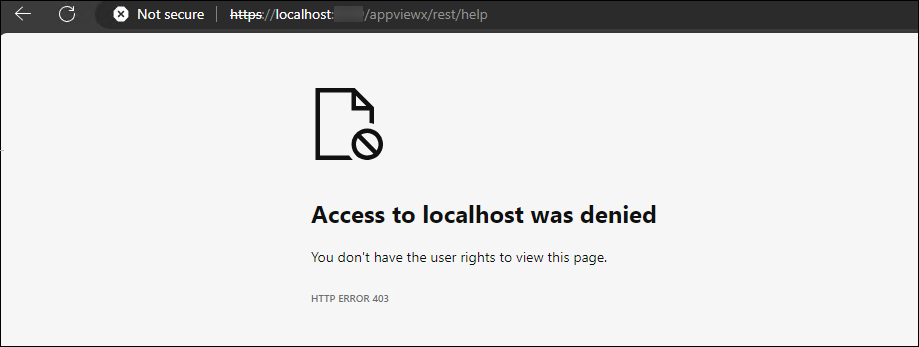
Access to local host was denied

To resolve the Access Denied error during installation verification,
  • When choosing the client certificate for authentication, and attempting to reach the https://localhost:8999/appviewx/rest/help URL in the browser, import the client certificate in the browser's personal store and then try again.

Empty response received from windows gateway
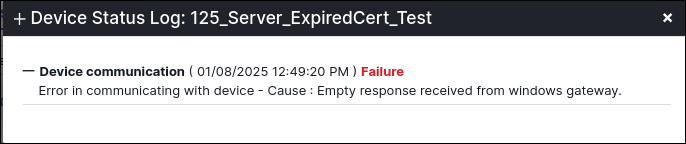
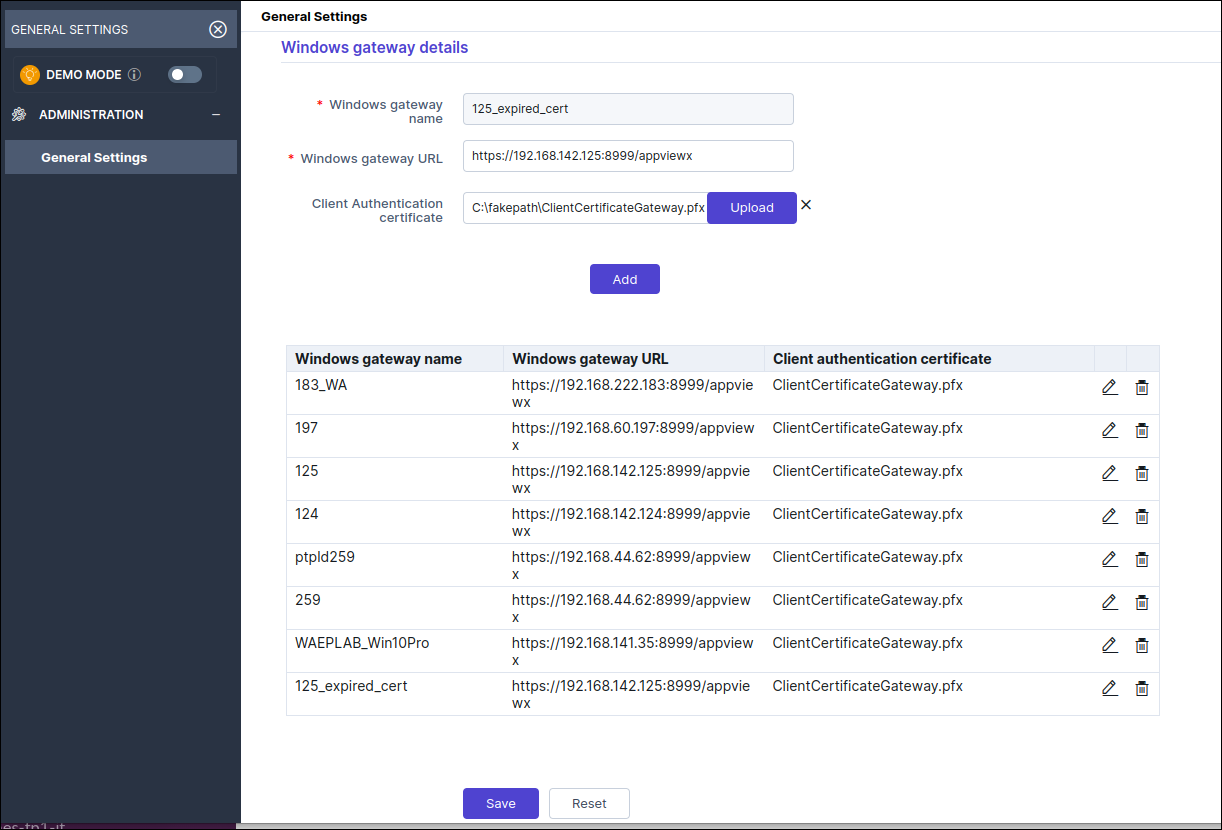
Potential Causes The above error messages can occur when the certificate uploaded while adding the Windows Gateway is different from the Client Certificate in the Windows Gateway Installation Package or if the certificate has expired.
Fix Ensure the following:
  • The same certificate used during installation has been added while configuring the Windows Gateway.
  • The latest version of the Client Certificate issued from AppViewX is used with AppViewX Windows Gateway.
Steps To update certificate in AVX UI:
  1. Go to general settings under CERT+.
  2. Select edit option for the corresponding gateway agent and update the latest certificate under windows gateway details.
  3. Click Add and then Save.

Server returned HTTP response code:403

Potential Causes The above error messages can occur when the certificate uploaded while adding the Windows Gateway is different from the Client Certificate in the Windows Gateway Installation Package or if the certificate has expired.
Fix Ensure the following:
  • The same certificate used during installation has been added while configuring the Windows Gateway.
  • The latest version of the Client Certificate issued from AppViewX is used with AppViewX Windows Gateway.
Steps To update certificate in AVX UI:
  1. Go to general settings under CERT+.
  2. Select edit option for the corresponding gateway agent and update the latest certificate under windows gateway details.
  3. Click Add and then Save.

Network Path not Found” during Certificate Push/Bind

Potential Causes This error can occur while attempting to perform a Push or Bind operation to a target server.

Port 445 Blocked: One of the most common scenarios under which this scenario occurs is when the port 445 is blocked in the target machine. This port is used for transferring any file from the Windows Gateway machine to the target server using SMB Protocol.

Troubleshooting Steps To update certificate in AVX UI:
  1. Check the Firewall Settings in the Windows Gateway machine and the target machine and check if any firewall rule is blocking the port 445.
  2. Allow or open the TCP port 445.
  3. After allowing/opening the port, check the communication from the windows gateway machine to the target machine using Test-NetConnection command.
    Test-NetConnection -ComputerName <hostname> -Port <port>
    Sample expected result:
    ComputerName : computername
    RemoteAddress : 93.184.216.34
    RemotePort : 80
    InterfaceAlias : Ethernet
    SourceAddress : 192.168.1.10
    PingSucceeded : True
    TcpTestSucceeded : True
  4. Retry the push or bind operation from the AppViewX GUI or Gateway.

RPC Server is unavailable

Potential Causes This error can occur while attempting to onboard a CA or initiate a CA Discovery. Some of the most common cases under which this error can occur are as follows:

CA Unreachable from Windows Gateway Machine: If Certificate Authority (CA) discovery fails, it typically indicates that the agent or system cannot locate or communicate with the CA.

Verification To verify if the CA is reachable:
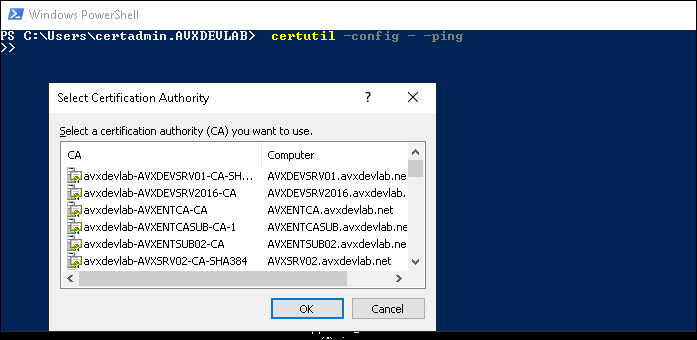
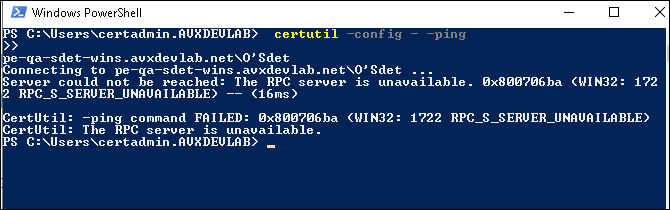
  1. Execute the below command on the windows agent machine. It lists all CAs in the domain.
    certutil -config - -ping
    Expected Output:
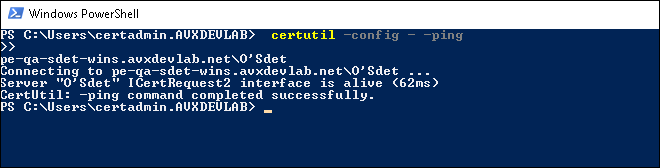
  2. Select the required CA to check the connectivity.
    Expected Output if CA is reachable from the Gateway Machine
    Expected Output if CA is not reachable from the Gateway Machine
Troubleshooting Steps Checking the Certificate Authority Service: If the RPC Server Unavailable error persists, try the steps below.
  1. Navigate to the machine where the CA is configured.
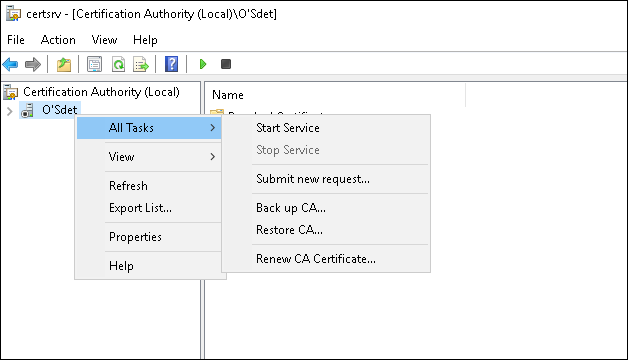
  2. Open Run (Win + R) and type certsrv.msc, then hit the Enter key.
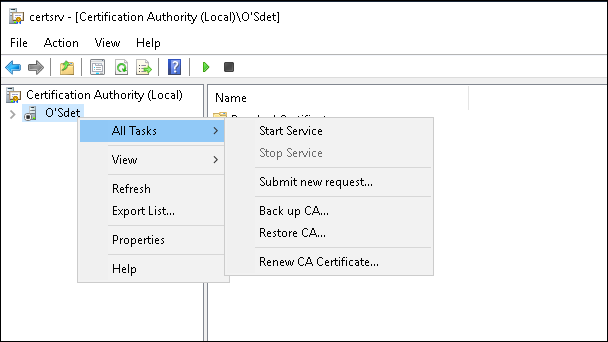
  3. In the Certificate Authority window, right-click on the CA name.
  4. Select All Tasks and then click Start Service.
  5. Return to the agent machine and rerun the certutil command to ensure the CA is now reachable.
    certutil -config - -ping

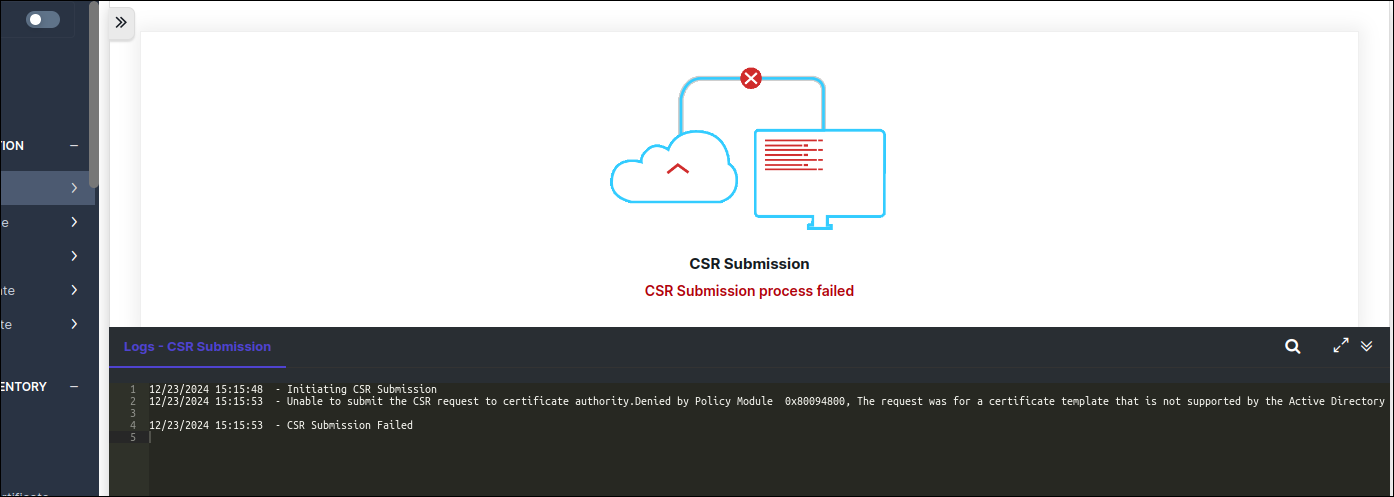
Denied by policy module

Potential Causes This error can occur during Certificate Enrollment, if the template used during enrolment is not provided the required permissions for the requesting user or service account.
Troubleshooting Steps
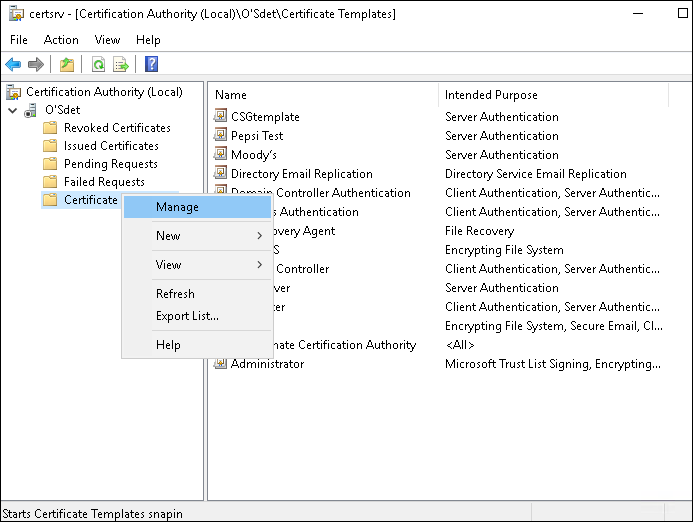
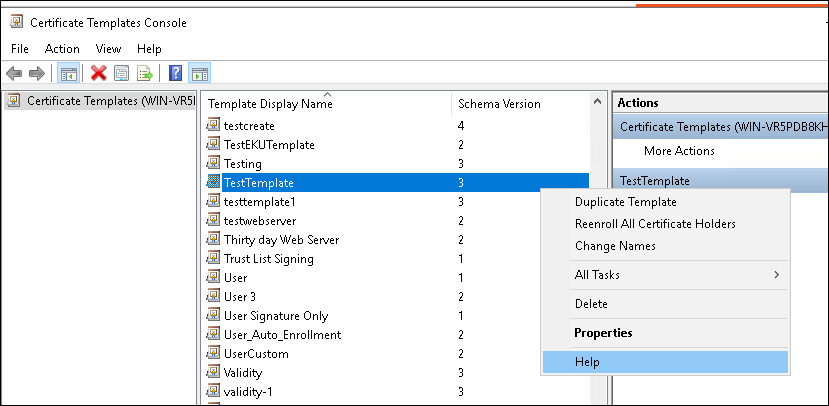
  1. Access Certificate Templates: Go to the Certificate Authority (CA), right-click on the Certificate Templates folder and select Manage.
  2. Locate the Template: From the list of available templates, identify the specific template associated with the failed enrollment. Now, right-click on the template and select Properties.
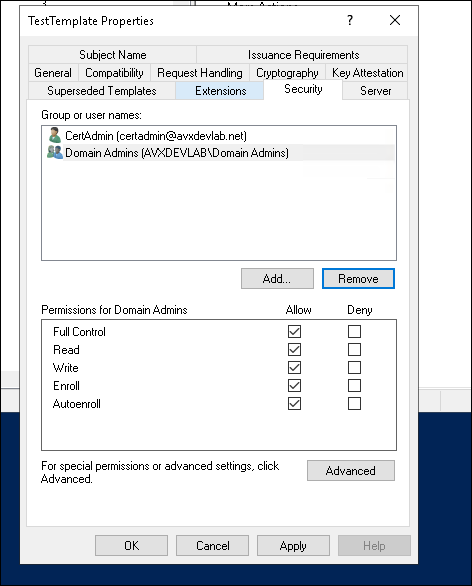
  3. Verify Security Settings: Go to the Security tab, ensure that the user or group has the appropriate privileges for enrollment.
  4. Restart the CA Service: First stop the service and then restart the CA service to apply the changes.
  5. Retry Enrollment: After permissions have been updated, retry the certificate enrollment process.

Curl test from port 8999 Fails

Description The installation completed successfully, and the service is running; however, the cURL test on port 8999 is still failing, and the AppViewX Help site remains unreachable.
Potential Causes This problem occurs when certificate binding fails during installation.
Troubleshooting Steps To verify if the certificate installation was successful, please review the installation log file located in the directory where the installer executable file was extracted.

Denied by Policy Module error during Certificate Enroll

Description When enrolling a certificate, the Denied By Policy Module error occurs if the Certificate Authority (CA) rejects the request due to policy validation failures.
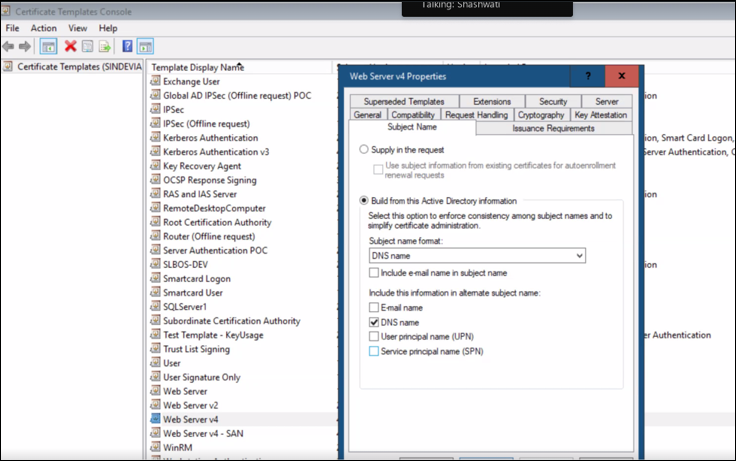
Potential Causes If the Build from Active Directory option is selected in the template, the CA attempts to verify the request's source. When using a service account, Active Directory (AD) tries to validate the associated properties, but certain required attributes may be missing. As a result, MSCA denies the request.
Troubleshooting Steps To resolve this issue:
  • It is recommended to select Subject Name = Supply in CSR instead of Build from Active Directory when configuring the certificate template.
    If the error occurs/persists despite selecting Supply in CSR:
    1. In the Certification Authority Desktop app, for the the required CA instance, go to Failed Requests.
    2. For more details on what triggered the error, for the corresponding Request ID, read the Request Status Code and the Request Disposition Message.

      You can sort the Request ID column/view the Request Submission Date to identify the correct request ID.

    3. Execute resolution steps according to the status code and disposition message.
  • Ensure that the CSR parameters populated for certificate enrollment are in accordance with the template configuration requirement defined by Microsoft CA.
    To view the template configuration:
    1. In the Certification Authority Desktop app, for the the required CA instance, go to Failed Requests.
    2. For the corresponding Request ID, see the Certificate Template mentioned.
    3. For the the CA instance, right click Certificate Templates.
    4. From the menu displayed, select Manage.

      A list of certificate templates is displayed.

    5. From the list of templates, right click the certificate template used for this enrollment request and select Properties.
    6. In the properties dialog box, go through all the template tabs to view the requirement configured for each parameter of the template.