
Docker-based Installation of the Config Scan Agent
Prerequisites
- Linux
- Docker or Podman
- Linux command-line utilities (used for scanning libraries): ldd, lsof, ss, strings, which
- --privileged: Runs the container with extended privileges, allowing it to identify and scan host processes.
- --cap-add CAP_NET_RAW: Grants the container raw socket capabilities, required for port probing and TLS/SSL handshake operations.
- --network host: Shares the host’s network stack with the container, enabling direct IP and port scanning.
- --pid=host: Shares the host’s process ID namespace, allowing the container to access and identify running host processes.
- sudo privilege: Required on the host to access application metadata and perform privileged operations from within the container.
- Read access, for input files
- Execute access, for extracting service metadata
- Write access, for the output folder in which the scan reports must be saved
Installation Instructions
-
Login and download the latest Docker variant of the AppViewX Config Scan
Agent from the release portal (link given below), in your Ubuntu or RHEL
machine, as required.
https://release.appviewx.com/downLoadArtifact?id=1818Note: This agent can be used to perform configuration scan, certificate scan, and network scan.
- Save the downloaded folder in the machines where the config scan needs to be performed.
-
To verify that the tar file has not been tampered with and is secure for
use.
-
From the downloaded folder, extract the config scan docker agent and script
from the tar.
tar -xvf config-scan-agent-docker-v2.0.0-2026.1.tar.gz -
To load the docker image, execute one of the following
commands:
ORsudo docker load -i config-scan-docker-agent.tar.gzpodman load -i config-scan-docker-agent.tar.gzThe docker image is loaded onto the system docker. -
To verify if a docker image, with the name, exists in the system, execute
one of the following commands:
ORsudo docker imagespodman images -
To view the available options, execute the following script:
In the above script:./run-config-scan-agent.sh --help --podman --non-sudo- if Docker is used, delete the
--podmanargument - Use the
--non-sudoargument if Docker has to be run as a non-sudo user (by default, the Docker runs with sudo privilege)
- if Docker is used, delete the
-
Create the configuration file.
For Docker
For podman./run-config-scan-agent.sh --create-config./run-config-scan-agent.sh --create-config --podman --non-sudoFor additional options that you can use with the
./run-config-scan-agentcommand, click here.Executing this command will display a series of prompts to set up the configuration scan (as shown in the image below); your responses to these prompts will be entered in the configuration file.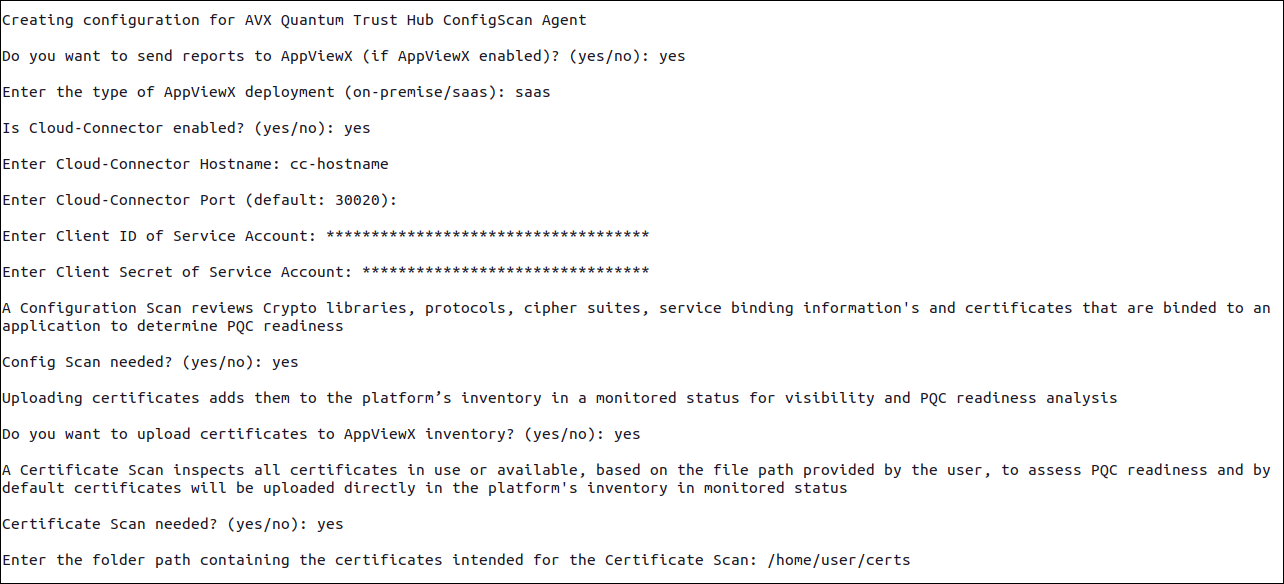
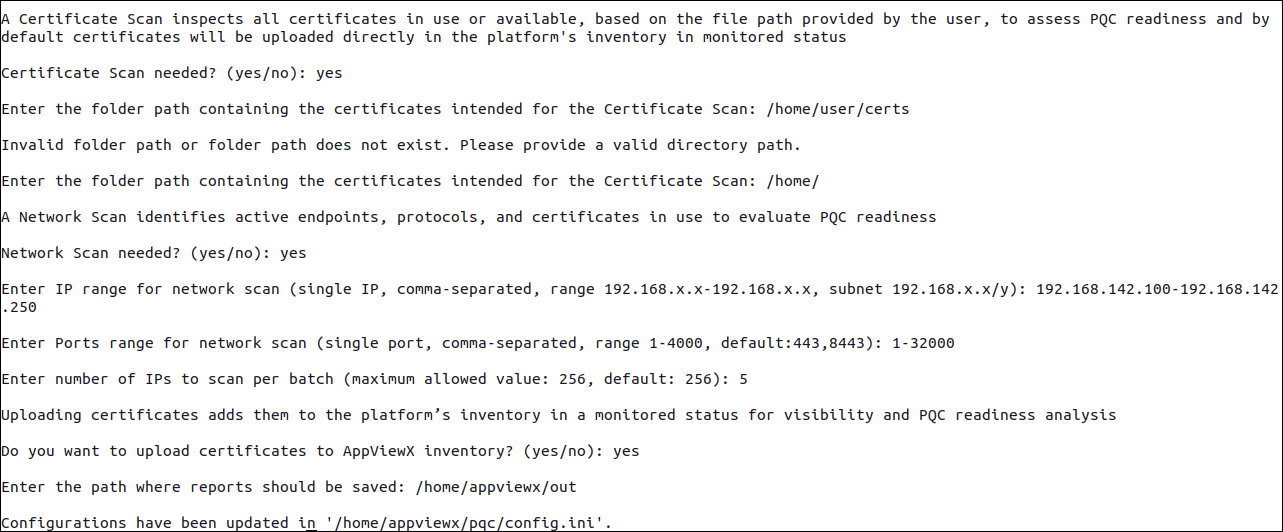
-
Reply to the configuration prompts displayed.
The prompts and their recommended responses are explained in detail here.Important: You will also be required to enter your service account details as part of the configuration file set up. Ensure that the service account is created and you have the required details. For instructions, see Configuring a Service Account to Send Reports to AppViewX.The prompt responses will be used to create the following two files in the working directory of the host machine: config.ini (configuration file) and secret.key (key file that will be used to decrypt the configuration file).
-
To view the existing configuration, execute the following command:
For Docker
For podman./run-config-scan-agent.sh --view-config <absolute_config_file_path> --secret-key <absolute_secret_key_path>./run-config-scan-agent.sh --view-config <absolute_config_file_path> --secret-key <absolute_secret_key_path> --podman --non-sudoBy default, contents of the configuration file in the working directory are displayed.To view the contents of a configuration file saved in a custom location, replace the
<absolute_config_file_path>argument with the required location.If the secret key is stored in a custom location, replace the
<absolute_secret_key_path>argument with the required location. -
To perform the config scan, execute the following command:
For Docker
For podman./run-config-scan-agent.sh --config <absolute_config_file_path> --secret-key <absolute_secret_key_path>./run-config-scan-agent.sh --config <absolute_config_file_path> --secret-key <absolute_secret_key_path> --podman --non-sudoBy default, the configuration file and the secret key saved in the working directory are used for executing the configuration scanIf a configuration file saved in a custom location has to be used for the scan, replace the
<absolute_config_file_path>argument with the required location.If a secret key saved in a custom location has to be used for the scan, replace the
After the scan is completed:<absolute_secret_key_path>argument with the required location.- Output reports (JSON/CSV/CycloneDX CBOM) will be saved in the output path provided in the configuration file.
- If enabled, the output reports will be sent to AppViewX and the corresponding data will be displayed in the List of Scans inventory in the Quantum Trust Hub.
- The configuration scan results will be displayed on the Configuration Scan Dashboard in the Quantum Trust Hub.
- Depending on the response to the corresponding prompt, certificates discovered as part of the scan will be uploaded to the AppViewX certificate inventory, in the Monitored state.
- Logs will be generated and saved in the working directory, by
default.
To save the logs in a custom log directory use the
<log_directory>argument to specify the required location.
Additional Instructions
- To update the contents of the configuration file:
- Execute the following
command:
./run-config-scan-agent.sh --update-config <abs_config_file_path> --secret-key <abs_secret_key_path> --podman --non-sudoThe configuration prompts are displayed.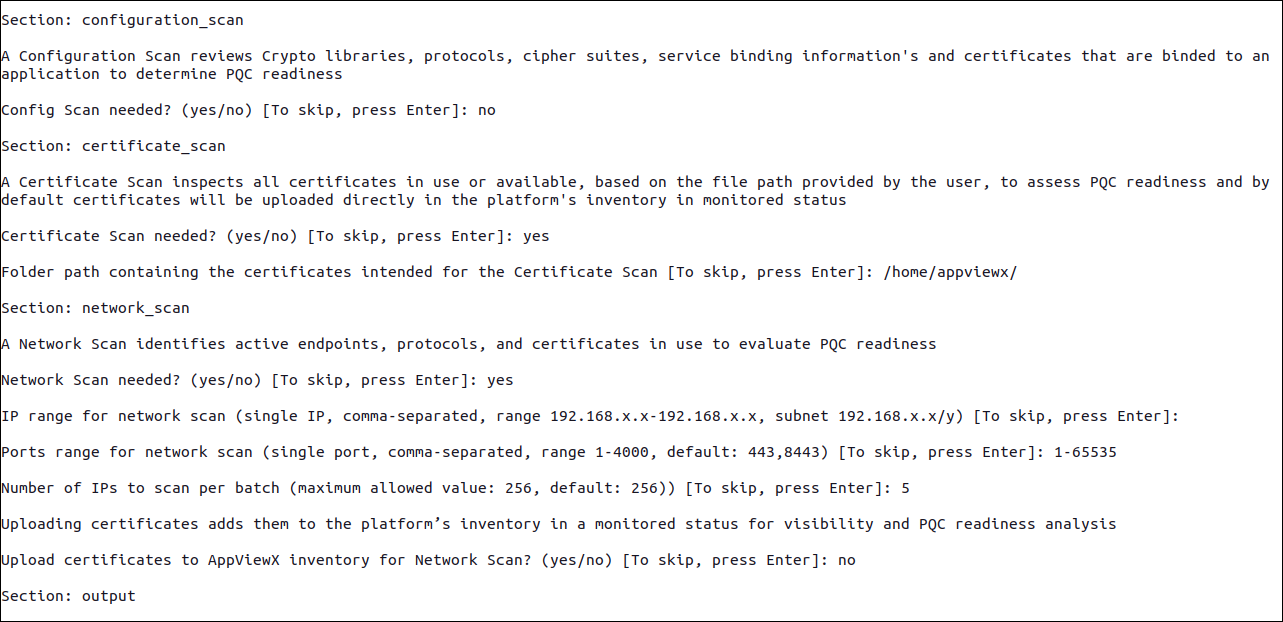
- Update the prompt responses as required.
All updated values will overwrite the existing values
- Execute the following
command:
- To update only the service account details, execute the following command
and update the prompt
responses:
./run-config-scan-agent.sh --update-service-acc <abs_config_file_path> --secret-key <abs_secret_key_path> --podman --non-sudo - To set log levels, log directory, output directory use the options provided
in the
--helpoption.For example:-
--log-level INFO ['DEBUG', 'INFO', 'WARNING', 'ERROR', 'CRITICAL'] -
--log-dir /path/to/log/dir -
--output /path/to/output/dir
-
- To rotate the secret key (by default generated every time a new
configuration file is generated) used for encryption and decryption of the
service account credentials and the configuration file, execute the
following
command:
./run-config-scan-agent.sh --rotate-key <abs_secret_key_path> --config <abs_config_file_path>
