
Managing the Server Certificate Inventory
Server certificate inventory is where all the server certificates with the EKU (Extended Key Usage) Server and Client authentication will be present. The certificates in this inventory will be shown to the user only based on role-based access control on the certificate group. From this inventory, the user can select one or many certificates and perform bulk certificate renewal, bulk certificates CA migration, search and filter certificates, export certificates, download certificates, delete certificates, and so on.
On the Certificate Inventory > Server certificate page, all the server certificates are listed. You can perform the following actions:
| Options | Description |
|---|---|
| Groups | Expanding this dropdown displays the certificate groups
and the number of certificates in each group. Selecting a group will
display the filtered list of certificates.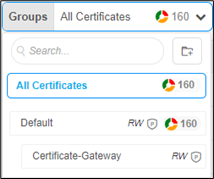 |
| Filter Summary | Displays the status of certificates according to expiry,
compliance, validity, and so on. |
| Advanced Search | Allows you to perform a quick search for specific data. Clicking on the search bar dropdown opens the Advanced Search window. |
| Actions | Displays the list of actions you can perform on the
certificates The following certificate actions are supported: |
| Columns | Allows you to select the columns to be displayed on the
Server Certificate inventory
page Note: In the current implementation, the
Certificate Type column is populated for only selected
CAs. To populate it for the SwissSign CA, see the instructions here. |
| Toggle | Allows you to toggle between the following display
options for the Server Certificate inventory:
|
The list of actions you can perform on the certificates are:
- Export Certificates - To export the server certificate.
- Download Certificates - To download a certificate from an inventory to a file (the private key, root, and intermediate certificates can be included in the download.
- Delete - To delete the server certificate.
- Change Status - To change the server certificate status.
- Assign Group - To assign a group to the certificate.
- Unassign Group - To unassign a group from the certificate.
- Add/Modify Comments - To add/modify comments to the certificate.
- Certificate Attributes - To update the certificate attributes.
- Bulk Update Attributes Value - To update the certificate attributes for certificates.
- Renew Certificates - To renew certificates before expiry.
- Revoke Certificates - To revoke certificates
- CA Switch - Switching to another Certificate Authority (CA) for your SSL needs.
- Revocation Check - To check the revocation status of the certificate.
Populating the Certificate Type Column for the SwissSign CA
- Run the Certificate Authority discovery scan for SwissSign CA.
- For the discovered certificates, manually modify the status to
Managed or Monitored.
The certificate type for each SwissSign certificate is added to the column.
The data is additionally leveraged to generate reports for SwissSign CA, categorized by certificate type.
What's Next
- If you want to Auto Renew the Discovered Certificate.
- If you want to Auto Regenerate the Discovered Certificate.
